
You can produce polished 2D and 3D animation without paying for a license, as long as you pick a tool that matches your style and project size. This guide compares six options — Blender, Krita, OpenToonz, Synfig Studio, Pencil2D, and TupiTube — covering what each does well, who it suits, and where it falls short.
How we put this list together: we went through each tool’s official website, pricing page, and documentation, and checked what the free plan actually includes and where the paid tiers begin. Prices and plan limits change often, so confirm the details on the vendor’s site before you commit.
My take
The research made one thing clear: the free animation software available today is genuinely professional. Blender is used in film and studio work, and the 2D tools on this list are capable of finished, publishable animation.
My opinion is that the most important choice is between 2D and 3D, and it should be driven by the look you want, not by which tool sounds most impressive. If you love hand-drawn animation, Krita or OpenToonz will serve you better than learning Blender’s complexity. If you want camera movement, lighting, and depth, Blender is the obvious choice.
I would also suggest that beginners start smaller than they think. Pencil2D and TupiTube are limited, but their simplicity keeps the focus on timing and spacing, which are the fundamentals that matter in any tool. Plenty of people stall by opening Blender on day one, so start simple and move up once you know what you need.
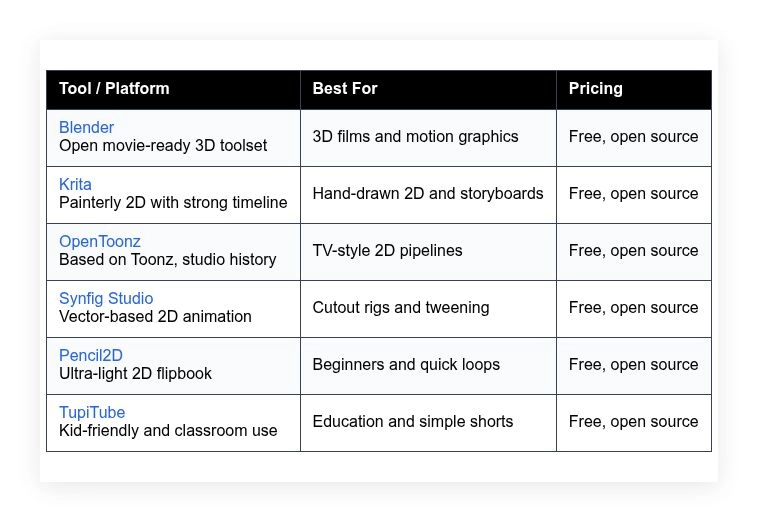
Comparison of 6 best free animation software in 2026 with pricing and recommended use cases
Below is a closer look at each tool, followed by our overall recommendations.
What is a free animation software?
Free animation software is a creative application that lets you produce 2D or 3D animated videos without a paid license. Its main job is to draw, rig, animate, and render motion.
Free tools matter because they remove cost walls, which means you can practice daily and ship more work.
Think of it like this: a 15‑second clip on social might bring 10 times more watch time than a still image. With free tools, you can test five versions in a week instead of paying for one.
At its core, this category serves artists, educators, marketers, and indie teams who draw or rig assets, set keyframes on a timeline, import audio, and export video for web or film.
People often pair animation apps with drawing tablets, sound editors, video cutters, and asset libraries. Some also add screen recording or motion tracking for mixed workflows.
Not all free tools handle the same jobs well, so picking carefully will save you time and rework later.
How to choose the best free animation software
Choosing can feel messy. There are many apps, each with a different workflow, and you only find the cracks after a late‑night render fails.
We wrote this to help you match the right tool to your project size, skill level, and deadlines.
Here are some questions you should ask when looking for a tool:
- How generous is the free tier, and are exports watermarked or limited?
- Can you complete core tasks fast, like keyframing, onion skinning, or rigging?
- Will it scale to longer timelines, larger scenes, or higher frame rates?
- If you need paid add‑ons later, what is the likely monthly or one‑time cost?
- Does it include the features you need, like bones, IK, or vector layers?
- What analytics or render logs help you debug crashes or failed frames?
- How hard is it to move projects out if you switch later?
- Is it stable on your OS, and how active is bug fixing?
- Does it support tablets, OpenGL/Vulkan, and the codecs you use?
That is a lot to weigh, but the picks below cover these with blunt pros and cons.
6 best free animation software in 2026
Here are our top picks for the best free animation software:
- Blender
- Krita
- OpenToonz
- Synfig Studio
- Pencil2D
- TupiTube
1. Blender
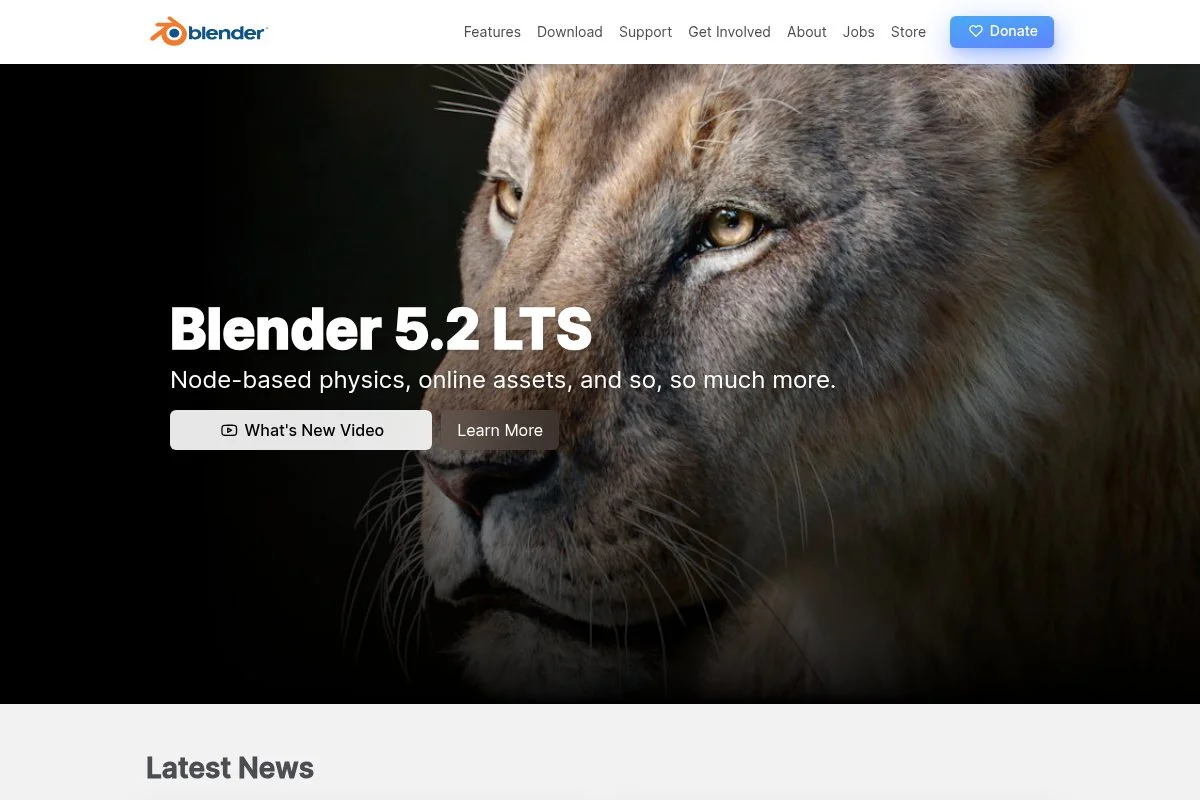
Blender is an all‑in‑one 3D creation suite used for films, shorts, and motion graphics. It is community driven with a strong foundation and years of production use in open movies and indie studios.
You start free. The first launch opens a clean workspace with tabs for Layout, Modeling, Sculpting, and Animation. The Dope Sheet, Graph Editor, and Grease Pencil handle 2D‑in‑3D shots.
Recent updates have sharpened viewport performance and improved the real‑time render pipeline. Geometry Nodes keeps getting better, which opens smart scene control and reusable motion setups.
Power users gain rigging with constraints and IK, GPU‑accelerated Cycles rendering, and line art tools for NPR looks. The video sequencer and compositor help finish shots without leaving the app.
We also like the learning path. Tutorials are everywhere, and the manual is clear. The add‑on ecosystem covers gaps without forcing you into a paid plan.
How Blender works and key features
Blender centers on a unified interface with customizable workspaces. The timeline, Dope Sheet, and Graph Editor control keys, while the N‑panel gives quick access to transforms and modifiers.
Templates and startup files help standardize projects. You can script tools with Python, link assets across files, and use Geometry Nodes for procedural motion.
Analytics come as render logs and performance stats. You can profile the viewport, test GPU vs CPU, and track memory use during high‑poly shots.
Automation flows through modifiers, drivers, and batch rendering. The compositor, video sequencer, and text editor extend the pipeline without external apps.
Support comes from extensive docs, a large community forum, and many high‑quality video courses.
Overall, it is friendly enough for beginners and deep enough for studio rigs and complex scenes.
Who Blender is for
Best for 3D animators, motion designers, game artists, educators, indie filmmakers, and YouTubers needing 3D titles or characters. It shines for short films, product spins, NPR line art with Grease Pencil, and camera moves. If you focus only on frame‑by‑frame 2D, a lighter tool may be faster. Basic skills help, but beginners can learn with tutorials.
Blender pricing
Blender uses a free, open source model. There are no feature gates by price, and no watermark on exports. You can support the project via the Blender Development Fund.
- Blender: $0/month, unlimited projects, includes full 3D suite, Grease Pencil, compositor, and video sequencer
- Development Fund (optional): Donation, supports ongoing features and bug fixes
Value is hard to beat since everything is included. Many paid suites split these features into multiple apps. If you prefer store builds, some platforms sell packaged versions, but the core is free. Annual donations are optional and do not change features.
Blender pros and cons
- Pros:
- Full 3D pipeline with Grease Pencil for 2D‑in‑3D
- Powerful rigging, constraints, and procedural tools
- No watermarks or locked exports, great value
- Large community and learning resources
- Cons:
- Hotkey‑heavy learning curve
- Complex scenes need strong hardware
- Video sequencer is basic for larger edits
If you want one app to grow into, this is our top pick. If you only need light 2D flips, a simpler tool may be quicker.
Blender reviews
Blender has strong word‑of‑mouth on creator forums and YouTube. Major review sites list many positive experiences, though scores and counts vary by platform. If you prefer third‑party takes, you will find plenty of in‑depth video reviews.
2. Krita
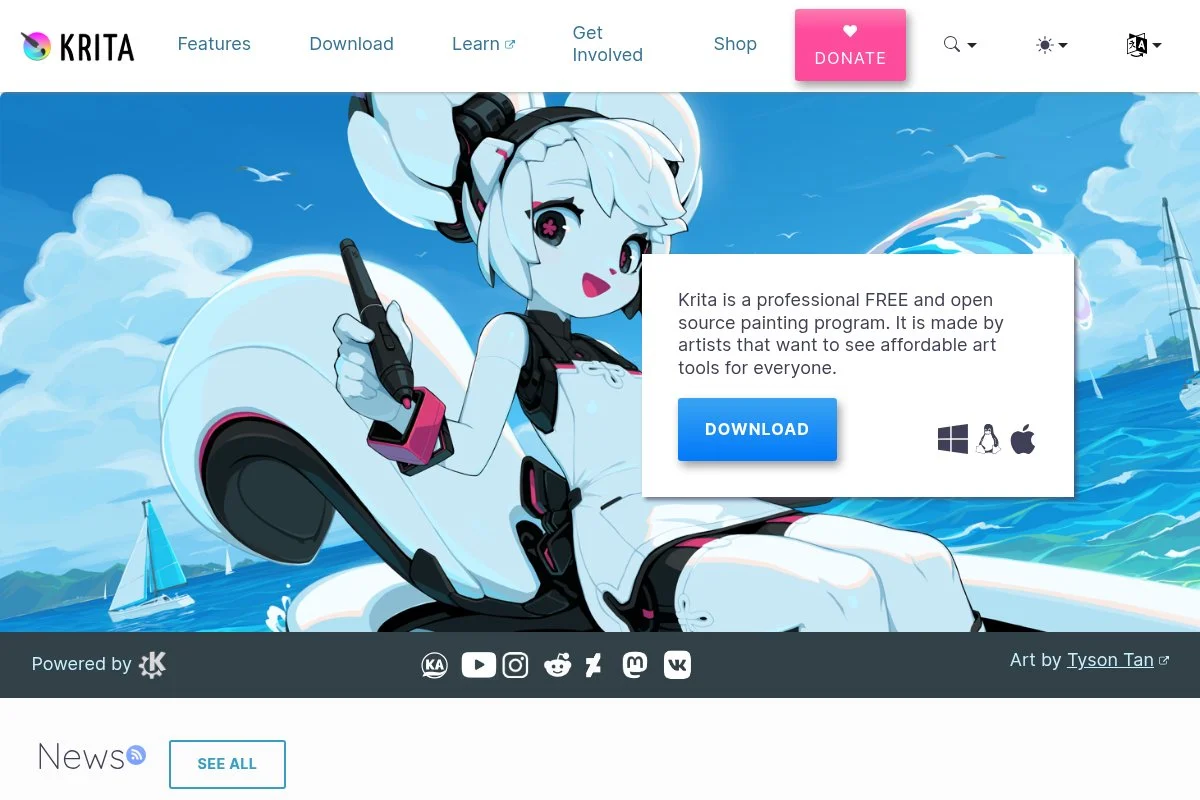
Krita is a free digital painting app with a capable frame‑by‑frame animation timeline. It is built by a long‑running open source team known for painterly brushes and tablet support.
You start free and land in a familiar canvas with dockers for layers, animation, and brushes. Onion skinning, audio scrubbing, and export to video or image sequences are easy to grasp.
Recent releases improved audio handling, transform masks, and brush performance. The animation workflow feels smoother than it did a few years ago, which helps with short loops and animatics.
For advanced users, Krita offers brush engines, HDR painting on supported hardware, and Python scripting. You also get storyboarding options using the timeline and tagged layers.
Krita is the pick for organic lines and fast roughs. It is great for style frames and character motion studies before moving shots to a compositor.
The interface respects artists. It stays out of the way and makes tablet drawing feel natural, even on entry‑level hardware.
How Krita works and key features
Krita uses a canvas‑first interface. Dockers let you pin animation, brushes, and layers around your workspace. The timeline supports keyframes, exposure sheets, and onion skins.
You can start with templates for common sizes. Brushes are highly customizable, and you can import brush packs from the community. Python scripts automate tasks like exports and layer cleanup.
There is no built‑in analytics, but you get reliable render logs on export. Automation is simple through batch scripts and presets for image sequences.
Beyond animation, Krita excels at concept art, comics, and matte painting. Support comes through documentation, forums, and active contributors who share tutorials.
Overall, it is beginner friendly for 2D animation and strong for artists who paint first and animate second.
Who Krita is for
Best for illustrators, storyboard artists, 2D animators, educators, and comic creators. It shines for animatics, hand‑drawn loops, and painterly shorts. If you need vector rigs or cutout animation, consider Synfig or OpenToonz. It is friendly for beginners with a tablet.
Krita pricing
Krita is free and open source with full features. Optional store versions are sold on some platforms to support development, but the feature set remains the same.
- Krita: $0/month, unlimited projects, includes animation timeline, audio support, and full brush engines
- Store builds (optional): One‑time purchase, convenient updates, supports the project
The value is excellent if you want drawing‑first animation. You pay nothing to export final videos. Donations and store purchases are optional and do not affect features.
Krita pros and cons
- Pros:
- Natural brushes with solid tablet support
- Simple frame‑by‑frame timeline and onion skins
- No watermarks, free forever
- Great for animatics and painterly styles
- Cons:
- No built‑in vector rigging
- Audio tools are basic
- Complex scene management can get heavy
Choose Krita if your art style leads the process. If you need studio‑style 2D pipelines, OpenToonz might fit better.
Krita reviews
Krita earns steady praise from artists on forums and video channels. Formal ratings on major review sites exist but vary by source. Most comments highlight its brushes and no‑cost animation tools.
3. OpenToonz
OpenToonz is a free 2D animation system based on Toonz, which has a long studio history. It aims at production workflows with Xsheet timelines and node‑based effects.
Setup is free. The interface looks like traditional animation software, with rooms for timeline, cleanup, and compositing. Scanned drawings, vector tools, and raster brushes sit side by side.
Recent builds improved stability, effects, and drawing feel. The community has added helpful docs and templates for scene setup and TV‑style production steps.
Higher‑end features include scanned line cleanup, motion blur, particle effects, and a deep set of compositing nodes. It can anchor a full 2D pipeline without paid add‑ons.
We respect OpenToonz for its production mindset. Once you learn the Xsheet, batch tasks and episode workflows click into place.
Training resources have improved, which lowers the time to first finished shot for new users.
How OpenToonz works and key features
OpenToonz relies on rooms, which are workspace presets for tasks like cleanup, ink‑paint, and FX. The Xsheet grid controls timing, while the Timeline view helps time by frames.
You can mix vector and raster levels, import scans, and set levels for ink and paint. Effects are applied as nodes, with previews to fine‑tune looks.
There is no marketing dashboard, but render logs and output settings are thorough. Automation comes from batch processing and command‑line renders for episodes.
It includes scanning tools, palette management, and camera moves. Support is community driven with documentation, forums, and tutorial series.
For teams that like structured workflows, it delivers a studio feel without license fees.
Who OpenToonz is for
Best for 2D animators, small studios, students in production courses, and teams moving from paper to digital. It shines at TV‑style episodes, ink‑paint pipelines, and node FX. If you prefer a simple flipbook, Pencil2D is quicker. Some learning is required, but it pays off.
OpenToonz pricing
OpenToonz is free and open source with full features available to everyone. No watermarks and no locked exports.
- OpenToonz: $0/month, unlimited projects, includes Xsheet timeline, vector and raster tools, node FX, and scanning tools
Compared to paid 2D suites, the value is strong, especially for structured teams. Some plugins and tools are community built, which keeps costs low. No paid tiers to manage.
OpenToonz pros and cons
- Pros:
- Production‑ready Xsheet and node FX
- Mix raster, vector, and scanned art
- Great value for studio workflows
- Cons:
- Interface feels dense for newcomers
- Fewer one‑click presets than casual tools
- Docs still improving in some areas
Pick OpenToonz if you want a structured 2D pipeline. If you sketch casual loops, Krita or Pencil2D might be smoother.
OpenToonz reviews
OpenToonz has an active community and tutorial base. Major review platforms show limited formal ratings, so expect mixed coverage. Most user feedback points to strong production features with a learning curve.
4. Synfig Studio
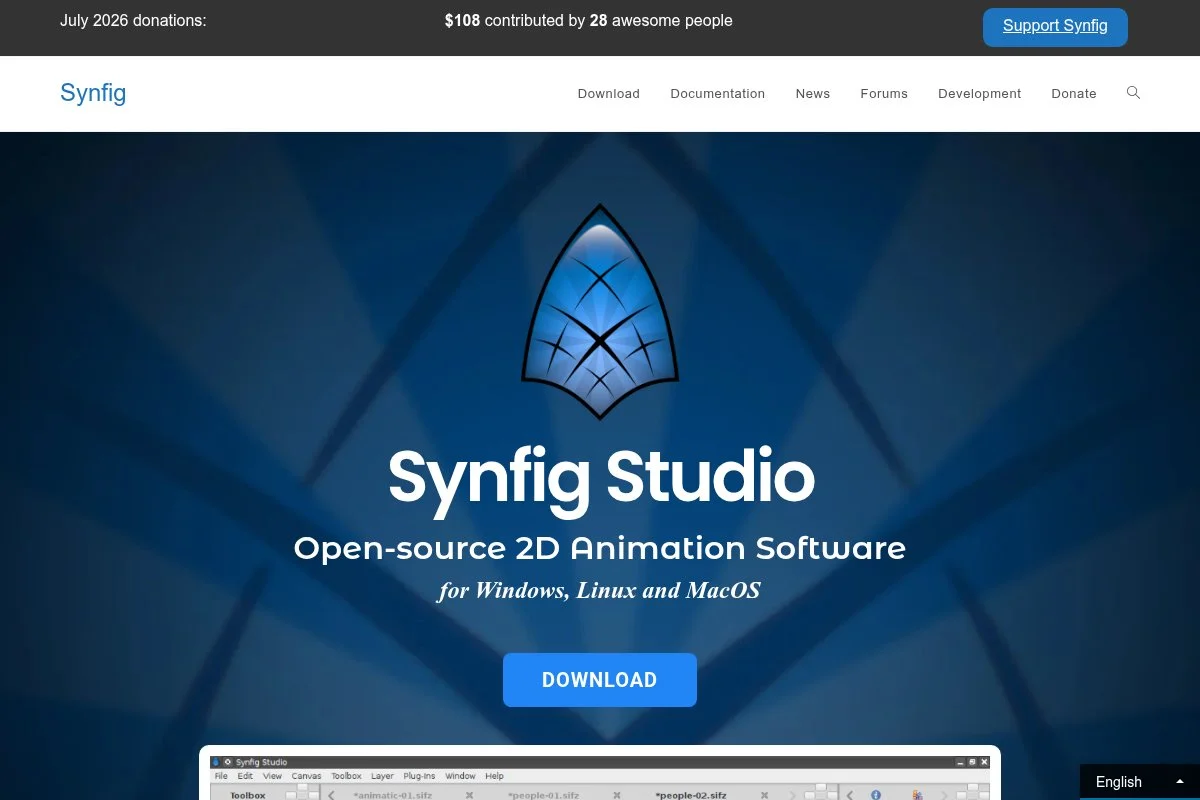
Synfig Studio focuses on vector‑based 2D animation with powerful tweening. It is an open source project known for cutout rigs and layer controls that reduce frame‑by‑frame work.
Getting started is free. The interface uses panels for layers, parameters, and keyframes. You can build rigs with bones and link shapes for quick motion.
Recent updates improved stability, compatibility, and usability. The team continues to refine bones and deformation tools, which helps character rigs feel natural.
Advanced users can tap expressions, filters, and layer effects. Synfig’s vector base makes edits efficient when you need to adjust timing or redesign parts.
We like Synfig for explainer videos and looped social posts. You can hit a balanced look without drawing every frame.
Documentation and community packs help new users build their first rigs without guesswork.
How Synfig Studio works and key features
Synfig uses a timeline with keyframes and waypoints. The canvas hosts vector shapes, images, and deformation layers. Bones and constraints support character rigs with reusable parts.
You can start from templates or import SVG art. Expressions link parameters, while filters and blur effects add polish. Image sequences and PNGs export cleanly for editors.
There is no deep analytics, but render logs help trace issues. Automation is strong thanks to tweening and reusable rigs, which speed up explainers.
Beyond animation, Synfig can do motion graphics with text, shapes, and masks. Support is community based with guides, forums, and tutorial videos.
Overall, it is a practical pick for vector animation and teams that value reusability.
Who Synfig Studio is for
Best for explainer creators, educators, marketers, indie 2D teams, and hobbyists who prefer vector rigs. It shines for cutout character work and motion graphics with consistent styles. If you love hand‑drawn frames, Krita is better. It is approachable with some patience.
Synfig Studio pricing
Synfig Studio is free and open source. Training materials and community resources are available without a subscription.
- Synfig Studio: $0/month, unlimited projects, includes vector layers, bones, and tweening
For vector workflows, it is a strong no‑cost choice. Many paid tools charge for similar rig features. No paid exports or watermarks to worry about.
Synfig Studio pros and cons
- Pros:
- Vector‑based animation with tweening
- Bones and constraints for rigs
- Free exports with no watermark
- Cons:
- Interface feels dated in places
- Playback can lag on heavy scenes
- Smaller library of ready rigs
If you value reusable rigs and quick edits, Synfig is a smart pick. If organic drawing is your thing, choose Krita.
Synfig Studio reviews
Formal ratings on G2 or Capterra are limited. Community feedback highlights strong tweening and value, with requests for more polish on the UI.
5. Pencil2D
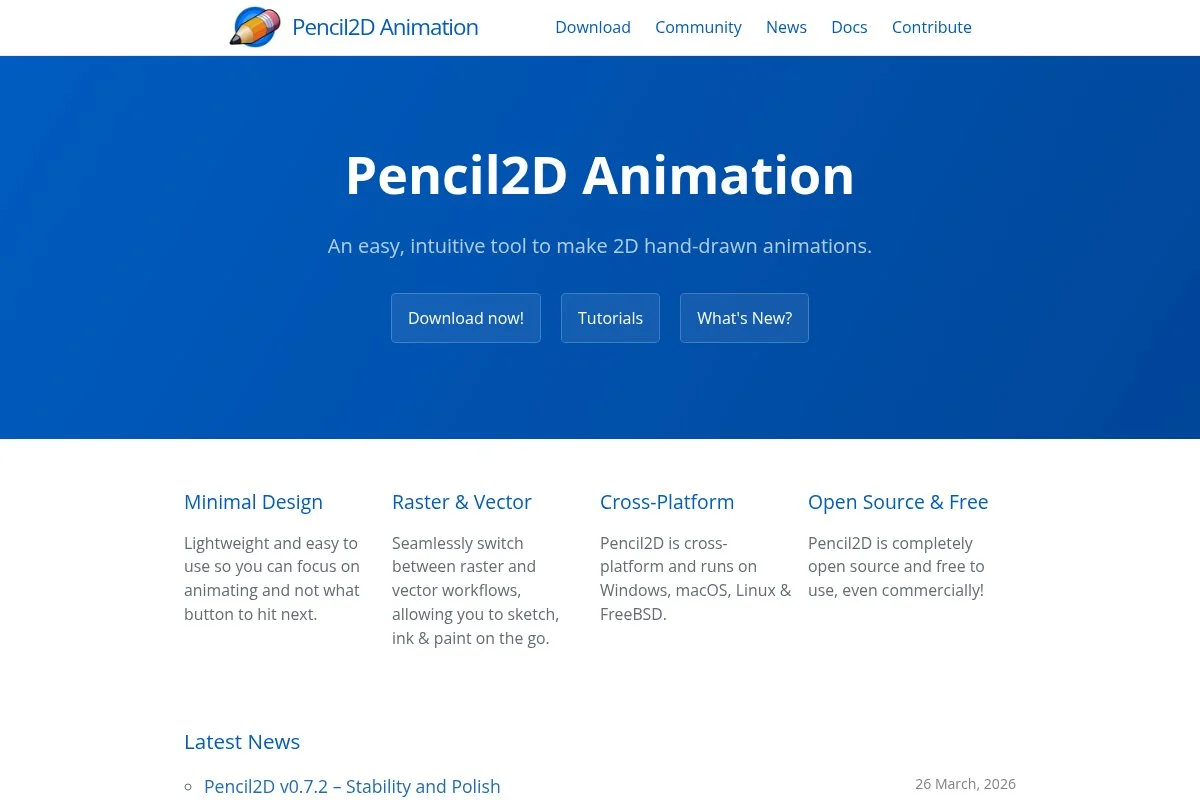
Pencil2D is a lightweight 2D animation app focused on traditional flipbook drawing. It is open source and very easy to learn in an afternoon.
Installation is free, and the interface is minimal. You get bitmap and vector layers, onion skinning, and a clean timeline that keeps you focused on drawing.
Updates have focused on stability and compatibility, which helps on older laptops and in classrooms where specs vary.
There are no advanced rigs or node systems, but that is the point. Pencil2D lets you sketch ideas fast without wrestling with settings.
It works well for quick tests and teaching basics. It is perfect when you want speed over features.
Documentation is short and clear, and the project keeps things simple on purpose.
How Pencil2D works and key features
Pencil2D uses a simple canvas with a timeline and a few panels for layers and tools. Draw on bitmap or vector layers, set keyframes, and preview with onion skinning.
Templates are basic. Customization is limited to brushes, colors, and timing. You export image sequences or video for editing elsewhere.
There is no scripting or analytics. The goal is speed and clarity. That makes it stable and ideal for teaching key principles.
Extra tools are minimal by design. Support comes from a friendly forum and a simple manual. For a quick loop, it is a great start.
Overall, it is very beginner friendly and ideal for sketch animation and short tests.
Who Pencil2D is for
Best for students, hobbyists, educators, and artists who want a flipbook feel. Great for bouncing balls, walk cycles, and short loops. If you need rigs, FX, or compositing, try OpenToonz or Blender. No advanced skills required to start.
Pencil2D pricing
Pencil2D is free and open source with no limits or watermarks. You can support the project with optional donations.
- Pencil2D: $0/month, unlimited projects, includes bitmap and vector layers with onion skinning
It is hard to beat for a clean learning tool. The tradeoff is fewer features, which is fine if you want to focus on drawing fundamentals.
Pencil2D pros and cons
- Pros:
- Very easy to learn and use
- Runs well on modest hardware
- No watermarks or locked exports
- Cons:
- Limited effects and no rigging
- Basic brushes and fewer customization options
- No scripting or automation
If you want a gentle start, choose Pencil2D. If you need more depth later, you can move to Krita or OpenToonz.
Pencil2D reviews
Third‑party review coverage is light. Educators and hobbyists praise its simplicity and low learning curve in forums and video tutorials.
6. TupiTube

TupiTube is a free 2D animation app created with education in mind. It is popular in classrooms thanks to a friendly interface and simple workflows.
Start free and open a project with a few clicks. You get basic drawing tools, timeline controls, and onion skinning that kids can learn quickly.
Recent builds focused on stability and ease of use on common school hardware. The project’s mission keeps the app approachable for new artists.
Advanced features are limited, which helps students focus on timing and shapes. Exports are clean for sharing to social or class projects.
We recommend it for first projects and workshops. It helps learners see progress fast, which builds confidence.
The team supports training in schools, and resources are geared to teaching, not just software tips.
How TupiTube works and key features
TupiTube offers a simple canvas, timeline, and basic vector tools. Students draw, set frames, and preview with onion skinning. The interface feels friendly and uncluttered.
Templates cover common canvas sizes. Customization focuses on colors, brush sizes, and timing. You can export videos or sequences for sharing.
There is no scripting or advanced analytics. The goal is fast learning, so the app stays light. That keeps crashes rare and performance steady on school devices.
Support includes documentation and educator materials. For classrooms, this is a practical pick to teach timing and spacing.
Overall, it is aimed at beginners and works well for foundational lessons.
Who TupiTube is for
Best for teachers, students, youth programs, hobbyists, and community workshops. It shines for basic 2D shorts, simple loops, and group lessons. If you need rigs or FX, use Synfig or OpenToonz. No special technical skill required.
TupiTube pricing
TupiTube is free to download and use. The project focuses on accessibility for schools and beginners.
- TupiTube: $0/month, unlimited projects, includes drawing tools, timeline, onion skinning, and export
The value is strongest for classrooms and first‑time animators. The tradeoff is fewer pro features, which is fine for learning.
TupiTube pros and cons
- Pros:
- Very approachable for kids and classrooms
- Light on hardware and easy to set up
- Free with clean exports
- Cons:
- Limited advanced tools and effects
- Not ideal for long or complex projects
- Smaller community than larger projects
Choose TupiTube for teaching and first steps. If you outgrow it, Krita or Synfig are natural next moves.
TupiTube reviews
Formal ratings on major review platforms are scarce. Educators share positive experiences, citing a gentle learning curve and classroom fit.
What is the best free animation software right now?
Our top picks are Blender, Krita, and OpenToonz. Blender is our overall favorite, Krita is best for painterly 2D and animatics, and OpenToonz suits structured 2D pipelines.
Blender is our top pick.
Value wise, Blender replaces multiple paid apps. Many teams pay monthly for modeling, another fee for rigging, and more for compositing. With Blender, all three happen in one place for free, which keeps budgets steady as projects grow.
Krita is the runner-up. For expressive lines, quick animatics, or hand‑drawn loops, it just works. The timeline is simple, and painting feels natural with tablets. Recent polish on audio and export makes it even more useful.
Krita’s biggest strength is staying true to artists. It combines painting, storyboards, and short animations without extra tools. For 2D-only work with a painting focus, it may be the better first choice.
OpenToonz is our third pick. If your goal is TV‑style 2D with an ink‑paint pipeline, it is hard to match. The Xsheet, node FX, and scan tools bring a studio feel at zero cost. For teams that value structure, it is a strong base.
Choosing between these is tricky. Blender stays on top because it scales from YouTube bumpers to short films and supports 2D‑in‑3D styles.
Frequently Asked Questions
Q: Which free animation software is best for beginners?
For total beginners, we suggest Pencil2D or TupiTube. Both are simple, stable, and great for learning timing. If you want more drawing power, move to Krita next.
Q: Can I make professional work with free tools?
Yes. Blender, Krita, and OpenToonz can deliver studio‑quality results with the right skills. The tradeoff is time spent learning workflows, not money on licenses.
Q: What hardware do I need for smooth animation?
For 2D, almost any recent laptop with 8 GB RAM works. For 3D in Blender, aim for a mid‑range GPU and 16 GB RAM. A drawing tablet helps a lot.
Q: How do I choose between 2D and 3D?
Pick based on your story and style. If you love hand‑drawn looks, start with Krita or Pencil2D. If you need camera moves and depth, try Blender for 3D or Grease Pencil hybrids.

