
I started hunting for free drawing software when a client asked for a style test and my paid app license had just expired. I needed pro tools without a price tag. Deadlines do not care about budgets.
My goal was simple. Paint fast, keep layers tidy, and export clean PSDs for handoff. The search reminded me how messy choosing art software can feel, even for working illustrators.
Friends pointed me to Krita and Inkscape. YouTube artists swore by GIMP and MediBang Paint. I tested brushes on a Wacom Intuos and an iPad. Then I tried the same sketch flow across each app for a week.
What surprised me was how the best artists I know keep their setups minimal. Strong brush feel, stable performance, and predictable exports beat giant feature lists every time.
You do not need a fancy subscription to make publishable art. You need an editor that feels right in the hand and does not crash when layers stack up.
This guide is my straight take on the free options that actually work. I break down who each app fits, real strengths, and the quirks I hit while testing.
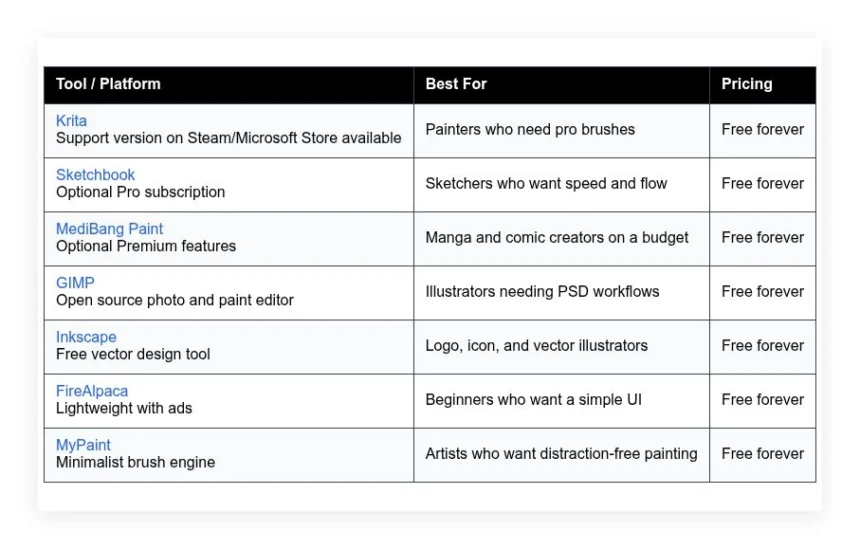
If you only have ten minutes, use the quick table below. Then scroll for my detailed notes and which tool I kept as my daily driver.
Comparison of 7 best free drawing software in 2026 with pricing and recommended use cases
Scroll down for my detailed takes on each pick, including which one I use daily and a few starter-friendly options I recommend to new artists.
What is a free drawing software?
Free drawing software is a type of creative app for making digital art, illustrations, comics, and designs without paying a license fee. Its primary purpose is to let you sketch, paint, and export finished work.
Artists say the best tool is the one you use. That fits here. The right free app removes cost friction, so you practice more and ship more finished work.
If you can paint one polished illustration a week with a free app, that beats buying expensive tools and posting twice a month. Output compounds faster than software perks.
At core, these tools help hobbyists and pros draw with a stylus or mouse, layer in color and effects, import textures and references, then export clean files for print, web, or clients.
Artists often pair drawing apps with tablet drivers, brush packs, color palette tools, asset managers, and file converters for PSD, SVG, or PDF handoff.
Not every free tool fits every style, so choosing carefully saves time and avoids painful rework later.
How to choose the best free drawing software
Picking an art app can feel overwhelming. There are many great choices, and each one shines in different ways. It is normal to feel stuck.
I wrote this guide to help you match the tool to your workflow, not the other way around. Your style, device, and export needs should lead the decision.
Most lists you see are written by vendors or sites that sell placements. I am not sponsored by any platform on this list. This is my honest take after real projects and side sketches.
Here are some questions you should ask when looking for a drawing app:
- How generous is the free tier for layers, brushes, and exports?
- Is the core painting or vector workflow easy to learn on day one?
- Can it scale to big canvases, long comics, or animation later?
- What will the cost be if you ever need paid add-ons or stores?
- Does it include the features your style needs, like stabilizers or CMYK?
- Can you track basics like file sizes, color profiles, or versioning?
- How hard is migration to another tool if you change your mind?
- Is it stable with many layers, big brushes, and high DPI canvases?
- Does it support your tablet, tilt, and pressure curves properly?
That is a lot to weigh. My rankings below keep those questions in mind, so you can pick with confidence and start drawing today.
Okay, enough of me rambling, let us get into the list.
7 best free drawing software in 2026
Here are my top picks for the best free drawing software:
- Krita
- Sketchbook
- MediBang Paint
- GIMP
- Inkscape
- FireAlpaca
- MyPaint
Let us see which one is right for you.
1. Krita

Krita is a free, open source painting program built for illustrators, concept artists, and comic creators. It has been developed by a volunteer-driven foundation with steady releases and serious industry respect among digital painters.
You can download it free for Windows, macOS, and Linux. Setup is quick. The canvas feels natural right away with strong pressure curves. Daily work happens in the brush engine, layers, and the pop-up palette for quick color and brush switching.
Recent updates have improved the text tool, animation workflow, and resource handling. Brush performance feels smoother on larger canvases, which opens doors for posters, covers, and production storyboards.
Advanced features include frame-by-frame animation, assistants for perspective, brush masking modes, wrap-around mode for textures, and HDR painting on supported hardware. Those tools rival paid apps and are not common in other free options.
I use Krita for most client illustrations. It is not sponsored. I stuck with it because the brush feel is predictable across tablets and it handles 10k pixel canvases without choking.
One more thing I like is the learning material. The official docs and community tutorials are practical, so you can level up fast without digging through forums for hours.
How Krita works and key features
Krita’s interface is a classic panel layout with a customizable workspace and a slick pop-up palette. The brush engine is the star, with dozens of brush types and stabilizers. You can save presets and switch with a flick.
It ships with strong templates for comics and animation. You can tweak DPI, color space, and guides easily. Power users can build custom brushes, use Python plug-ins, and export to PSD, PNG, TIFF, and more.
For feedback, you get onion skinning for animation, reference images, LUT support, and color management. Automation is limited, but batch export and resource management help with repeat tasks.
Extras include brush packs, texture patterns, symmetry tools, and assistants for perspective and grids. Support comes from docs, community forums, and bug tracker responses that are active.
Painters often describe Krita’s brush feel as the closest to real paint among free tools. The overall experience is beginner-friendly with room to grow into advanced workflows.
Who Krita is for
Krita fits illustrators, concept artists, matte painters, comic creators, and students. It excels at painterly styles, textured brushes, and frame animation. Perspective assistants and wrap-around mode help game artists and texture painters. If you need page layout or vector-first art, Inkscape or a DTP app may suit you better. It is friendly for beginners, yet deep enough for pros.
Krita pricing
Krita follows a donation-supported, open source model. The desktop download is free with the full feature set. There is no locked free tier. Optional paid store versions on Steam and app stores help fund development and offer easy updates.
- Free: $0/month, full desktop app, all features, community support
- Store builds: one-time purchase, convenience updates, supports the project
Compared to competitors, this is outstanding value. You get pro-level painting without a subscription. If you appreciate the tool, buying a store build or donating helps keep updates flowing.
Krita pros and cons
- Pros: Elite brush engine with stabilizers, strong animation tools, full PSD export support, free with no feature lock.
- Pros: Perspective assistants and wrap-around mode help production work.
- Pros: Cross-platform with steady development and active community.
- Cons: Text tool is serviceable but not layout-grade.
- Cons: Vector features are basic compared to Inkscape.
- Cons: Large resource libraries need organizing to stay fast.
If you paint more than you design, choose Krita. If you live in vector or heavy photo compositing, another tool will fit better.
Krita reviews
Formal ratings on sites like G2 and Capterra are limited for Krita. Most feedback lives on Reddit, ArtStation posts, and community forums, where sentiment is strongly positive for painting.
2. Sketchbook

Sketchbook is a focused drawing app designed for fast sketching and clean line art. It grew out of Autodesk’s SketchBook and is now run by Sketchbook, Inc., continuing the product with a clear sketch-first vision.
There is a free version that gets you drawing right away. The interface is distraction-light with a lagoon-style tool wheel on some platforms. You will use brushes, layers, flipbook animation, and rulers daily.
Recent releases have refined brush performance and updated mobile apps. Cross-device parity has improved, which makes it easier to bounce between desktop and tablet without relearning tools.
Paid features focus on extra brushes, advanced color tools, and workflow perks for production sketching. While it is not packed with effects, the speed and simplicity stand out for ideation.
I grab Sketchbook when I need to thumbnail a project fast. The canvas feels lag free on modest hardware, which helps during live client calls.
I also like how the UI stays out of the way. Palettes are tidy, and you can hide chrome for a clean drawing space.
How Sketchbook works and key features
Sketchbook offers a minimal, responsive canvas with pen-friendly controls. The brush engine includes pencils, pens, markers, and a solid stabilizer. Templates are basic, with common sizes and comic pages you can tweak.
Advanced users can customize brushes and install extra sets. File support covers common raster formats and layered TIFF/PNG. You can export PSD for handoff, though complex effects are limited by design.
Analytics are not a thing here, which keeps it simple. Automation is light other than flipbook timing and basic repeaters. Extras include perspective guides, symmetry, and rulers for clean lines.
Support comes from help docs, a community, and app-store feedback loops. The overall experience is beginner friendly, quick, and sketch-first.
Who Sketchbook is for
Sketchbook suits product designers, storyboard artists, tattoo artists, architects, and students. It shines for thumbnails, clean line work, and quick ideation. The flipbook feature helps simple animation tests. If you need heavy photo compositing or page layout, pick GIMP or Inkscape. It is beginner-friendly with low setup friction.
Sketchbook pricing
Sketchbook follows a freemium model. The core app is free, with optional paid features and brush sets on some platforms. There is no paywall for basic sketching, which is the point of the tool.
- Free: $0/month, full sketch tools, layers, rulers, symmetry, flipbook
- Optional Pro features: paid add-ons with extra brushes and tools
Value is strong if you need a fast, clean sketch space. If you draw daily, paying for extra brushes can be worth it. Look for platform-specific offers that may bundle add-ons.
Sketchbook pros and cons
- Pros: Lightning-fast canvas, clean UI, great for line work.
- Pros: Rulers, symmetry, and perspective tools are handy.
- Pros: Free version covers core sketch needs well.
- Cons: Lighter on effects and advanced compositing.
- Cons: Feature set varies by platform.
- Cons: Limited automation or batch tools.
If you sketch a lot and paint less, Sketchbook is a joy. Painters who need complex brushes may prefer Krita.
Sketchbook reviews
Formal listings on G2 or Capterra are limited. Most reviews come from the App Store, Google Play, and creative forums, where users praise speed and simplicity.
3. MediBang Paint

MediBang Paint is a free painting app built with manga and comics in mind. The company supports a large creator community and offers cloud features that help teams and solo artists work across devices.
The free plan gets you rolling fast. The UI highlights panels, screentones, and speech bubbles. Daily tools include brushes, layer effects, panel rulers, and comic templates.
Recent builds improved cloud sync and asset libraries. The mobile app has matured, which makes it easier to ink on a tablet and finish on desktop.
Premium unlocks extra brushes, materials, and quality-of-life features. Cloud backup for projects is a big time saver if you hop devices or share files.
I reach for MediBang when I am laying out multi-page comics. The panel tools and tone assets speed up production compared to generic painting apps.
Another plus is the tutorials from within the app and site. New artists can learn manga workflows without hunting down resources.
How MediBang Paint works and key features
MediBang uses a classic layer-based editor with a friendly layout. The brush engine covers pens, markers, and textured brushes with stabilizers. Templates include manga page sizes and panel grids that you can resize and split.
Advanced users can build custom brushes and import assets. You can export PSD and PNG and manage tones as materials. Basic analytics do not exist, which keeps the app focused on drawing.
Automation is light but includes panel generation and repeating patterns. Extras include fonts for balloons, cloud texture libraries, and team features for sharing.
Support arrives through guides, FAQs, and an active user base. The overall experience is balanced: beginner friendly but purposeful for comic work.
Who MediBang Paint is for
MediBang is ideal for manga artists, webcomic creators, students, hobbyists, and small teams. It excels at panel layout, tones, and lettering. Cloud sync helps cross-device artists. If you need heavy photo retouching, GIMP is stronger. It is approachable for beginners with room to grow.
MediBang Paint pricing
MediBang runs a freemium model. The core drawing features are free. Premium adds more materials, brushes, and convenience features, often on a subscription basis. The free tier is generous for solo creators.
- Free: $0/month, core brushes, layers, panel tools, basic cloud
- Premium: paid, expanded assets, more brushes, extra cloud features
Value is strong if you live in comics. The free tier can carry a full webcomic. Premium is worth it if you want faster texture and font workflows.
MediBang Paint pros and cons
- Pros: Purpose-built comic tools, tones and panels included.
- Pros: Cloud sync and team-friendly sharing options.
- Pros: Free plan is very usable for full projects.
- Cons: Fewer high-end painting features than Krita.
- Cons: UI can feel busy until you customize it.
- Cons: Some assets sit behind Premium.
If comics are your focus, MediBang is an easy pick. Painters who need complex brushes should compare Krita first.
MediBang Paint reviews
There are limited ratings on B2B review sites. Mobile app stores and creator forums show generally positive feedback, especially for manga features and value.
4. GIMP

GIMP is a free, open source image editor that doubles as a capable drawing app. It has decades of development, a plugin ecosystem, and a reputation as a solid Photoshop alternative for many tasks.
Download it free on Windows, macOS, and Linux. Setup is simple. The interface is dense at first, but you can customize panels. Daily work uses brushes, layer masks, selections, and filters.
Recent development has focused on performance and color management through GEGL. Stability on high bit-depth workflows has improved, which helps with print work.
Advanced features include path tools, a huge plugin library, batch operations, and strong selection tools. It is not laser-focused on painting, yet it can handle illustration well with the right brushes.
I use GIMP for tasks that mix painting with photo textures. Its selection and transform tools are dependable for composites.
I also like that it opens and exports many formats. That saves time when sending files to mixed toolchains.
How GIMP works and key features
GIMP presents a modular interface with docks and toolboxes. The brush and paint tools are solid, though not as nuanced as Krita’s. Templates are flexible for print and web with DPI and color profile control.
Power users script tasks with Python and Scheme. Plugins cover filters, export helpers, and painting extras. Analytics are not part of the app. Automation comes through scripting and batch processing.
Extras include paths, text tools, guides, and a robust selection toolkit. Support comes from extensive docs, wikis, and a large user base. The balance skews toward image editing, but artists can thrive here.
The overall experience is flexible for mixed work. Beginners face a learning curve but can adapt with tutorials.
Who GIMP is for
GIMP fits illustrators, photographers, designers, educators, and makers who need both painting and photo tools. It excels at compositing, selections, and file conversion. If brush feel is your top priority, Krita is better. Technical users will love the scripting power. It is fine for beginners with patience.
GIMP pricing
GIMP is free, open source, and donation-supported. There is no paid tier or locked feature set. You can install it directly from gimp.org or from trusted package managers.
- Free: $0/month, full editor, plugin support, cross-platform
Compared to paid editors, the value is excellent. If you need fast updates or convenience installers, use your platform’s store or package manager and consider donating to support development.
GIMP pros and cons
- Pros: Powerful selection and transform tools, deep plugin system.
- Pros: Broad file support with color management options.
- Pros: Free with a long development history.
- Cons: Brush engine is good, not painter-first.
- Cons: Interface can feel heavy for pure sketching.
- Cons: Some workflows need plugins or scripts.
Choose GIMP if you mix art and photo work. Pure painters may be happier in Krita or Sketchbook.
GIMP reviews
GIMP appears on some software review sites, but ratings vary by version and use case. Broad community feedback is positive on value and flexibility, with a noted learning curve.
5. Inkscape

Inkscape is a free, open source vector drawing app focused on SVG. It is popular among designers who need clean, scalable artwork like logos, icons, and flat illustrations.
You can install it free on all major platforms. The interface is straightforward with toolbars for paths, shapes, text, and alignment. Day to day, you will edit nodes, manage layers, and export SVG or PDF.
Recent versions added multi-page documents and improved performance for complex files. That makes it easier to create brand systems, icon sets, and print-ready layouts inside one file.
Advanced tools include path boolean operations, gradients, pattern fills, clones, and extensions. It plays well with laser cutter and CNC workflows through SVG.
I use Inkscape for icons and infographics. Node editing is precise, and exports slot into web pipelines without surprises.
I also appreciate the keyboard-driven workflow. Once shortcuts sink in, you move very fast.
How Inkscape works and key features
Inkscape’s interface centers on a canvas with side toolbars and customizable docks. Templates cover print and screen sizes. You can define color profiles and export presets.
Advanced users edit paths and nodes deeply, use alignment and distribution tools, and apply live path effects. Extensions add importers, exporters, and generators. You can insert custom SVG code when needed.
There is no analytics or automation in the app, but command line export helps batch work. Extras include grids, guides, symbol libraries, and multi-page support.
Support comes from docs, tutorials, and an active community. The experience is beginner-friendly for shapes, with depth for pros who refine vectors daily.
Who Inkscape is for
Inkscape fits logo designers, icon artists, illustrators, educators, and makers. It excels at clean vector art, print PDFs, and SVG for the web. If you paint with textured brushes, choose Krita instead. It works well for beginners and scales as skills grow.
Inkscape pricing
Inkscape is free and open source with donations funding development. There are no paid tiers or locked features. You download installers or use package managers.
- Free: $0/month, full vector editor, extensions, multi-page support
The value is excellent for vector work. If you rely on extensions, consider supporting maintainers. That keeps niche features healthy.
Inkscape pros and cons
- Pros: Strong path and node editing with SVG focus.
- Pros: Multi-page documents and precise export control.
- Pros: Free and reliable for professional vector work.
- Cons: Heavy files can slow on older machines.
- Cons: Fewer advanced typography features than paid DTP apps.
- Cons: Brush-like vector art needs workarounds.
If your art is vector-first, Inkscape is hard to beat. Painters should look at Krita or Sketchbook.
Inkscape reviews
Third-party review site coverage exists but varies by release. Designers consistently praise value and SVG workflow, with performance tied to document complexity.
6. FireAlpaca
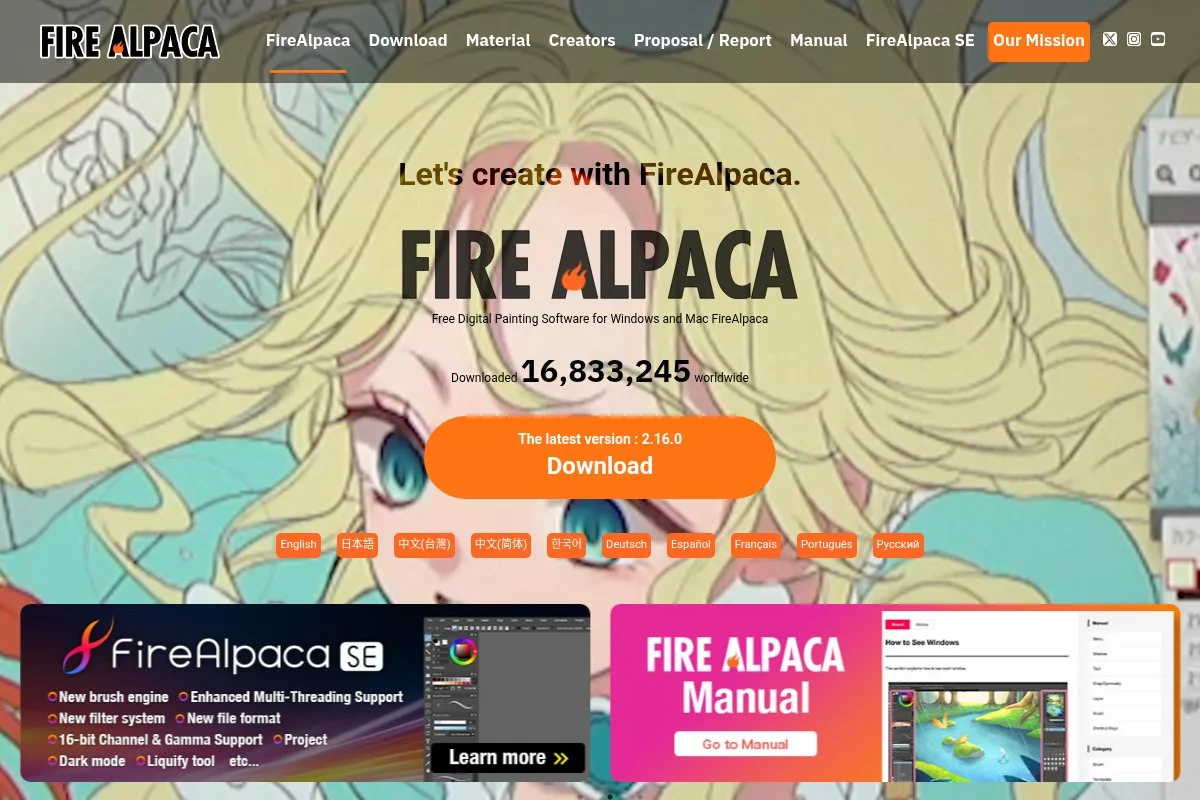
FireAlpaca is a lightweight free painting app for Windows and macOS. It is known for a simple interface, fast performance, and a set of helpful perspective tools for manga-style backgrounds.
You can download and start in minutes. The UI is clean with basic docks. Daily work revolves around brushes, layers, and the snap tools for straight lines and perspective guides.
Updates tend to polish stability and add small features. The app maintains low system demands, which is great on older laptops or entry-level tablets.
Advanced features are limited, but the perspective grid and concentration lines are handy. For many beginners, that is more than enough to get drawing and inking.
I keep FireAlpaca around for quick line work. The perspective tools are fast for room sketches and city scenes.
Another plus is how few settings you must touch. It lets you focus on drawing, not menus.
How FireAlpaca works and key features
FireAlpaca offers a basic, responsive canvas with a stable brush engine. Templates are minimal. You can create your own sizes and DPI. File export covers PNG, JPG, and layered formats.
Advanced customization is light. There is no deep plugin system or scripting. Analytics and automation are absent, which keeps the app speedy and straightforward.
Extras include snap tools, perspective grids, and tone-like effects. Support comes from simple docs and a friendly user base. The experience is beginner-first and ideal for quick sketches.
Users often describe it as the fastest way to get a clean line without fuss, which captures the vibe well.
Who FireAlpaca is for
FireAlpaca suits beginners, students, manga hobbyists, and line-focused artists. It excels at perspective backgrounds and clean inking. If you want complex painting or animation, Krita is stronger. No serious technical skill is required to start.
FireAlpaca pricing
FireAlpaca is free to download and use. It is supported by ads and related products from the developer. There are no feature-locked paid tiers in the core app.
- Free: $0/month, core drawing tools, perspective features, simple layers
For a zero-cost tool, the value is solid. If ads bother you, consider other free options, but many users never find them intrusive while drawing.
FireAlpaca pros and cons
- Pros: Very light on system resources, quick startup.
- Pros: Perspective and snap tools speed backgrounds.
- Pros: Free with a straightforward interface.
- Cons: Limited advanced painting or effects.
- Cons: Few automation or batch features.
- Cons: Ads may distract some users.
Choose FireAlpaca for simple, fast drawing. If you need deep brushes or animation, look higher on this list.
FireAlpaca reviews
There is sparse coverage on major review sites. Community feedback highlights speed, simplicity, and value for line-focused work.
7. MyPaint
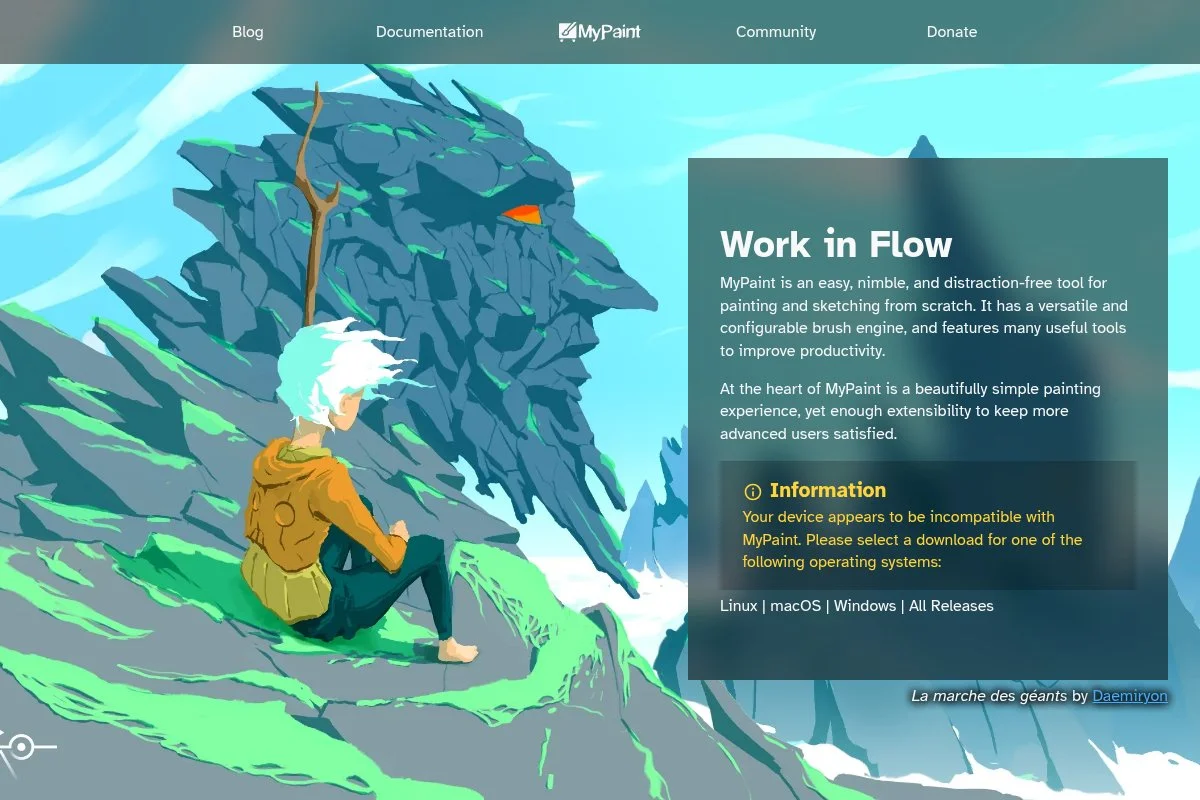
MyPaint is a free, open source painting app focused on a distraction-free canvas and natural media brushes. It has an infinite canvas and a lightweight feel that suits sketchbooks and studies.
Install it free on Windows, macOS, and Linux through packages or builds. The UI is minimal. You mainly interact with brushes, color wheels, and quick panels that hide when you draw.
Recent work has centered on brush engine refinement and stability. The app stays nimble on modest hardware, which makes it a nice fit for portable sketch setups.
Advanced features are few. That is by design. You get solid brush behavior, simple layers, and a calm workspace without extra panels.
I like MyPaint for warm-ups and gesture sessions. It feels like paper and does not tempt me to tweak settings mid sketch.
I also enjoy the infinite canvas for mind maps and iterative thumbnails. It keeps ideas flowing.
How MyPaint works and key features
MyPaint runs a minimalist interface with a strong brush engine. You pick a brush, paint, and hide UI panels to stay in the zone. Templates are basic. You can set canvas sizes or roam on the infinite canvas.
Advanced users can tweak brush settings and import brush packs. File export covers PNG and other common formats. PSD export is limited, so check your pipeline.
There are no analytics or automations built in. Extras include symmetry and a few helpers. Support comes from docs and a small but helpful community.
Overall, MyPaint is beginner-friendly and great for pure painting. Power users may miss deeper layer modes or export controls.
Who MyPaint is for
MyPaint suits painters, students, hobbyists, and anyone who wants a calm workspace. It excels at gesture drawing, color studies, and brush practice. If you need PSD-heavy workflows or complex effects, GIMP or Krita is better. It is easy for beginners.
MyPaint pricing
MyPaint is free and open source. There are no paid tiers. You can support development through donations or contributing to the project.
- Free: $0/month, full painting app, infinite canvas, community support
As a focused sketch tool, the value is excellent. Pair it with a more feature-heavy app if you need complex exports.
MyPaint pros and cons
- Pros: Infinite canvas and distraction-free workflow.
- Pros: Natural media brushes feel good out of the box.
- Pros: Light and fast, great for older hardware.
- Cons: Limited PSD export and advanced features.
- Cons: Smaller community and fewer tutorials.
- Cons: Basic text and effects tools.
If you want a digital sketchbook that feels like paper, choose MyPaint. If you need production features, use it alongside Krita or GIMP.
MyPaint reviews
Major review platforms have little coverage. Community users praise the brush feel and infinite canvas, with common requests for stronger export options.
What is the best free drawing software right now?
My top picks are Krita, Sketchbook, and Inkscape. For painting, Krita leads. For speed sketching, Sketchbook is a close second. For vector art, Inkscape is the clear choice.
Krita is my number one because I use it daily. This is not sponsored. I found it while testing free options for a rush job. The brush engine felt right in minutes, and big canvases stayed responsive. The killer feature for me was consistent pressure response across tablets and strong PSD export for client handoff.
On value, Krita is hard to match. Paid painting apps can run monthly or yearly. Krita gives me animation, assistants, and pro brushes for zero cost. If I want convenience, I buy the store build to support updates. That is still far cheaper than most subscriptions.
Sketchbook is my second choice. It is fantastic for thumbnails, clean lines, and quick client sketches. Recent polish on mobile and desktop keeps it feeling modern. If your work is mostly line art, you might even prefer Sketchbook over Krita.
Sketchbook’s strength is focus. It gets out of the way and lets you move fast. In another life where I did more line-heavy storyboards and fewer painterly pieces, I could see it being my main app.
For a third option, Inkscape is perfect if you live in vector. It is free, exports clean SVG and PDF, and now supports multi-page documents. If your clients need logos, icons, or flat illustrations, it is the right tool with almost no friction.
I actually use multiple tools. Krita handles painting and covers, Inkscape handles icons and diagrams, and Sketchbook handles fast ideation. Mixing tools keeps me fast and flexible.
Choosing between these is genuinely tough. I stayed with Krita because the brush feel and big-canvas stability save me hours each week. That matters more to my work than any single bonus feature elsewhere.
I hope this helped you lock in a choice. Grab the one that fits your style, and start drawing. See you on the canvas.
Frequently Asked Questions
Q: What is the best free drawing software for beginners?
I suggest Sketchbook or FireAlpaca. Both start fast and feel friendly. If you want deeper painting later, move to Krita without losing your progress.
Q: Can I use free drawing software for client work?
Yes. I deliver paid projects from Krita, Inkscape, and GIMP often. Just test your export formats early, like PSD, SVG, or PDF, to avoid surprises.
Q: Which free app works best with a drawing tablet?
Krita gives me the most reliable pressure and tilt feel. Sketchbook is also smooth on modest hardware. Update tablet drivers before testing.
Q: What if I need both vector and painting in one project?
I sketch and paint in Krita, then bring logos or icons from Inkscape. It keeps brush texture intact while vector elements stay crisp and scalable.