


I have spent years wrangling files across teams, audits, and product launches. I learned the hard way that folders alone do not cut it once real collaboration starts.
I was trying to reduce lost time, stop version chaos, and keep approvals traceable. The goal was simple: find a system the team would actually use every day.
What pushed me to rethink our setup was a messy doc handoff during a board week. We had three drafts in three inboxes. No one trusted which was final.
Picking a document management tool sounds easy. In practice, every vendor claims security, search, and workflows. The small differences matter once you scale.
The best teams I know pick tools that fit their habits. They automate naming rules, lock down sharing, and keep metadata clean. They keep it boring and consistent.
You do not need an expensive enterprise platform to get control. A thoughtful free plan or a solid open source option can be enough to start.
This guide breaks down real options that I have tested, with direct notes on setup, limits, and tradeoffs. No fluff, just what works and why.
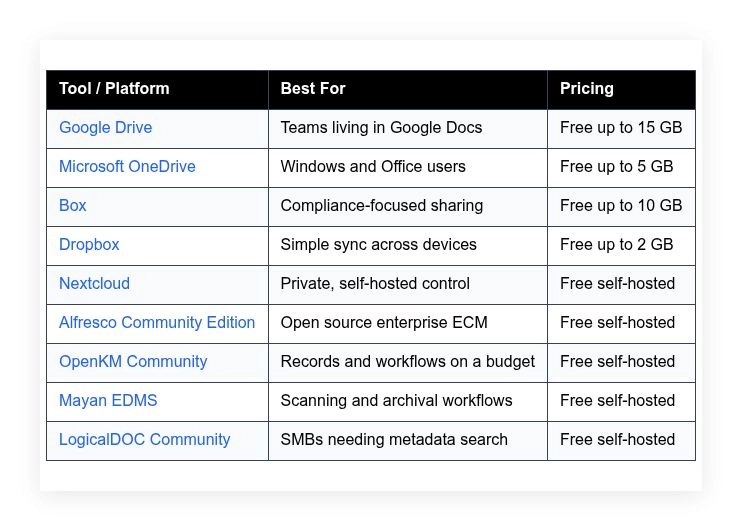
Quick summary first, then detailed opinions below.
Comparison of 9 best document management software in 2026 with pricing and recommended use cases
Scroll down for my detailed take on each option. I will also share which one I picked and the best free choices for beginners.
What is a document management software?
Document management software is a tool that stores, organizes, secures, and tracks digital files. Its main purpose is to make finding and governing documents fast and predictable.
We have a saying in publishing: if you cannot find it, it does not exist. Good document systems protect your time and reduce risk with clear access and ownership.
Think of it like a library card catalog for your team. With metadata and version history, one approved file can replace dozens of messy email threads and save hours each week.
At its core, a DMS lets people capture files from laptops, scanners, and apps, apply rules and tags, route approvals, and publish a final source of truth for work.
Teams often pair DMS tools with e-signature, backup, project management, and knowledge base platforms to cover the full document lifecycle.
Not every tool handles security, scale, or workflows the same way, so careful evaluation is worth the effort.
How to choose the best document management software
There are many options, and they all promise simple sharing and strong security. I get why the choice feels overwhelming.
I wrote this to help you match the tool with how you already work. Your needs, not marketing pages, should drive the pick.
Most guides on this topic come from vendors or ad-driven lists. I am not sponsored by any platform on my list. This is my honest take based on hands-on use and real tradeoffs.
Here are some questions you should ask when looking for a document management tool:
- How generous is the free tier, and what are the real limits?
- Can I complete daily tasks, like upload, share, and search, without a manual?
- Will this scale with new users, sites, and folders without chaos?
- What happens to my costs as storage and activity grow?
- Does it cover versioning, metadata, retention, and approvals I need?
- Are analytics clear on access, edits, and sharing by person or team?
- How hard is it to export and migrate if I change tools later?
- What uptime, encryption, and audit controls are in place today?
- Does it support my stack, like SSO, e-signature, scanners, and APIs?
It is a lot, I know, but my ranked picks below address each question with real examples.
Okay, enough of me rambling, let us get into the list.
9 best document management software in 2026
Here are my top picks for the best document management software:
- Google Drive
- Microsoft OneDrive
- Box
- Dropbox
- Nextcloud
- Alfresco Community Edition
- OpenKM Community
- Mayan EDMS
- LogicalDOC Community
Let us see which one is right for you.
1. Google Drive

Google Drive is a cloud file system tied closely to Docs, Sheets, and Slides. Google has spent years refining collaboration and search at massive scale, and it shows.
You can start free with 15 GB. Setup is easy: sign in with a Google account, create a My Drive, and invite people. The core experience is fast sharing, real-time editing, and rich search.
Recent upgrades in Google Workspace have improved smart search, file classifications, and security controls for admins. This helps teams lock down sensitive folders without slowing work.
Paid Workspace plans add advanced sharing restrictions, event-based retention, and enterprise controls. Client-side encryption and data classification are also available on certain tiers.
I use Drive daily for editorial workflows. The live comments and version history saved more than one deadline for me.
I also like Drive’s link settings. It is quick to switch from restricted to domain access, which helps prevent accidental oversharing.
How Google Drive works and key features
Drive gives you a clean web interface, desktop sync, and mobile apps. The editor is WYSIWYG for Docs, Sheets, and Slides, so most people feel at home right away.
Templates cover common documents, while custom templates can live in shared drives. Power users can automate with Google Apps Script and connect to third-party tools through add-ons.
Search supports file type, owner, date, and content. Activity dashboards show who viewed and when. Admins get audit logs on Workspace plans.
Automations include shared drive permissions, link expiration, and basic approvals with comments and suggested edits. You can build forms and simple sites with Forms and Sites.
Support quality depends on your plan. The help center is detailed, and Workspace plans include admin support. Overall, it is very friendly for beginners yet flexible for experts.
Who Google Drive is for
Best for editors, marketers, students, nonprofits, and startups that write, review, and publish in Docs. It shines for shared folders, comments, and quick drafts.
If you need strict records management with complex retention or on-prem control, an open source DMS may suit you better. Minimal technical skill is required to start.
Google Drive pricing
Drive follows a freemium model with storage-based upgrades. Personal users get 15 GB free across Drive, Gmail, and Photos. Google One adds more storage.
- Free: $0/month, 15 GB shared storage, core collaboration tools
- Google One 100 GB: $1.99/month, extra storage, family sharing
- Google One 200 GB: $2.99/month, more storage, additional features
- Google One 2 TB: $9.99/month, larger storage for heavy users
- Workspace plans: priced per user/month, add admin controls, retention, and security features
Value is strong if you already live in Docs. Storage pricing is competitive, and annual billing on Workspace can save money. Costs scale mainly with storage and seats.
Pros and cons of Google Drive
Pros:
- Real-time editing and comments are smooth
- Generous free tier for individuals
- Powerful search across file contents
- Easy link sharing with fine-grained controls
Cons:
- Advanced records controls require paid Workspace
- Mixed experience with very large folder trees
- Sharing can get messy without naming rules
If your team writes in Docs, start here. If you need strict governance or on-prem, consider Nextcloud or Alfresco Community.
Google Drive reviews
Google Drive holds strong ratings on major review sites such as G2 and Capterra. Exact ratings and counts change often, and there are thousands of reviews to reference.
2. Microsoft OneDrive
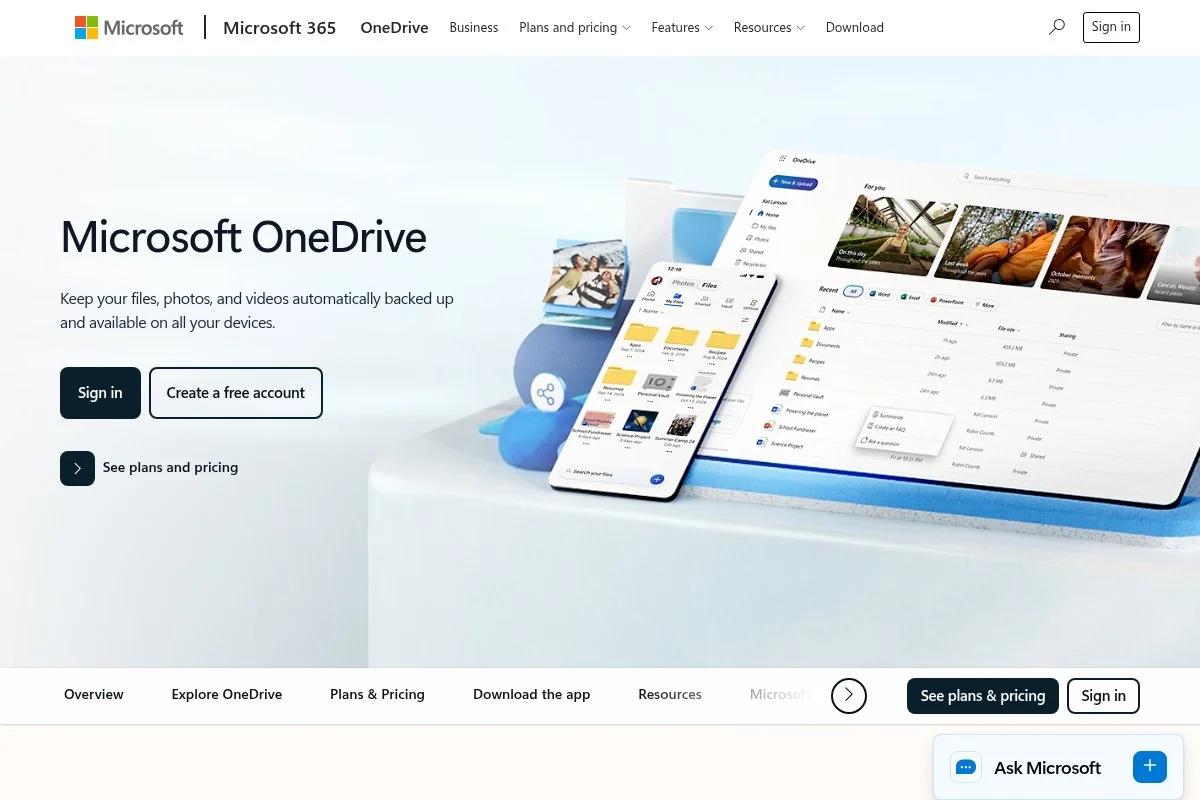
OneDrive is Microsoft’s cloud storage and document hub integrated with Office. It benefits from deep Windows integration and enterprise-grade identity through Azure AD.
You can start free with 5 GB. Setup is quick on Windows, and links open in web versions of Word, Excel, and PowerPoint. Sync and Files On-Demand keep local drives light.
Recent updates have improved the OneDrive web experience and sharing views. Integration with Microsoft 365 groups and Teams keeps files tied to chats and channels.
Paid plans add more storage, ransomware recovery, advanced link policies, and long-term retention through Microsoft 365. SharePoint libraries handle deeper team document needs.
I like OneDrive for Windows-heavy teams. It feels native on desktop and lowers friction for Office files that need frequent edits.
Another plus: great mobile apps with offline access. That helps field teams keep moving during travel or site visits.
How OneDrive works and key features
The interface mirrors Windows Explorer and the Office web apps. Templates come from Word and Excel, and custom team templates can live in SharePoint.
Advanced users can use Microsoft Graph, Power Automate, and SharePoint features for workflows and compliance. You get version history, activity, and audit logs on business plans.
Automations include file requests, approvals in Power Automate, and expiration dates on links. Additional tools include Forms, Lists, and SharePoint sites.
Support varies by plan. The help docs are strong, and Microsoft 365 business plans include admin support. It is beginner-friendly if you already use Office.
Who OneDrive is for
Great for IT, finance, consultants, and any team standardizing on Microsoft 365. It handles day-to-day edits and sharing smoothly.
If you do not touch Office, Drive may feel lighter. For complex records or public sites, consider SharePoint or a dedicated open source DMS.
OneDrive pricing
OneDrive uses a freemium and bundle model. Personal accounts get 5 GB free. Upgrades come via OneDrive Standalone or Microsoft 365 bundles.
- Free: $0/month, 5 GB, standard sharing and sync
- OneDrive Standalone 100 GB: paid monthly, extra storage only
- Microsoft 365 Personal: paid yearly, 1 TB plus Office apps
- Microsoft 365 Business plans: per user/month, includes SharePoint and admin controls
Value is strong if you need Office apps. Costs scale by seats, and annual billing reduces price. Business plans add governance features you may need later.
Pros and cons of OneDrive
Pros:
- Tight Windows and Office integration
- Solid versioning and sync performance
- Reasonable free tier for light users
Cons:
- Deeper records features live in SharePoint
- Web sharing UI can feel busy to newcomers
- Best value requires Microsoft 365 commitment
Pick OneDrive if your team edits in Word and Excel daily. If not, Drive might feel simpler for mixed tool stacks.
OneDrive reviews
OneDrive has strong coverage on G2 and Capterra with many user reviews. Ratings and counts shift over time, so check the latest before deciding.
3. Box

Box is a content cloud focused on security, compliance, and integrations. The company has long experience serving regulated industries and large organizations.
Start with a free personal plan that includes cloud storage and sharing. The web interface is clean, and previews handle many file types. Box Notes supports simple team docs.
Recent updates have strengthened governance, e-signature integration, and content insights. This makes Box a solid hub for cross-company collaboration with tight control.
Business tiers add advanced data loss prevention, legal holds, and retention. Box Shield helps with content classification and anomaly detection at scale.
I like Box for projects that cross vendors and clients. Link controls and watermarking help reduce accidental leaks during sensitive launches.
Their admin console is also clear. It makes it easy to standardize sharing defaults across many teams.
How Box works and key features
Box offers a straightforward web UI with desktop and mobile apps. Previews support PDFs, images, videos, and design files. Templates cover folder structures and tasks.
Advanced users can build apps with the Box Platform and APIs. Integrations tie into Microsoft 365, Google Workspace, Slack, and many more.
Analytics show file views, downloads, and external sharing. Automations include workflows with Box Relay and link expiration. Box Sign covers e-signature needs.
Support quality aligns with plan level. Documentation is polished. It balances ease of use with enterprise features quite well.
Who Box is for
Best for legal, healthcare, agencies, and enterprises that need granular controls and external collaboration. It is strong for vendor sharing and approvals.
If you only need personal storage and basic docs, Drive or Dropbox may be simpler. Technical skill is not required for basics.
Box pricing
Box offers a free personal plan, then business tiers priced per user. Features increase with governance, security, and automation.
- Free: $0/month, 10 GB storage, file size limits apply
- Personal Pro: paid monthly, higher storage and upload limits
- Business Starter: per user/month, minimum users, core collaboration
- Business/Enterprise: per user/month, advanced security, governance, and integrations
Pricing is competitive for compliance features versus rivals. Annual billing can lower cost. Value is best if you need governance plus external sharing.
Pros and cons of Box
Pros:
- Strong compliance and governance feature set
- Good external sharing and watermarking
- Wide integrations with business apps
Cons:
- Generous features live on higher tiers
- Interface has a learning curve for new users
- Personal plan limits large uploads
Pick Box if you expect audits or vendor-heavy projects. Lighter needs may fit Drive or Dropbox.
Box reviews
Box is well covered on G2, Capterra, and TrustRadius. Ratings are consistently positive among business users, with large review volumes available.
4. Dropbox

Dropbox is a sync-first file system known for reliability and simple sharing. The company pioneered the desktop folder model many of us still expect.
You can start free with 2 GB. Setup is as easy as installing the desktop app and signing in. The core loop is drop a file, sync everywhere, share a link.
Recent features include better previews, password-protected links, and team collaboration updates. Dropbox Paper supports lightweight docs and notes.
Paid plans add larger storage, advanced controls, and admin features. Smart Sync helps you manage disk space without losing access to large folders.
I still trust Dropbox for big media folders. The sync engine stays stable even with large files across many devices.
I also like the simple link options. It is quick to control edit access and expiration for external shares.
How Dropbox works and key features
Dropbox centers on a desktop folder that mirrors the cloud. The web interface is minimal and fast. Templates focus on folder structure and content requests.
Advanced users can use the API, app integrations, and extensions. Analytics cover views and downloads on shared content, with activity logs for teams.
Automations include file requests, link expiration, and simple approvals. Extras include Paper docs, transfer tools, and basic backups.
Support quality aligns with paid plans. For day-to-day use, the experience is friendly to new users and steady for power users.
Who Dropbox is for
Great for creatives, freelancers, agencies, and anyone with large files that must sync across machines. It shines for predictable, simple sharing.
If you need deep governance or on-prem control, open source tools may be better. No special technical skill is needed to start.
Dropbox pricing
Dropbox uses freemium plus paid individual and team plans. Storage and admin controls scale with price.
- Basic: $0/month, 2 GB, standard sync and sharing
- Plus: paid monthly, larger storage for individuals
- Professional: paid monthly, advanced sharing and tools
- Business plans: per user/month, admin features and large storage
Value is strongest if you want set-and-forget sync. Annual discounts are common. Costs rise with storage and user count.
Pros and cons of Dropbox
Pros:
- Rock-solid sync across devices
- Clean sharing with link controls
- Low learning curve for new users
Cons:
- Free tier is tight for heavy users
- Governance features trail Box at scale
- Paper is basic for complex docs
Choose Dropbox if you prize sync speed and simplicity. For compliance-heavy needs, look at Box or Alfresco Community.
Dropbox reviews
Dropbox has long-standing positive ratings on G2 and Capterra with many user reviews. Exact scores and counts change, so check current listings.
5. Nextcloud

Nextcloud is an open source, self-hosted file, sync, and collaboration platform. It is developed by a team with deep roots in open source file sharing.
You can run it free on your own server. Setup is guided installers or Docker images. The web UI is clean, and desktop and mobile apps feel familiar.
Recent releases under the Nextcloud Hub banner keep adding groupware, office integrations, and security controls. This turns it into a private cloud alternative.
Paid enterprise support adds hardening, compliance features, and vendor help. You keep data on your hardware, which many organizations prefer.
I respect Nextcloud for control and flexibility. It is a great way to keep files close without giving up modern sharing.
The app ecosystem is a plus. You can extend it with notes, tasks, forms, and more based on your needs.
How Nextcloud works and key features
Nextcloud offers a modern web UI with drag-and-drop, strong previews, and a file activity feed. Templates and folder rules can be set per team.
Advanced users get WebDAV, external storage mounts, LDAP/SSO, and full APIs. Office editing is possible with Collabora or ONLYOFFICE integrations.
Analytics include activity logs and admin dashboards. Automations cover file retention, tagging, and sharing policies. There are extras like calendars and mail.
Support depends on your setup. Community docs are thorough, and enterprise plans include support contracts. It is friendly once configured, though setup takes care.
Who Nextcloud is for
Ideal for IT teams, privacy-focused groups, schools, and agencies that want self-hosted control. It excels at secure internal sharing with modern features.
If you lack admin resources, a managed cloud service may be simpler. Some technical skill is needed for setup and maintenance.
Nextcloud pricing
Nextcloud software is free to self-host. Paid subscriptions are available for enterprise support and compliance features.
- Community: $0/month, self-hosted, full core features
- Enterprise support tiers: priced by users and features, include hardening and SLA support
Total cost depends on your server and admin time. Value is excellent if you need privacy and can support your own stack.
Pros and cons of Nextcloud
Pros:
- Full data control on your hardware
- Strong app ecosystem and integrations
- Free core with optional paid support
Cons:
- Requires admin skills to run well
- Scaling needs planning and monitoring
- Office editing depends on third-party apps
Pick Nextcloud if privacy matters most. If you need zero maintenance, choose a hosted tool like Drive or Box.
Nextcloud reviews
Nextcloud earns positive feedback on developer forums and review sites. Ratings vary by deployment, so look for reviews that match your use case.
6. Alfresco Community Edition
Alfresco Community Edition is an open source enterprise content management platform. It has been used for complex document and records programs for many years.
You can run it free on your own servers. Setup takes planning, but you get content services, search, and workflow tools. It handles large repositories well.
Under Hyland ownership, development continues with stability and enterprise alignment. Community builds still serve teams that need open source ECM.
Paid enterprise editions add advanced records management, support, and cloud options. If you need formal governance, this path is strong.
I like Alfresco for regulated teams that outgrow basic cloud storage. It is serious software that rewards good planning.
Search is a highlight. Content and metadata queries are fast once indexed and tuned.
How Alfresco CE works and key features
Alfresco provides a web interface with libraries, folders, and metadata forms. You can define content types, aspects, and rules that enforce structure.
Advanced users can script with Java and JavaScript, use REST APIs, and integrate with SSO. Templates and models help standardize document types.
Analytics and audit trails are available, and workflow engines route approvals. Extra modules cover records and governance on higher editions.
Support comes from community forums or commercial contracts. It is powerful but expects technical ownership from your team.
Who Alfresco CE is for
Great for government, large nonprofits, and enterprises that need open source ECM. It excels in metadata-heavy libraries and formal process routing.
If you need quick setup and light docs, choose Drive or Box. Technical skill is required to design and maintain it.
Alfresco CE pricing
Community Edition is free to self-host. Commercial editions and support contracts are available through Hyland.
- Community Edition: $0/month, core content services
- Enterprise editions: contact sales, add records, support, and cloud
Total cost depends on infrastructure and staffing. Value is strong for teams that want control and open standards.
Pros and cons of Alfresco CE
Pros:
- Mature open source ECM stack
- Flexible content models and rules
- Strong search and workflow options
Cons:
- Complex to implement and tune
- Best features require design work
- Enterprise extras need paid edition
Choose Alfresco if you need serious ECM without vendor lock-in. If you want quick wins, start with a hosted tool.
Alfresco CE reviews
Alfresco is covered on sites like G2 and Gartner Peer Insights for enterprise use. Community edition reviews vary based on deployment and customization.
7. OpenKM Community
OpenKM Community is a self-hosted DMS focused on records, workflows, and metadata. The project has been around for years with active community interest.
You can deploy it free and get document libraries, versioning, and tagging. The interface is classic but functional for daily work.
Recent builds keep improving stability and connectors. This helps small teams run records programs without high license costs.
Paid editions add support, advanced automation, and integrations. If you need vendor help, the upgrade path is there.
I like OpenKM for small offices with scanning needs. The metadata fields and workflows help keep PDFs organized and findable.
The documentation is practical. It guides you through typical records tasks step by step.
How OpenKM works and key features
OpenKM offers a browser-based UI with tree folders, metadata panels, and previews. You can set templates for document types and required fields.
Advanced options include scripting, REST APIs, and connectors to office suites. You get audit logs, versioning, and permission models per folder.
Automations support capture, OCR, and routing. There are tools for scanners, email ingestion, and retention policies.
Community support is available in forums and guides. It is solid for basic DMS projects that value structure over flash.
Who OpenKM is for
Best for clerks, operations teams, and nonprofits that scan and classify documents. It shines for metadata search and retention-minded workflows.
If you want modern co-authoring, look at Drive or OneDrive. Some admin skill is helpful to deploy and maintain it.
OpenKM pricing
The Community edition is free to self-host. Commercial editions are licensed and include support and more features.
- Community: $0/month, core DMS, self-supported
- Professional/Cloud editions: licensed, add support, connectors, and automation
Value is high if you need structured DMS on a budget. Costs are mainly infrastructure and time unless you buy support.
Pros and cons of OpenKM
Pros:
- Strong metadata and versioning basics
- Good fit for scanning and OCR
- Free to start, optional paid help
Cons:
- UI is dated compared to cloud tools
- Setup and updates require admin time
- Co-authoring is limited compared to Docs
Pick OpenKM if structure and records matter more than live editing. If not, a cloud suite may be faster to roll out.
OpenKM reviews
OpenKM has fewer mainstream reviews than big cloud brands. Look for case studies and community feedback that match your stack.
8. Mayan EDMS

Mayan EDMS is an open source electronic document management system with strong scanning and archival features. It is popular for organizing large PDF collections.
You can run it free via Docker or packages. The UI focuses on documents, indexes, and tags. It is quick to search and retrieve once set up.
Recent versions improve performance and OCR support. This makes it a good choice for backfile conversions and ongoing capture.
Paid support options exist for teams that want help. You still keep full control on your servers.
I like Mayan for archives that need fast lookup. The index system makes big collections feel manageable.
Backups are straightforward. Export options make it easier to move data if plans change.
How Mayan EDMS works and key features
Mayan centers on documents, metadata, and indexes. Uploads can be manual, from email, or through watch folders. OCR extracts text for search.
Templates define document types and fields. Advanced users can use the REST API and automation features to route and label content.
Analytics cover activity logs and document history. There are tools for retention and permission control at folder and document levels.
Community support is active, with guides and forums. The experience is practical for scanning-heavy teams that want tidy archives.
Who Mayan EDMS is for
Great for records clerks, medical offices, and legal archives with many scanned files. It excels at OCR, indexing, and retrieval.
If you need modern co-editing, pick a cloud suite. Some admin skill is needed for deployment and maintenance.
Mayan EDMS pricing
Mayan is free to self-host. Commercial support and services are available for organizations that want help.
- Community: $0/month, open source, self-supported
- Commercial support: paid, adds SLA, assistance, and guidance
Cost depends on your server and time. It is a strong value if you need scanning and search without per-user fees.
Pros and cons of Mayan EDMS
Pros:
- Excellent for OCR and indexing
- Lightweight and fast once tuned
- Free core with optional support
Cons:
- UI is utilitarian, not flashy
- Requires admin work to deploy
- Limited real-time co-authoring
Pick Mayan for scanning workflows. If you draft documents with many authors, choose Drive or OneDrive.
Mayan EDMS reviews
Mayan EDMS has niche coverage on community forums and GitHub. Third-party review counts are lighter than major SaaS tools.
9. LogicalDOC Community
LogicalDOC Community is a self-hosted DMS aimed at small and midsize teams. It focuses on metadata search, versioning, and permissions.
You can deploy it free on your server. The interface uses a familiar folder tree with previews and quick actions. It handles multi-format libraries well.
Community builds keep improving stability and import tools. That helps teams move from shared drives without heavy costs.
Commercial editions add integrations, automation, and vendor support. You can start free, then upgrade if your needs grow.
I like it for small teams that want structure but not complexity. It is a tidy step up from messy shared folders.
The search filters are handy. You can find files by tags, author, and dates quickly.
How LogicalDOC works and key features
LogicalDOC provides a browser UI with drag-and-drop, metadata panels, and document previews. Templates define document classes and required fields.
Advanced users can use APIs, scripting, and external storage options. Version history and audit trails give clarity on changes.
Automations handle import rules, retention, and routing. You can set permissions down to folders and documents.
Community support and manuals cover common tasks. It is approachable once you set up the basics.
Who LogicalDOC is for
Best for SMBs, accounting firms, and internal ops teams that need searchable archives. It shines when metadata and quick retrieval matter.
If you want live co-authoring or heavy external sharing, a cloud tool may fit better. Some technical setup is required.
LogicalDOC pricing
Community edition is free to self-host. Commercial editions add connectors, automation, and support contracts.
- Community: $0/month, core DMS, self-supported
- Commercial editions: licensed, add integrations, features, and support
Value is solid for SMBs that want order without subscription costs. You pay with infrastructure and time unless you buy support.
Pros and cons of LogicalDOC
Pros:
- Simple structure with powerful metadata search
- Free to start with a path to support
- Good document previews
Cons:
- Interface feels dated next to SaaS
- Setup and updates require admin time
- Limited co-authoring features
Choose LogicalDOC if you need organized archives fast. If collaboration is your priority, Drive or OneDrive may suit you better.
LogicalDOC reviews
LogicalDOC has fewer mainstream reviews than big cloud players. Seek out community feedback and vendor case studies for details.
What is the best document management software right now?
My top picks today are Google Drive for most teams, Nextcloud for privacy-first self-hosting, and Box for compliance-heavy external sharing.
I personally use Google Drive every day. No one paid me to say that. I found it while testing options during a hectic editorial cycle. The real-time comments, version history, and link controls sold me within a week.
Drive also scales well on cost. Many teams start free, then add Google One storage or Workspace seats as they grow. Compared to paid-only DMS tools, you can delay big spend while still staying organized.
My second choice is Nextcloud. It delivers modern sharing without giving up control of your data. If you have basic admin resources, it is a strong platform that can grow with you.
Nextcloud’s unique strength is flexibility. With apps for office editing, tasks, and calendars, it can replace several tools. If I ran a privacy-focused shop, I would likely start there.
The third choice is Box. If your work involves clients, vendors, or audits, Box handles external collaboration and governance better than most. The free plan is enough to test workflows before a larger rollout.
I also mix tools at times. For example, I might draft in Drive, then store final PDFs in Box for a project that involves external partners.
Choosing between these is not easy. I stuck with Drive because my team writes in Docs, and the speed of comments and edits is unmatched for us. If my main need were control or compliance, I would pick Nextcloud or Box instead.
I hope this helped you narrow it down. Pick one, set naming rules, and turn on versioning. Your future self will thank you.
Frequently Asked Questions
Q: What is the difference between cloud storage and document management?
Cloud storage focuses on syncing and basic sharing. Document management adds metadata, version history, retention, and workflows. Many tools blur the line, so check features, not labels.
Q: Which free document management software is best for privacy?
I suggest Nextcloud for self-hosted control. You keep data on your servers and can add office editing and SSO. It takes admin effort, but the control is worth it.
Q: How do I move from shared drives to a real DMS without chaos?
Start small. Pick one department, define naming rules, add tags, and migrate only clean files. Turn on versioning and set link defaults. Expand once the playbook works.
Q: Do I need paid plans for compliance and retention?
Often yes. Free plans cover basics, but legal holds, retention schedules, and advanced audit logs usually require business tiers or enterprise support.