

Machine embroidery software does not have to cost a thousand dollars; several free tools can view, convert, letter, and even digitize designs. This guide compares six options — Ink/Stitch, Embrilliance Express, BERNINA ArtLink 8, My Editor, Embroidermodder 2, and SophieSew — covering what each does well, who it suits, and where it falls short.
How we put this list together: we went through each tool’s official website, pricing page, and documentation, and checked what the free plan actually includes and where the paid tiers begin. Prices and plan limits change often, so confirm the details on the vendor’s site before you commit.
My take
The research made one thing clear: the free embroidery software landscape is split between tools that help you work with existing designs and tools that let you create new ones. Viewers and converters are plentiful. True digitizing tools are rare, and Ink/Stitch is the standout.
My opinion is that most beginners should start with what they actually need. If you mostly buy designs and add names or monograms, Embrilliance Express and a viewer like ArtLink will serve you well and are far easier to learn.
If you want to turn your own artwork into stitches, Ink/Stitch is the one worth investing time in. The learning curve is real, especially if you have never used Inkscape, but it teaches the fundamentals of stitch angles, density, and underlay that carry over to any paid software later. I would avoid relying on SophieSew for anything important, since its age shows on modern systems.
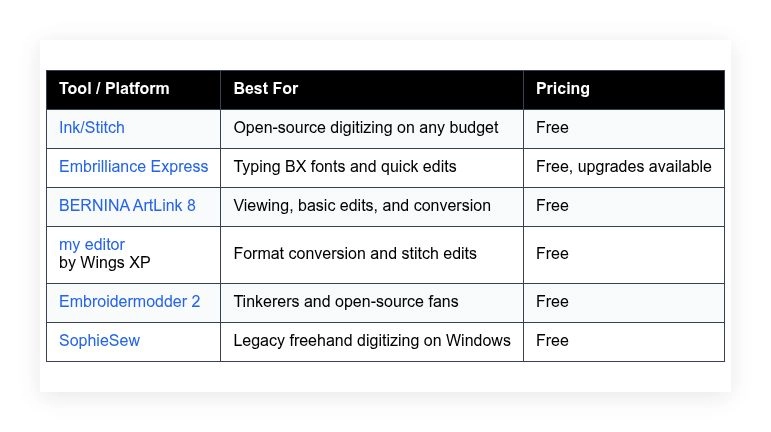
Comparison of 6 best free embroidery software in 2026 with pricing and recommended use cases
Below is a closer look at each tool, followed by our overall recommendations.
What is a free embroidery software?
Free embroidery software is a design and editing tool that converts artwork into stitch files for embroidery machines — its main job is to create, adjust, and export formats like PES, JEF, DST, and EXP. Good software lets you preview stitch paths, density, and trims before you waste thread, stabilizer, and time.
The gains add up fast: dropping density from 0.6 to 0.4 mm on a fill can cut stitch count by thousands on a 4-by-4-inch design, shaving minutes off each run and reducing thread breaks. At its core, embroidery software helps hobbyists, small shops, and educators plan stitches, set underlay and tie-offs, choose thread charts, simulate results, and export the right file for their hoop and machine.
Many users pair it with vector tools like Inkscape or Illustrator for clean shapes, color management utilities for thread matching, and print templates for hoop placement on garments. Not every free tool covers the same ground, so choosing carefully matters if you want reliable stitches without surprise limitations.
How to choose the best free embroidery software
Picking embroidery software can feel overwhelming — there are many formats, different hoops, and features that sound similar but work very differently in practice. We wrote this to make the decision easier and help you find a tool that fits your machine, your budget, and your learning curve.
A few questions worth asking:
- What formats can you import and export for free, like PES, JEF, DST, EXP, VP3?
- How easy is it to do core tasks, resizing with stitch recalculation, color changes, and density tweaks?
- Can you grow into digitizing tools like satin columns, fills, and underlay when you are ready?
- If you upgrade later, what will it cost per month or per module?
- Does it include hoop templates, thread charts, and print templates for placement?
- What stitch simulator and stitch count metrics are available for planning?
- How hard is it to move designs to another tool if you switch later?
- Is it stable on your OS and does it get updates or bug fixes?
- Any machine specific needs, like trim commands, color stop handling, and jump settings?
The ranked list below reflects these points, so you will see where each tool shines and where it falls short.
6 best free embroidery software in 2026
Here are our top picks for the best free embroidery software:
- Ink/Stitch
- Embrilliance Express
- BERNINA ArtLink 8
- my editor
- Embroidermodder 2
- SophieSew
1. Ink/Stitch
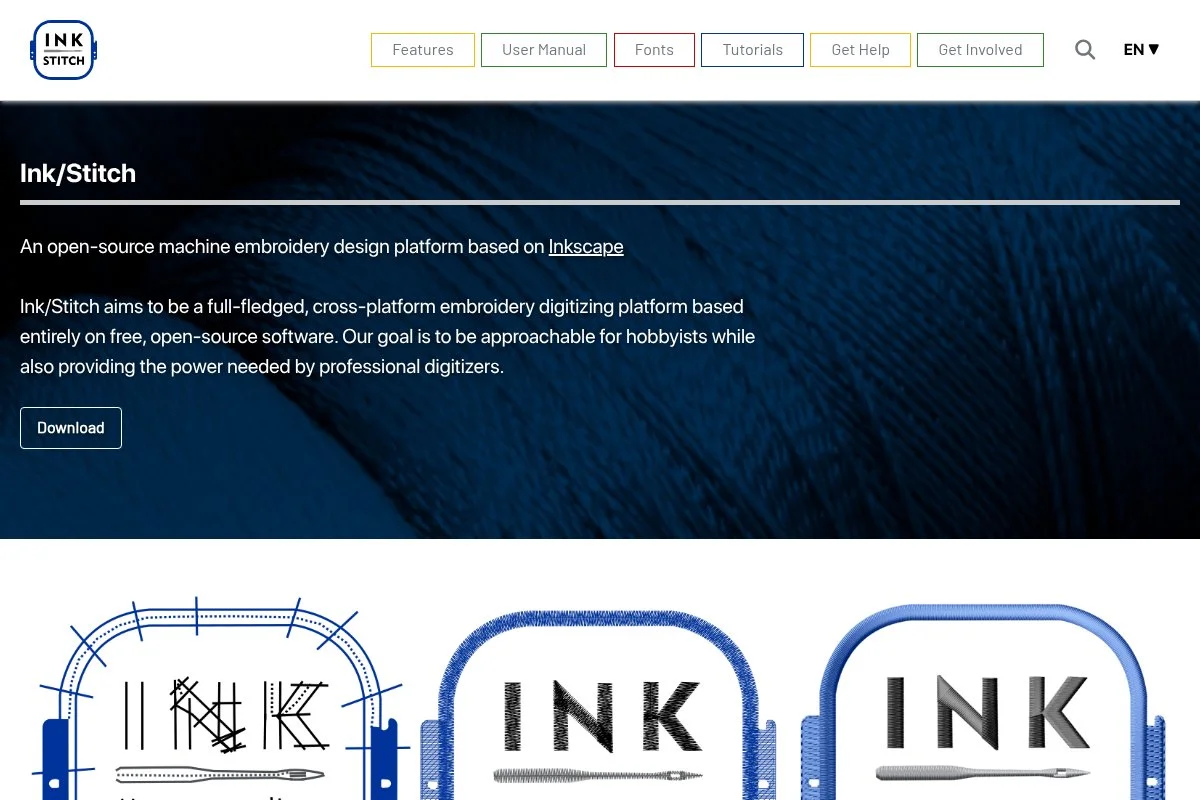
Ink/Stitch is an open-source extension for Inkscape focused on true digitizing, not just format conversion. It is built by a volunteer community that actively maintains features and documentation, and because it sits on top of a proven vector editor, shapes and paths stay clean.
It starts at free, full stop. You install Inkscape and add the Ink/Stitch extension; the workflow lives in SVG, with stitch parameters for density, underlay, and pull compensation, and daily tasks include running the simulator, editing stitch angles, and exporting PES, JEF, DST, and more. Recent releases improved satin cornering, fill patterns, and tie-in control, and the simulator is faster and previews trim commands more clearly, which helps with small text and patch work. Advanced features include auto-satin suggestions from paths, custom fill patterns, and lettering via SVG fonts — you can script repeat tasks and use Inkscape’s vector tools for logo cleanup, features usually found only in paid suites.
Ink/Stitch gives you control over density, angles, and underlay without a bill. Another plus is the documentation: the project site and community tutorials answer real questions with examples, which saves time during tricky designs.
How Ink/Stitch works and key features
Ink/Stitch runs inside Inkscape, so the interface is path based and precise. You draw shapes, convert them to satin columns or fills, then set stitch angles and density from a panel, and it supports templates and reusable styles that make repeat designs consistent. Templates come from SVG assets, customization is wide open with node editing, and advanced users can add custom code using simple parameter files and take advantage of Inkscape extensions; exports cover common formats, analytics show stitch counts and lengths, and the simulator previews travel paths and trims.
Automation shows up in batch exports and reusable styles, and the toolkit also includes print templates for placement. If you get stuck, the wiki and GitHub issues are active and the community is helpful for troubleshooting. Overall, it is beginner friendly if you know Inkscape basics, and it scales to advanced control once you understand stitch parameters.
Who Ink/Stitch is for
Ink/Stitch suits hobbyists, Etsy sellers, schools, makerspaces, and anyone who wants full control at zero cost. It excels at logo digitizing, monograms, patches, and simple appliqué planning. The open format helps designers who start in vector apps. If you need a point-and-click auto-digitizer with polished wizards, a paid suite might fit better. It runs on Windows, macOS, and Linux with Inkscape, so no special hardware or deep technical skills are required.
Ink/Stitch pricing
Ink/Stitch follows a classic open-source model. The software is free, with optional donations to support development. There are no locked exports, no trials, and no subscriptions.
- Ink/Stitch Core: $0/month, full feature set, includes stitch simulation, satin and fill tools, and multi-format exports.
- Community Support: $0/month, access to docs, forums, and issue tracker.
- Donations: Pay what you want, helps fund features and maintenance, no feature gating.
Value is excellent compared to paid suites. Many commercial tools charge for exports or modules, while Ink/Stitch lets you learn real digitizing without buying extra parts. If you prefer annual licenses and support contracts, you will not find those here because it is community driven.
Ink/Stitch pros and cons
Pros:
- Free open-source digitizing with multi-format export.
- Runs on Windows, macOS, and Linux using Inkscape.
- Strong control over density, angles, and underlay.
- Active documentation and community resources.
Cons:
- Learning curve if you are new to Inkscape.
- Interface is less polished than commercial suites.
- No official vendor support channel.
If you want full control without paying, start here. If you prefer guided wizards and vendor support, consider a paid upgrade later.
Ink/Stitch reviews
Third-party review site coverage is limited for niche embroidery tools. Most feedback comes from open-source forums and maker communities, which are generally positive about its flexibility.
2. Embrilliance Express

Embrilliance Express is the free edition of Embrilliance focused on BX fonts and basic design handling. Embrilliance is a well known brand in home embroidery with a modular product line and strong community presence, and the company ships cross-platform apps for Windows and Mac.
Getting started is fast: download, install, and register for a free serial. The interface is clean with a simple design page, object list, and properties, and you can type lettering with BX fonts, arrange designs, color sort, and print templates, with saving to machine formats supported. Recent updates focused on stability and OS compatibility, and the free edition benefits from the same core platform as the paid modules, so new machines and hoops appear in the environment without buying a new app. Paid modules like Essentials and StitchArtist add resizing with stitch recalculation, full digitizing, and advanced editing — but even if you stay free, Express handles lettering with BX fonts and makes monograms fast without manual kerning.
Express is quick for lettering jobs: you can type, color sort, and export to PES in minutes. Support resources are solid too: Embrilliance has tutorials, a friendly user group, and regular live streams that answer real user questions.
How Embrilliance Express works and key features
The interface is WYSIWYG with a hoop view, rulers, and object tree. You select a hoop, type text using BX fonts, adjust spacing, and place elements; templates exist for many hoops, and color sorting reduces thread changes on compatible machines. Advanced users can add paid modules that unlock digitizing, but Express itself focuses on lettering and basic composition — exports cover popular formats, the design information panel shows stitch count and size, automation appears in color sort and save to multiple formats, and help is available through guides and video tutorials.
The overall experience is beginner friendly for lettering and layout, with a clean path to upgrade if you start selling designs or need full digitizing.
Who Embrilliance Express is for
Express fits crafters, hobby embroiderers, small gift shops, teachers, and anyone who wants fast text without buying a full suite. It shines for monograms, name patches, and simple placement around existing designs. If you need custom satin columns or fills from scratch, you will need a digitizing tool or a paid Embrilliance module. It is easy for beginners and runs well on Windows and Mac.
Embrilliance Express pricing
Express is free as a feature limited edition. Embrilliance sells optional modules if you need more power. Pricing depends on which modules you add, not on subscriber counts or usage.
- Express: $0/month, BX font typing, basic composition, color sort, multi format save.
- Essentials: Paid add on, unlocks stitch recalculation, sizing, basic editing, and print templates.
- StitchArtist Levels 1–3: Paid add ons, progressive digitizing tools from simple shapes to advanced control.
- Other Modules: Paid add ons for density repair, merge, and specialty tasks.
Value is strong if you mostly do lettering. Upgrading is modular, which can cost more than a single suite, but you only buy what you use. Embrilliance often offers savings on bundles or during seasonal sales.
Embrilliance Express pros and cons
Pros:
- Free for BX fonts and basic layout.
- Clean interface with hoop templates and color sort.
- Easy upgrade path to full digitizing.
- Active community and learning resources.
Cons:
- No true digitizing in the free edition.
- Some features require paid modules.
- BX font ecosystem is separate from standard font files.
If you want fast lettering and simple exports, Express is a great pick. If you need custom stitches, plan on pairing it with a digitizer.
Embrilliance Express reviews
Formal third-party ratings specific to the free Express edition are limited. User groups and forums often praise its lettering speed and straightforward workflow.
3. BERNINA ArtLink 8

BERNINA ArtLink 8 is a free viewer and basic editor from a respected sewing machine brand. BERNINA has decades of experience in home and professional embroidery, and ArtLink gives Windows users an official way to open, view, and convert designs.
Setup is simple. Once installed, you can view designs at stitch level, resize within limits, and convert between formats like EXP and PES, and the interface highlights hoop selection, color changes, and printing design worksheets for placement. ArtLink benefits from BERNINA’s ongoing machine support, so as new hoops and color charts appear the ecosystem stays current, which helps with compatibility even if you do not own a BERNINA machine. Advanced features are minimal by design — it is not a full digitizer, focusing instead on conversion, viewing, and minor edits — and if you later move to BERNINA’s paid software, your workflow carries over.
ArtLink works well as a reliable viewer and converter for a second check on stitch paths before you press start. The extra win here is predictable stability on Windows: it installs cleanly and does not fight with drivers or dongles.
How BERNINA ArtLink 8 works and key features
ArtLink opens common formats and shows stitches clearly with zoom controls and a stitch player. You can select hoops, print worksheets, and convert files, and resizing works within reasonable bounds, though extreme scaling still risks distortion. There are no templates in the creative sense, but hoop libraries cover standard sizes; technical users will not find scripting or custom code here, reporting covers stitch count, size, color sequence, and thread changes, and help content is available through BERNINA’s site and manuals.
Overall, it is a stable viewer and converter, perfect as a companion to another digitizer in your toolkit.
Who BERNINA ArtLink 8 is for
ArtLink fits beginners, machine owners who want a trusted viewer, teachers preparing worksheets, and anyone converting designs across formats. It is great for color checking and hoop planning. If you need digitizing or advanced editing, pair it with another tool from this list. It is Windows only, so Mac and Linux users will need alternatives.
BERNINA ArtLink 8 pricing
ArtLink is fully free with no upsell inside the app. BERNINA sells separate paid software for digitizing, but ArtLink stands alone as a viewer and converter.
- ArtLink 8: $0/month, includes viewing, conversion, resizing within limits, worksheets, and hoop libraries.
- Support Resources: $0/month, access to manuals and online guides from BERNINA.
Value is high if you need a reliable viewer from a well known brand. If you plan to digitize, this is a companion, not a replacement, for a full suite.
BERNINA ArtLink 8 pros and cons
Pros:
- Free, stable viewer and converter from a trusted brand.
- Clear stitch player and design worksheets.
- Hoop libraries and thread charts included.
Cons:
- Windows only.
- No true digitizing or advanced editing.
Use ArtLink as your dependable viewer and converter. Choose a different tool if you want to create stitches from scratch.
BERNINA ArtLink 8 reviews
Major review sites do not track ArtLink in detail. User forums generally view it as a dependable viewer that pairs well with other software.
4. my editor

my editor is a free Windows application from Wings XP, the team behind commercial embroidery suites. It targets viewing, editing stitches, and format conversion, and Wings has long experience in the industry, which shows in the handling of common machine files.
Installation is quick. You open a design, inspect the stitch list, trim jumps, and tweak colors; the program recalculates some changes and offers a decent stitch player, and it exports to formats like DST, PES, and EXP. Updates have been occasional, with a focus on compatibility, and it remains a handy utility for shops that receive mixed-format files and need a fast way to check and convert. Advanced features are limited, but the stitch-level editing is useful — removing stray stitches before a trim can save a thread pull on lightweight garments.
It is not a main digitizer, but it is handy when a customer’s file needs conversion and a quick tidy-up. Support documents and short guides from Wings XP make it easier to learn the basics without guesswork.
How my editor works and key features
The interface centers on a design window with color sequence, stitch list, and properties. You can resize within limits, adjust colors by thread chart, and run the stitch player; it reads and writes many formats and can print worksheets. Templates are simple, mostly around hoops and color charts, technical controls include limited stitch edits and trim management, reporting shows stitch count, size, and color changes, and automation is light, focused on conversion rather than batching, with support through the Wings XP site.
Overall, it is a practical conversion and cleanup tool that complements a primary digitizer.
Who my editor is for
This tool fits shop owners, decorators, and hobbyists who receive files from clients and need quick conversion and light editing. It excels at format handling and basic cleanup before production. If you want to design from blank canvas, choose a digitizer. It is Windows only and friendly for beginners.
my editor pricing
my editor is offered as a free utility, separate from Wings XP’s paid products. There are no tiers inside the app.
- my editor: $0/month, includes viewing, limited stitch edits, color changes, conversion, and worksheets.
- Documentation: $0/month, online guides and basic support resources.
Compared to commercial converters, the free price is hard to beat. If you need advanced digitizing, Wings XP sells full suites, but this tool stands alone for quick tasks.
my editor pros and cons
Pros:
- Free conversion and stitch level edits.
- Decent stitch player and worksheets.
- Handles many machine formats.
Cons:
- Windows only.
- Not a full digitizing environment.
- Interface feels dated.
If your main need is conversion and cleanup, it is a strong utility. If you want creation tools, look higher on this list.
my editor reviews
There is limited coverage on major review sites. User comments in embroidery forums are mixed on the interface but positive on conversion reliability.
5. Embroidermodder 2

Embroidermodder 2 is an open-source project with a focus on editing and conversion, backed by the libembroidery library. It runs on multiple platforms and appeals to tinkerers who like open tools, and the project has been around for years with ongoing community interest.
Getting started is free. Builds are available for common platforms, or you can compile from source, and the interface looks like a lightweight CAD program with layers, properties, and a stitch view for inspecting designs, adjusting elements, and testing conversions. Recent work has centered on file format support and stability, which matters if you receive oddball files or need a backup tool when something else fails to open a design. Advanced features include scripting potential through the underlying libraries and experimental tools for pattern generation; it is not a polished digitizer, but it offers interesting flexibility for technical users.
It works as a safety net — when a file will not open elsewhere, Embroidermodder often offers a path to recovery. Documentation is improving, and the website links to resources that help with building and using the app.
How Embroidermodder 2 works and key features
The main interface offers a workspace with zoom, pan, and object selection. You can view stitches, reorder colors, and export to common formats, and there are basic transforms and some stitch property controls. Templates are limited, technical users can extend the toolkit by working with the library code and command line utilities, reporting includes stitch counts and color changes, automation is possible with scripts and batch conversions, and support is community based through the site and repositories.
In practice, it is best for intermediate users who are comfortable with open-source tools and want a flexible editor.
Who Embroidermodder 2 is for
It suits developers, Linux users, makerspaces, teachers who want open tools, and small shops that value a backup editor. It is helpful for conversion, inspection, and troubleshooting. If you want polished digitizing and guided wizards, choose another pick. It can require technical patience, especially if compiling from source.
Embroidermodder 2 pricing
The software is free under an open-source license. There are no tiers or paid modules. Donations and contributions keep development moving.
- Embroidermodder 2: $0/month, includes editing, conversion, and multi format support.
- libembroidery tools: $0/month, command line utilities for advanced workflows.
As a free tool, the value is obvious. The tradeoff is polish and documentation compared to commercial suites. If you like open tools, it is a strong addition to your kit.
Embroidermodder 2 pros and cons
Pros:
- Free and open-source with wide format support.
- Runs on multiple platforms.
- Scriptable workflows for power users.
Cons:
- Interface is utilitarian and can feel rough.
- Documentation varies by feature.
- Not a full digitizer for complex projects.
Pick this if you value open tools and flexibility. If you want a guided digitizing path, look to Ink/Stitch or a paid suite.
Embroidermodder 2 reviews
There is little presence on mainstream review sites. Feedback from open-source communities is supportive of its mission and file support.
6. SophieSew
SophieSew is a free Windows digitizer that has been around for many years. It offers manual digitizing features, including satin and fill tools, with a traditional interface, though development has been sporadic and the app can be finicky on modern Windows setups.
The upside is that it gives you a blank canvas to draw stitches without paying. It can handle small tests and simple shapes and export to common formats, though results should be double-checked in a viewer before stitching. Updates have been sparse, so treat it as a legacy tool that still teaches the fundamentals of placing corners and setting angles. Advanced features are limited and stability varies, so save often and test on scrap fabric before running production designs.
It introduced many people to digitizing at zero cost, but it should not be your only tool in 2026. If you are patient, it can be a no-cost way to practice hand digitizing basics.
How SophieSew works and key features
The interface is menu driven with tools for satin columns, fills, and basic outlines. You set stitch angles, density, and travel paths by placing points, and there is a stitch player and measurement readouts for size and stitch count. Templates are minimal, there are no integrations or scripting options, reporting is basic and focused on counts and colors, and support is limited to website guides and community posts from long time users.
In practice, it is a minimal digitizer good for learning technique, but it requires patience and careful testing.
Who SophieSew is for
SophieSew suits budget strapped beginners, students, and anyone curious about manual digitizing on Windows. It is useful for practicing satin angles, small logos, and simple appliqué plans. If stability and modern UI matter, pick another tool. It is beginner friendly in concept, but the quirks add a learning curve.
SophieSew pricing
SophieSew is free with no paid tiers. There are no official add ons. The only cost is your time and patience.
- SophieSew: $0/month, manual digitizing with satin and fills, exports to common formats.
As a free digitizer, the value is the education it provides. For production work, we recommend pairing it with a viewer and test stitching before orders.
SophieSew pros and cons
Pros:
- Free manual digitizing environment.
- Good for learning stitch placement basics.
- Exports to several formats.
Cons:
- Stability and compatibility issues on modern systems.
- Outdated interface and limited features.
- Documentation and updates are sparse.
Try it for practice if funds are tight. For regular work, use a more current tool.
SophieSew reviews
Third-party reviews are scarce. Most commentary comes from long time users who appreciate the free entry point but warn about crashes and quirks.
What is the best free embroidery software right now?
The short version: Ink/Stitch for true digitizing, Embrilliance Express for slick lettering, and BERNINA ArtLink 8 for reliable viewing. They cover different needs and together form a capable toolkit without a monthly bill.
Ink/Stitch is our top pick. From a value angle it is hard to beat: paid suites often split features into modules, and by the time you get digitizing, lettering, and good exports you can spend hundreds, whereas Ink/Stitch gives you the essentials at no cost, freeing money for stabilizer, thread, and blanks.
Embrilliance Express is our second choice — perfect for fast, professional-looking lettering using BX fonts and for quick layouts, and recent platform updates keep it friendly on new Macs and Windows PCs. It also nails the user experience: the hoop view, color sort, and template printing are clean, and for lettering-focused work it could easily be the main tool.
BERNINA ArtLink 8 is our third recommendation — a solid viewer for a final check on stitch paths, sizes, and thread changes. It does not digitize, but it is steady and free, which makes it a perfect companion to Ink/Stitch or Express. Combining tools works well: Ink/Stitch for creation, Express for fast text, and ArtLink to double-check files before moving them to a USB stick. Choosing between the top two can feel tough — Express is easier for lettering out of the box, Ink/Stitch gives deeper control for custom work — but Ink/Stitch comes first for logos and patches that need careful density and angle control.
Frequently Asked Questions
Q: Which free embroidery software is best for beginners?
For quick wins, we suggest Embrilliance Express for lettering and Ink/Stitch for learning real digitizing. If you only need a viewer and converter, BERNINA ArtLink 8 is very friendly.
Q: Can free software export to PES, JEF, or DST?
Yes. Ink/Stitch, my editor, and Embroidermodder 2 export common formats. Embrilliance Express saves to popular formats too. Run a viewer check before stitching, just in case.
Q: Do I need auto digitizing, or is manual digitizing better?
Auto tools are fast for simple art, but manual control wins on small text and logos. Start with manual satin columns and fills, then use auto tools only when they save time cleanly.
Q: Will these tools work on Mac?
Ink/Stitch and Embrilliance Express run on Mac. BERNINA ArtLink 8, my editor, and SophieSew are Windows only. If you are on Mac, keep a viewer alternative or use a virtual machine for Windows apps.