


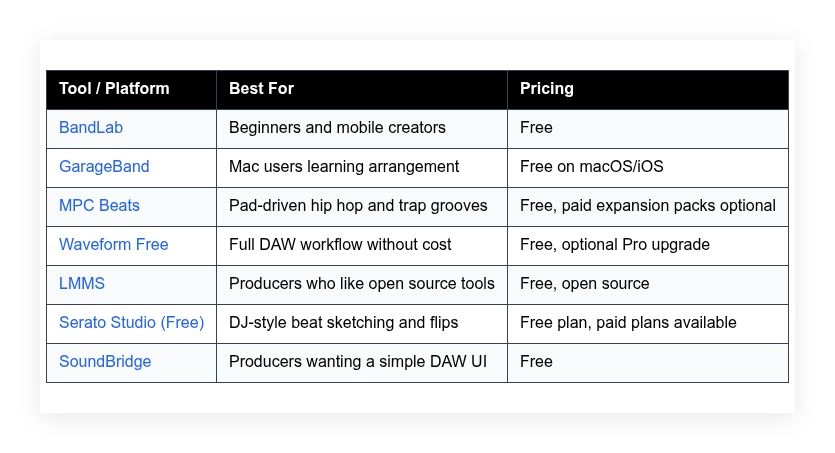
You can make and release full beats with free software, as long as the tool fits your computer and the way you work. This guide compares seven options — BandLab, GarageBand, MPC Beats, Waveform Free, LMMS, Serato Studio, and SoundBridge — covering what each does well, who it suits, what the free version includes, and where it falls short.
How we put this list together: we went through each tool’s official website, pricing page, and documentation, and checked what the free plan actually includes and where the paid tiers begin. Prices and plan limits change often, so confirm the details on the vendor’s site before you commit.
My take
The research made one thing clear: there has never been a better time to make beats without spending money. Several of these free tools would have been considered professional software ten years ago.
My opinion is that the right pick depends far more on your workflow than on features. If you think in pads and loops, MPC Beats will feel natural. If you think in timelines and arrangements, GarageBand or Waveform Free will. If you want to start on your phone and finish later, BandLab is hard to beat. Picking the tool that matches how you think saves months of frustration.
I would also gently push back on the idea that you need more plugins or sounds to get better. Every tool here includes enough instruments to finish real tracks. The bigger gains come from learning one DAW deeply, organizing your samples, and finishing songs rather than switching software every few weeks.
Comparison of 7 best free beat making software in 2026 with pricing and recommended use cases
Below is a closer look at each tool, followed by our overall recommendations.
What is a beat making software?
Beat making software is music production software that helps you arrange drums, compose melodies, record audio, and export songs — turning ideas into finished tracks on a computer or phone. The value is control: over your sound and your release schedule, without studio bookings.
Consider the difference in payoff: a two-minute loop on TikTok might get 50,000 views and then vanish, while a finished beat exported at 24-bit WAV can land on streaming platforms and earn plays for years. At its core, beat software gives producers, rappers, and creators a place to sequence drums, layer instruments from plugins or samples, record vocals if needed, and export a clean audio file for release.
People often pair these tools with sample libraries, drum kits, audio interfaces, and simple mixing plugins, with collaboration platforms and mastering tools as common add-ons. Not all free options are equal, so it pays to pick based on workflow, export quality, and how easily you can grow.
How to choose the best beat making software
Picking a free DAW can feel overwhelming — there are many choices, and every producer on Reddit has a different favorite. We wrote this to help you find a setup that matches your goals, your computer, and your learning style, because small fit details can save hours each week.
A few questions worth asking:
- How generous is the free tier, and are exports watermarked or limited?
- Can you lay down drums and edit the piano roll quickly without menus slowing you down?
- Will this scale if you add more plugins, tracks, or collaborators?
- How does cost grow if you need more sounds or upgrade later?
- Does it include the features you need for your genre, like time stretching or slicing?
- What analytics or metering are built in for gain staging and loudness?
- Can you move your projects or stems to another DAW without headaches?
- How stable is it under low latency settings, and how often is it updated?
- Are there specific drivers or controller integrations you need for your gear?
Our ranked picks below call out where each tool shines and where you might hit friction.
7 best beat making software in 2026
Here are our top picks for the best beat making software:
- BandLab
- GarageBand
- MPC Beats
- Waveform Free
- LMMS
- Serato Studio (Free)
- SoundBridge
1. BandLab
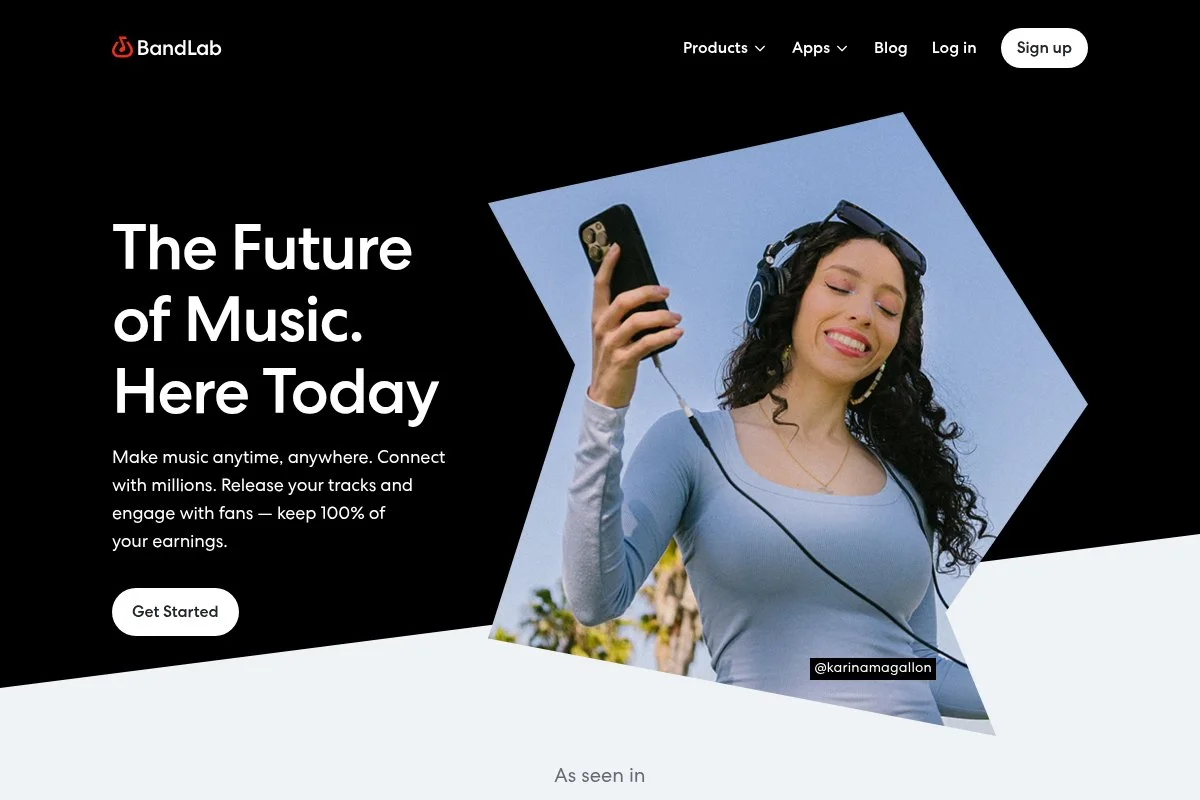
BandLab is a free, all-in-one music creation platform built for the web and mobile. The company behind it has invested heavily in community tools, collaboration, and content discovery, which keeps it top of mind for new producers.
You can start completely free in your browser or the app. The Mix Editor is clean and beginner friendly — you build loops with the step sequencer, arrange with drag-and-drop tracks, and pull sounds from BandLab Sounds without leaving the project. Recent updates tightened time stretching, improved effects, and expanded the royalty-free sound library, and the cross-device sync makes starting on a phone and finishing on a laptop feel realistic for quick beat ideas. As you grow, BandLab connects to social-style features like comments, forks, and remixing, with release tools to share with followers; it is not a pro desktop DAW, but the end-to-end flow is strong for a free service.
BandLab is great for idea capture and collaboration because it removes setup friction and keeps momentum high. The built-in mastering option is useful for quick references — not a substitute for a mix engineer, but it helps check a vibe fast.
How BandLab works and key features
BandLab’s Mix Editor runs in your browser with a simple track view. You can tap in drums on a step sequencer, record audio, or program MIDI in a piano roll, and projects autosave to the cloud. The platform includes thousands of royalty-free samples in BandLab Sounds plus easy instrument presets; you can customize chains with EQ, compression, and reverb, and advanced users can route tracks, edit automation, and freeze stems to save CPU.
There is basic metering and loudness info, which is enough for rough gain staging, and collaboration is real time for comments and versioning — you can set releases and share to your BandLab profile in a click. Support is handled through help articles and an active community. Overall, it is beginner friendly and efficient.
Who is BandLab for?
BandLab suits beginners, mobile-first creators, students, and collaborators who want zero setup. It works well for hip hop drafts, lo-fi loops, and quick vocal ideas, and the social layer helps artists who want feedback and remix culture. If you need deep third-party plugin support or complex routing, a desktop DAW may fit better. No technical skill is required to start.
BandLab pricing
BandLab keeps pricing simple with a free core platform. You can create, collaborate, and release without paying. Optional add-ons and services exist, but making beats is free.
- Free: $0/month, unlimited projects, collaboration, BandLab Sounds, Mix Editor, and basic mastering
For pure beat making, the value is obvious. BandLab does not watermark exports. If you need advanced desktop features, you may outgrow it, but as a starter hub it is hard to beat.
BandLab pros and cons
- Pros: Zero-cost browser workflow, strong sample library, easy collaboration, quick mastering previews
- Pros: Works on phones and laptops with cloud sync
- Pros: No export watermark
- Cons: Limited third-party plugin depth compared to pro DAWs
- Cons: Advanced routing and mixing tools are basic
If you want a free, frictionless way to get ideas down and share them, choose BandLab. If you need heavy plugin chains and pro mixing tools, look lower on this list.
BandLab reviews
There are limited formal reviews on sites like G2 or Capterra. Most feedback lives on YouTube, Reddit, and the BandLab community, where sentiment is generally positive for beginners.
2. GarageBand

GarageBand is Apple’s free music creation app for macOS and iOS. It benefits from Apple’s design resources, tight hardware integration, and a long track record of helping newcomers learn production.
You start free on any recent Mac or iPhone. The interface feels polished with a clear timeline, drummer tracks, and a friendly piano roll, and we like the Smart Controls for quick EQ and compression without plugin hunting. Apple keeps adding sound packs and Live Loops features, which makes sketching ideas fast, and the built-in drummer can generate realistic grooves that respond to simple controls for complexity and swing. On the Mac, GarageBand supports Audio Units plugins, which opens the door to free synths and effects, plus a clean path to Logic Pro if you want to upgrade later without changing habits.
GarageBand is good for teaching arrangement basics, since the UI stays out of the way. The included lessons, sound library, and Apple’s support docs make it a friendly first stop for many producers on Mac.
How GarageBand works and key features
GarageBand uses a timeline with tracks for audio and MIDI. The Drummer feature generates patterns, Live Loops lets you trigger cells like a performance grid, and the piano roll editor is clean and responsive. There are many Apple-designed patches and software instruments; you can customize effects with channel EQ, compressors, and delays, and advanced users can add Audio Units for more sounds or tools.
Metering is basic but clear, and you can automate volume and pan. On iOS, sessions sync with iCloud, so you can start on a phone and finish on a Mac, and Apple’s help pages and community forums cover common questions. Overall, the experience is beginner friendly with room to grow, especially if you later move to Logic Pro and keep your projects intact.
Who is GarageBand for?
GarageBand is best for Mac and iPhone users, students, singer-songwriters, and beat makers who want a clean start. It shines for pop, hip hop, and podcast edits, and Audio Units support helps sound hunters. If you are on Windows or Linux, look elsewhere. It is beginner friendly and does not require technical skill to get going.
GarageBand pricing
GarageBand is free on macOS and iOS. There are no paid tiers inside GarageBand itself. You may choose to buy third-party plugins or sound packs from other vendors.
- Free: $0/month, full app on macOS and iOS, Apple sound library, Drummer, Live Loops, Audio Units support on Mac
The value is strong if you are in the Apple ecosystem. Logic Pro is the natural paid step up, but you can make full releases with GarageBand alone.
GarageBand pros and cons
- Pros: Free and polished, great sounds, Drummer and Live Loops speed up ideas
- Pros: Audio Units support enables a wide range of free plugins
- Pros: Smooth path to Logic Pro if you upgrade later
- Cons: Mac and iOS only
- Cons: Advanced mixing and routing features are limited versus pro DAWs
If you are on Apple devices, start here. If you need Windows support or deeper mixing tools, see Waveform Free or LMMS.
GarageBand reviews
Formal third-party DAW reviews focus on Logic Pro. GarageBand feedback is widespread on Apple’s App Store and user forums, where it is praised for ease of use and included sounds.
3. MPC Beats
MPC Beats is Akai’s free beat production software modeled on the classic MPC workflow. Akai’s history in hip hop hardware gives this tool real credibility for pad-based production.
You download it free and start with templates for trap, house, or boom bap. The interface centers on a drum grid, piano roll, and sample editor, and we love the 16-pad layout for finger drumming and quick chops. Akai continues to update MPC software across its lineup, and MPC Beats benefits with better effects and controller integration — it supports popular MIDI controllers, not just Akai units, which is great. You get built-in instruments and effects with the free version, plus the ability to load VST plugins, and that flexibility is rare for a free entry point.
MPC Beats is the pick for swingy drums and sample flips — the timing suits hip hop, and the Quantize options help without making patterns stiff. Akai’s tutorials and packs help you learn fast, and the workflow teaches discipline in making each pad count.
How MPC Beats works and key features
MPC Beats uses a track and sequence model with a classic MPC feel. You can record pads live or program steps, then edit in a precise piano roll, and the sample editor handles slicing and time correction cleanly. Templates and expansions speed up setup, you can customize mixer chains with filters, delays, and compressors and load VST plugins for synths or effects, and automation handles filter sweeps and mutes.
Metering is clear, and you can bounce stems or a full mix. There are lessons in the app and on Akai’s site. Overall, it is powerful for drum-focused music and friendly to both beginners and seasoned MPC fans.
Who is MPC Beats for?
MPC Beats fits hip hop and trap producers, sample-based creators, finger drummers, and anyone with a pad controller. It shines for chopping, swing, and quick drum programming. If you want a traditional timeline-first DAW, try Waveform Free. Minimal technical skill is needed to start, though MPC concepts reward practice.
MPC Beats pricing
MPC Beats is free to download and use. Akai offers optional expansion packs and instruments that you can buy to grow your sound library, but the core beat workflow is free.
- Free: $0/month, full MPC-style sequencing, basic instruments and effects, VST support, and export
The free value is strong, especially with VST support. Paid packs are optional and do not lock core features, which keeps costs under control.
MPC Beats pros and cons
- Pros: True MPC pad workflow, sample chopping, solid swing and quantize
- Pros: VST plugin support in a free tool
- Pros: Good controller integration across brands
- Cons: Learning curve if you are new to MPC style sequencing
- Cons: Arrangement view feels different from standard DAWs
Pick MPC Beats if drums and chops are your main dish. If you prefer linear arrangement first, you may be faster in GarageBand or Waveform Free.
MPC Beats reviews
Formal review sites focus on MPC hardware. Community reviews on forums and YouTube are positive for a free option, especially for pad players and sample-based styles.
4. Waveform Free

Waveform Free is Tracktion’s no-cost version of its full DAW. Tracktion has been building DAWs for years and is respected for bringing serious features to free users.
You download it for Windows, macOS, or Linux. The interface is a modern timeline with clips, a mixer, and a detailed piano roll, and we appreciate how it keeps most controls visible without endless menus. Tracktion updates Waveform regularly, and the Free edition inherits many quality-of-life improvements, with performance and stability that matter for dense beats. Waveform Free supports third-party plugins, automation, and flexible routing — features that rival paid DAWs, which makes this a strong choice if you want a conventional studio setup.
Waveform Free handles more complex arrangements and careful mixing, including multi-track edits. The documentation is clear, and Tracktion’s YouTube channel has practical videos that shorten the learning curve.
How Waveform Free works and key features
Waveform Free gives you a traditional DAW layout with tracks, clips, and a piano roll. Editing is precise with snapping, clip gain, and automation lanes, and the mixer supports inserts and sends with a clean view. You can load VST plugins and customize templates for faster sessions, advanced routing lets you chain effects or create parallel paths, and there is solid metering for peaks and loudness.
You can render stems or full mixes and set up basic automation for volume and effects. Tracktion’s support center and tutorials are helpful, and the overall experience balances power with a reasonable learning curve.
Who is Waveform Free for?
Waveform Free suits producers on Windows, Mac, or Linux who want a classic DAW feel. It is great for hip hop, EDM, and any style that needs many tracks and plugins. If you prefer a pad-first workflow, MPC Beats might feel faster. It is beginner friendly with room for advanced users.
Waveform Free pricing
Waveform Free costs nothing and includes many core DAW features. Tracktion offers a paid Pro edition with more instruments, effects, and advanced tools if you decide to upgrade later.
- Free: $0/month, full timeline editing, plugin support, automation, and export
- Pro upgrade: Paid, adds advanced instruments, effects, and extra features
As a free DAW, Waveform Free offers strong value. If you upgrade, you get a clear path without switching tools. Check Tracktion’s site for current Pro pricing if you plan to scale.
Waveform Free pros and cons
- Pros: Full DAW layout, VST support, automation, and routing
- Pros: Works on Windows, macOS, and Linux
- Pros: Clear upgrade path to Pro
- Cons: UI density can feel busy to newcomers
- Cons: Fewer starter sounds compared to BandLab or GarageBand
Pick Waveform Free if you want a serious studio layout at zero cost. If you want instant sounds and social sharing, BandLab may be faster.
Waveform Free reviews
Waveform has coverage across music tech sites and forums. Formal star ratings vary by version, but community feedback is strong for a free full DAW.
5. LMMS
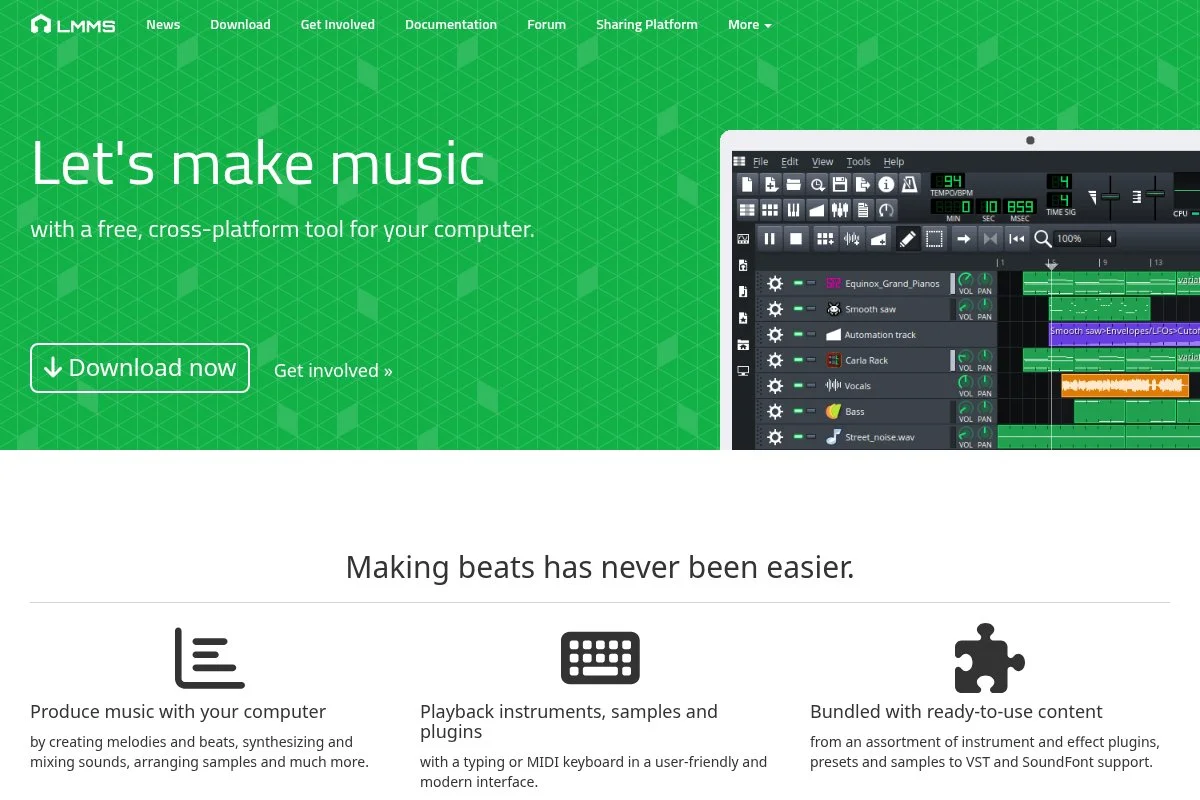
LMMS is a free, open source music production app that runs on Windows, macOS, and Linux. It has a long history in the open source community and a loyal user base.
You install it free and land in a pattern-based workflow with a song editor, beat and bassline editor, and piano roll — familiar if you like step sequencing and quick loop building. Recent builds improved stability and plugin compatibility, and the community maintains themes, presets, and support forums that keep learning costs low. LMMS includes several built-in instruments and effects and supports soundfonts and VST on some platforms; for a free tool, it stretches far if you are willing to tweak.
LMMS runs light on older laptops where heavier DAWs struggle. The project is volunteer driven, which we respect; the pace of updates can vary, but the core is solid.
How LMMS works and key features
LMMS uses a pattern and song editor flow. You build drum patterns in the beat and bassline editor, then arrange them on a timeline, and the piano roll is straightforward for melodies and chords. There are templates and community presets to speed up work; advanced users can route effects, automate parameters, and load selected plugins, and metering is basic but workable for beat levels.
LMMS does not include every modern DAW feature, but it covers the essentials, with help from community docs and forums. The experience is practical for beat sketches and full tracks if you stay within its strengths.
Who is LMMS for?
LMMS fits producers who like open source software, students on older hardware, and tinkerers who enjoy customization. It is solid for EDM, hip hop loops, and chiptune style tracks. If you want polished built-in sounds and slick UI, try GarageBand or BandLab. It is beginner friendly but rewards patience.
LMMS pricing
LMMS is free and open source. There are no paid tiers. You can donate to support development if you find it helpful.
- Free: $0/month, full app, community support, built-in instruments and effects
As a no-cost DAW, LMMS offers strong value, especially for low-spec machines. The tradeoff is a more utilitarian feel and fewer guided workflows.
LMMS pros and cons
- Pros: Free and open source, runs light on older hardware
- Pros: Pattern-based flow is fast for drums and loops
- Pros: Community presets and themes help you start quickly
- Cons: UI feels dated, fewer modern conveniences
- Cons: Plugin support varies by platform
Choose LMMS if you want a free, lightweight tool you can shape. If you need modern polish and bundled sounds, other picks will feel nicer.
LMMS reviews
LMMS has strong community presence on GitHub and forums. Formal ratings on business review sites are limited. User sentiment highlights its speed and zero cost.
6. Serato Studio (Free)
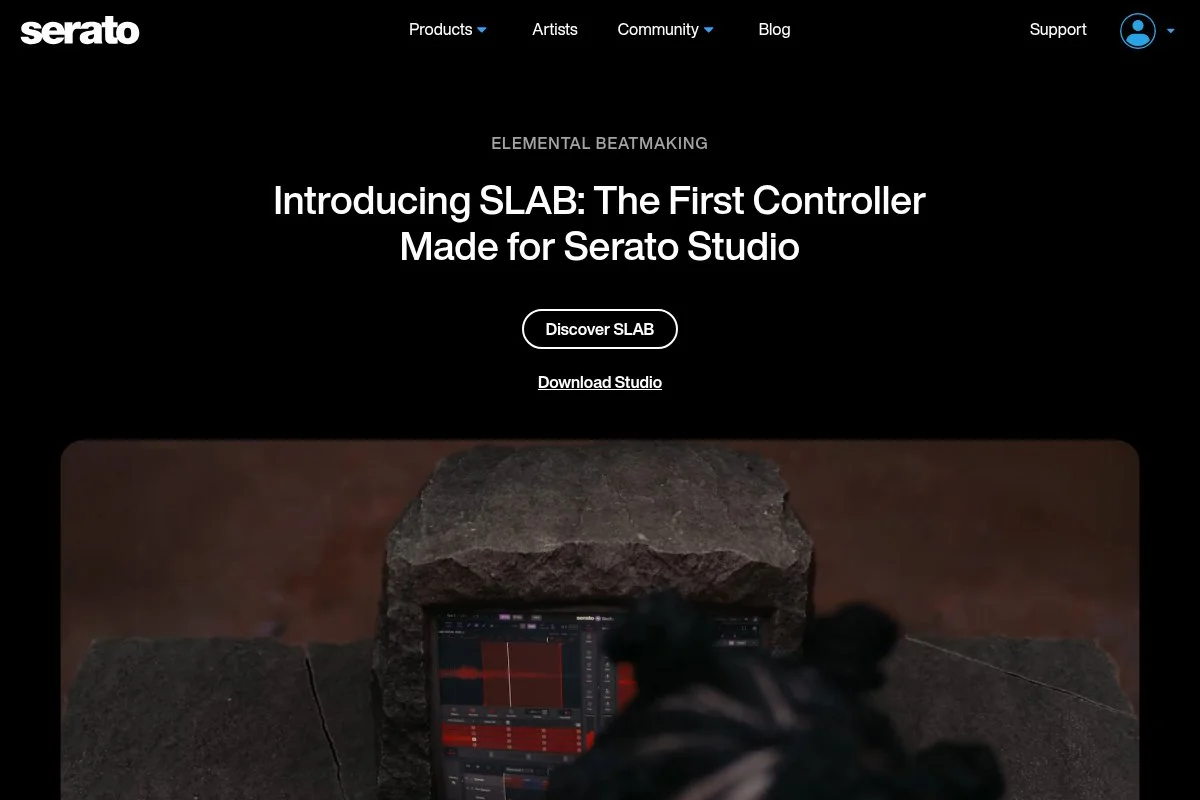
Serato Studio is Serato’s beat making app that brings a DJ mindset to production. Serato has deep roots with DJs, which shapes its sampler, key detection, and time stretching.
The Free plan lets you explore the workflow with core features. The interface is streamlined, with scenes, drum decks, and a sampler that feels quick for flips and edits, and key and BPM detection help match samples fast. Serato continues to improve Studio with better effects and tighter hardware support, and if you already use Serato DJ, the ecosystem familiarity is a plus. Paid plans unlock more sounds and features, but the Free mode is a good sketchpad — it excels for sample flips and DJ-style arrangements that move in scenes.
We like Serato Studio for turning a vinyl rip into a playable beat in minutes; the time stretch sounds clean for moderate changes. Serato’s tutorials are helpful and focus on real workflows, not just features.
How Serato Studio works and key features
Serato Studio uses a scene-based approach. You load samples or instruments, detect key and BPM, and build patterns on drum decks and piano roll, and the sampler supports slicing and quick cue points. There are templates and sound packs; advanced users can automate parameters and stack effects like filters, delays, and sidechain compression, metering is clear, and export options cover stems and full mixes.
Automation can run on clips or tracks. Support includes help docs and video training. The experience is friendly for DJs moving into production and producers who like scene-based work.
Who is Serato Studio for?
Serato Studio fits DJs, sample flip fans, beat makers who live by key detection, and creators who like scene-based flows. It is great for quick remixes and flips. If you want a full traditional DAW with deep routing in the free tier, try Waveform Free. It is beginner friendly.
Serato Studio pricing
Serato Studio offers a Free plan with core features. Serato also sells paid plans with extra sounds and advanced features. Details can change, so check Serato’s site for current pricing.
- Free: $0/month, scene-based workflow, sampler, key/BPM detection, and export
- Paid plans: Subscription or license, add sounds and features
The Free plan is strong for sketches. If you love the flow, the paid upgrade path is there. We suggest starting free to see if the DJ-style layout fits you.
Serato Studio reviews
Serato Studio has positive coverage across music blogs and YouTube channels. Formal ratings vary by year and plan.
7. SoundBridge
SoundBridge is a free DAW with a straightforward layout and a focus on simplicity. The team promotes a clean learning curve and includes Rhythm Lab for drum work.
Setup is free on Windows and macOS. The interface gives you a standard timeline, mixer, and piano roll, and the workflow is clear for arranging basic beats and recording quick takes. Updates have improved stability and plugin handling over time, and it supports third-party VSTs, which matters if you have favorite synths or effects. It is not as feature packed as Waveform Free, but it covers the essentials for sequencing, automation, and export — enough for a first release.
We appreciate the minimal clutter; it helps new users focus on songwriting and rhythm rather than menus. SoundBridge’s tutorials are short and practical, which speeds up the first week of learning.
How SoundBridge works and key features
SoundBridge gives you a track-based timeline with MIDI and audio clips. The piano roll edits notes cleanly, the mixer supports inserts and sends, and Rhythm Lab helps with drum sequencing. You can load VSTs for instruments and effects, automate key parameters, and render stems or a stereo mix; metering covers basic levels, and templates help start a new session fast.
Support includes guides and a community forum. The overall feel is simple and focused on getting a song done.
Who is SoundBridge for?
SoundBridge fits beginners, budget-conscious producers, and anyone who wants a distraction-free DAW. It works well for hip hop, lo-fi, and singer-rapper demos. If you need heavy routing or advanced editing, Waveform Free may be better. It is beginner friendly with a light learning curve.
SoundBridge pricing
SoundBridge is free to download and use. There are no forced upgrades for core features. You can expand with third-party plugins if you want more sounds.
- Free: $0/month, timeline editing, Rhythm Lab, VST support, automation, and export
As a zero-cost DAW, it is a fair value for simple beat work. If you grow, you might move to a fuller feature set, but you can ship tracks here.
SoundBridge reviews
You will find limited coverage on big review sites. User comments on forums and videos call out its simple UI and quick learning curve.
What is the best beat making software right now?
The short version: BandLab for absolute beginners, GarageBand for Apple users who want a polished start, and Waveform Free for those who want a full desktop DAW without paying.
BandLab is our top pick. The value scales well: free projects, no watermark on exports, and a large sound library make it easy to keep moving, and if you outgrow it you can still export stems and move on.
GarageBand is a close second if you are on Mac or iOS. It feels refined, the Drummer feature is great for quick grooves, and Audio Units unlock tons of free instruments — Apple keeps shipping new sound packs, so you spend more time creating and less time hunting for tools. Its unique strength is the training-wheel factor that never gets in the way: you can learn arrangement, automation, and basic mixing with little friction, and for Apple-only users it is a strong first choice.
Waveform Free lands third because it gives you a real studio layout at zero cost — if you want full plugin chains and careful routing, this is the free path that feels closest to pro DAWs, and it runs on Windows, Mac, and Linux. Tools combine well: sketch in BandLab on a phone, tighten drums in MPC Beats, then arrange a final in Waveform Free. Choosing between the top options is a good problem: BandLab wins for speed and sharing, GarageBand is the move for a Mac-only class, and Waveform Free for a PC lab.
Frequently Asked Questions
Q: What is the easiest free beat making software for beginners?
BandLab and GarageBand are the easiest to start with. BandLab runs in a browser with no setup. GarageBand feels polished on Mac and comes with helpful sounds and a friendly piano roll.
Q: Can I release songs made with these free tools?
Yes. Always use royalty-free samples or your own sounds, and check licenses on any third-party packs.
Q: Which free option works best on Windows?
Waveform Free, LMMS, MPC Beats, and BandLab all run on Windows. For a full DAW feel, try Waveform Free. For pad-based grooves, MPC Beats is great. BandLab is perfect for quick browser sketches.
Q: Do I need paid plugins to get good drums?
No. You can get solid drums with free packs and built-in kits. Focus on sample selection, gain staging, and swing. If you upgrade later, treat paid plugins as a bonus, not a crutch.