

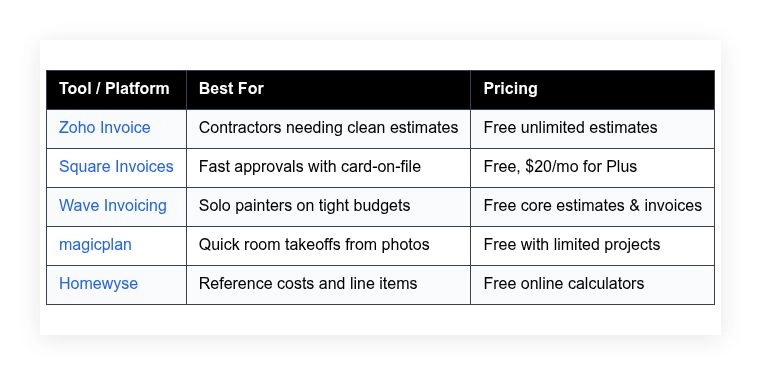
Painting jobs run over budget when takeoffs are rough and pricing is vague; the right estimating tool makes both clearer. This guide compares five options — Zoho Invoice, Square Invoices, Wave Invoicing, magicplan, and Homewyse — covering what each does well, who it suits, what the free plan includes, and where it falls short.
How we put this list together: we went through each tool’s official website, pricing page, and documentation, and checked what the free plan actually includes and where the paid tiers begin. Prices and plan limits change often, so confirm the details on the vendor’s site before you commit.
My take
The most useful thing the research showed is that free paint estimating tools fall into two groups: tools that measure and tools that sell. magicplan and Homewyse help you get square footage and cost ranges right. Zoho Invoice, Square, and Wave help you present the number and get paid. None of the free options does both well.
My opinion is that measurement is where small painting businesses actually lose money. A beautiful proposal does not help if the wall area or prep time was underestimated. So I would treat a measuring tool as essential and the invoicing tool as the easy part.
I also think Homewyse is best used as a sanity check rather than a pricing source. Its regional cost ranges are useful for spotting a bid that is way off, but your real labor rates and production speed should drive the final number.
Comparison of 5 best free paint estimating software in 2026 with pricing and recommended use cases
Below is a closer look at each tool, followed by our overall recommendations.
What is a paint estimating software?
Paint estimating software is a tool that helps painters and contractors measure spaces, calculate materials and labor, and produce professional estimates for clients. In trades, time is money — a clear estimate turns measurements into dollars faster, which means fewer site visits and earlier client approvals, and that speed often wins jobs.
Consider the difference: a well-built estimate that lands in a client’s inbox the same day can double acceptance rates compared to sending a rough number a week later, and clear line items also cut scope disputes by a large margin. The core purpose is simple — painters, handypeople, and small contractors enter room dimensions and scope details, often from site notes or photos, and the software outputs costs, timelines, and a shareable proposal.
Many teams pair estimating tools with takeoff apps for measurements, invoicing platforms for payments, and CRMs to track leads and follow-ups. Not every option fits every workflow, so it pays to look closely at limits, speed, and how estimates turn into approved jobs.
How to choose the best paint estimating software
Picking a tool can feel overwhelming — there are many apps, most look similar at first glance, and the differences show up in daily use and in the limits on free plans. We wrote this to help you match a tool to your jobs, not to a sales page; what matters is how fast you can turn measurements into a signed estimate.
A few questions worth asking:
- How generous is the free tier, and what are the hard caps?
- Can you measure, price, and send an estimate in under 15 minutes?
- Will this scale from a few jobs a month to a full crew?
- What will the monthly cost look like if your volume doubles?
- Does it support paint-specific line items, taxes, and discounts?
- Are analytics clear on approvals, views, and payment status?
- How hard is it to export your data and switch later?
- Is it reliable in the field, and does it work offline or on mobile?
- Does it support photos, takeoffs, and item catalogs for paint systems?
We ranked these picks with those questions in mind, so you will see which tradeoffs matter and which ones do not.
5 best paint estimating software in 2026
Here are our top picks for the best paint estimating software:
- Zoho Invoice
- Square Invoices
- Wave Invoicing
- magicplan
- Homewyse
1. Zoho Invoice
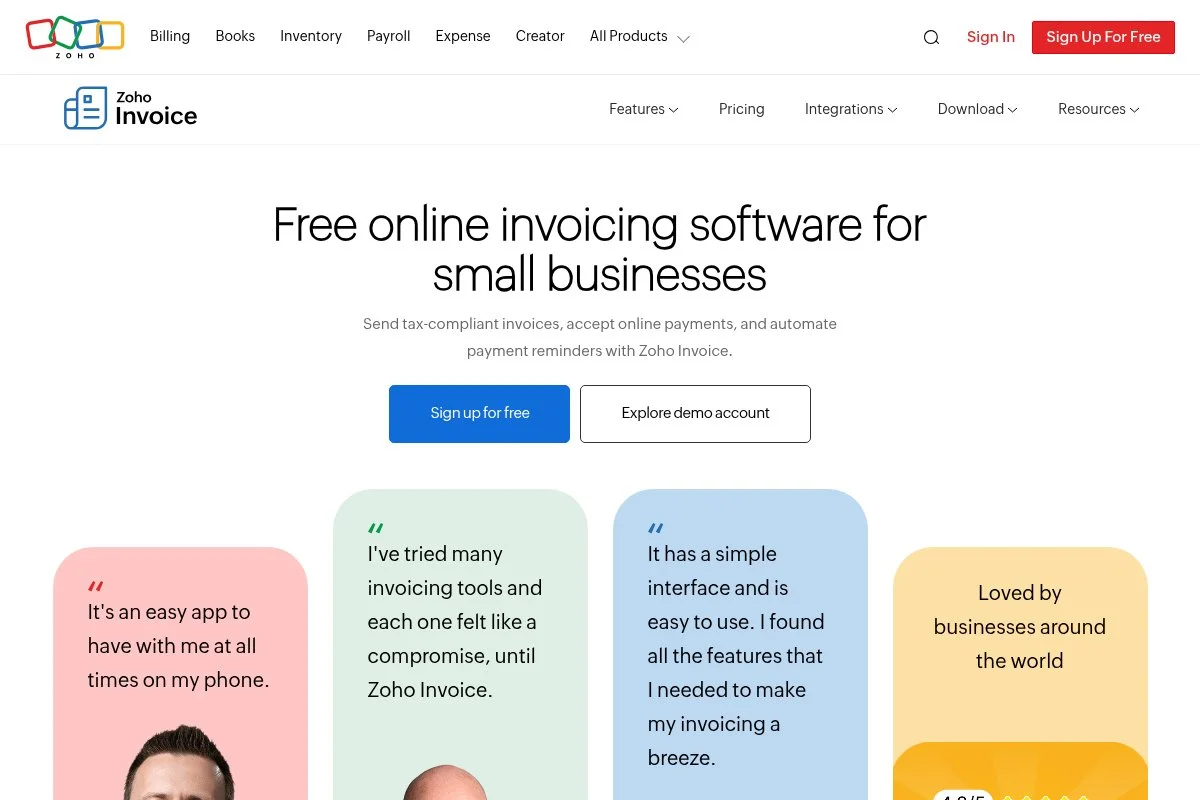
Zoho Invoice is a free invoicing and estimating platform designed for small businesses. It is part of the Zoho suite, which has a long track record building business software used worldwide.
You start at zero cost, setup takes minutes, and the estimate editor feels like a clean document builder with item lines, taxes, and discounts — you can store paint systems as items, attach photos, and email estimates with one click. Recent updates improved client portals and automated reminders, which helps move estimates to approvals faster, and the mobile apps have become smoother for on-site tweaks right after a walk-through. On the advanced side, Zoho Invoice connects with other Zoho apps for inventory, time tracking, and CRM, and it also supports multi-currency, recurring retainers, and detailed templates that mirror your brand.
The audit trail on every estimate is useful: seeing when a client viewed a proposal helps you follow up at the right moment.
How Zoho Invoice works and key features
The interface is a straightforward editor with sections for client info, line items, taxes, and notes. You can create custom items for primers, topcoats, and labor hours, then save them in a catalog for reuse, and templates are flexible and easy to brand with your logo and colors; advanced users can tweak fields, automate reminders, and connect with other Zoho tools through built-in integrations.
Analytics show estimate views, acceptance status, and conversion to invoices, and you can automate follow-ups and thank-yous, which saves time on small jobs. Zoho Invoice also includes client portals, time tracking, and basic expense capture, with support available through help docs, email, and community forums that cover practical setup steps. Overall, the experience is beginner-friendly yet flexible enough for growing teams that want cleaner, faster estimates.
Who Zoho Invoice is for
Best for solo painters, small crews, handypeople who do repaint work, property maintenance teams, and remodelers who want simple, professional estimates. It excels for room-by-room proposals, recurring work, and jobs that need clear line items with taxes and discounts. If you need deep blueprint takeoffs or field service scheduling in one app, another tool might be better. No advanced technical skill is required.
Zoho Invoice pricing
Zoho Invoice uses a free-forever model designed for small businesses. There is no subscription fee for core estimating and invoicing features.
- Free plan: $0/month, unlimited estimates and invoices, client portal, branding, automated reminders, and mobile apps
Value-wise, it is hard to beat free with this feature set. If you expand into the broader Zoho ecosystem, other Zoho apps have separate pricing, and annual billing can lower those costs. For estimates and invoices alone, the zero-cost plan is generous compared to paid competitors.
Zoho Invoice pros and cons
- Pros:
- Free plan with unlimited estimates and invoices
- Clean templates and item catalogs for paint systems
- Client portal and view tracking for timely follow-ups
- Works well on desktop and mobile
- Cons:
- No built-in blueprint takeoff or area detection
- Advanced inventory needs other Zoho apps
If you want fast, professional estimates without a bill, this is our top pick. If you need integrated takeoffs, pair it with a measurement app.
Zoho Invoice reviews
Zoho Invoice is widely reviewed across major software directories with positive ratings. If you want more depth, read user feedback on G2 and Capterra to see how teams use it day to day.
2. Square Invoices

Square Invoices is part of the Square ecosystem known for easy card payments. It focuses on quotes, approvals, and getting paid, which fits painting jobs that need deposits before scheduling.
You can start for free and send an estimate within minutes, with a simple, mobile-friendly editor — you can save standard line items, add photos, and let clients approve and pay a deposit online. Recent updates improved estimate-to-invoice conversion and added better templates in the Plus plan, and card-on-file and scheduled payments make repeat work smoother for property managers. Premium features include multi-package estimates, custom fields, and advanced approvals in the Plus tier, which help if you present good, better, best options with different paint systems.
Square is the pick when a fast deposit is the priority — clients recognize the brand and pay quickly. We also appreciate how Square keeps the process tight: estimate sent, viewed, approved, and paid without switching tools, which reduces friction on busy weeks.
How Square Invoices works and key features
The interface is a clean quote and invoice editor with item lines, taxes, deposits, and attachments. Templates are easy to brand, and you can reuse item catalogs for primers, topcoats, and prep work; advanced users can add custom fields, create multi-package proposals, and automate reminders, and analytics show views, approvals, payments, and aging, so follow-ups are straightforward.
Automation covers recurring invoices, scheduled deposits, and saved cards, you can connect other Square tools for appointments and POS, and support includes help articles, chat, and community forums. Overall, it is a strong pick if getting approvals and payments is your main goal, while takeoffs live in another app.
Who Square Invoices is for
Best for small painting crews, solo operators, and maintenance teams that want quick online approvals and deposits. It shines for repeat clients, property managers, and jobs needing milestone payments. If you require detailed takeoffs in the same tool, you will want a separate measurement app. No technical skill is required.
Square Invoices pricing
Square Invoices offers a free plan with pay-as-you-go processing fees, plus a paid tier for advanced features. There is no monthly fee on the free plan.
- Free plan: $0/month, estimates, invoices, online approvals, and basic templates
- Plus plan: $20/month, multi-package estimates, custom fields, and advanced automations
Compared to full service platforms, the value is solid if you want payments built in. The free plan covers the basics. The Plus plan pays off if you pitch multiple packages often. Annual billing may offer savings on the Plus tier depending on region.
Square Invoices pros and cons
- Pros:
- Free plan with fast client approvals and payments
- Multi-package estimates for good, better, best options
- Strong mobile app for on-site changes
- Trusted brand that speeds deposits
- Cons:
- No built-in blueprint takeoff or area detection
- Processing fees apply for payments
Choose Square if closing and collecting deposits quickly is your priority. Use another app for measurements.
Square Invoices reviews
Square Invoices has strong coverage on G2 and Capterra with positive user feedback, especially for ease of use. Ratings are consistently high for payments and mobile experience.
3. Wave Invoicing
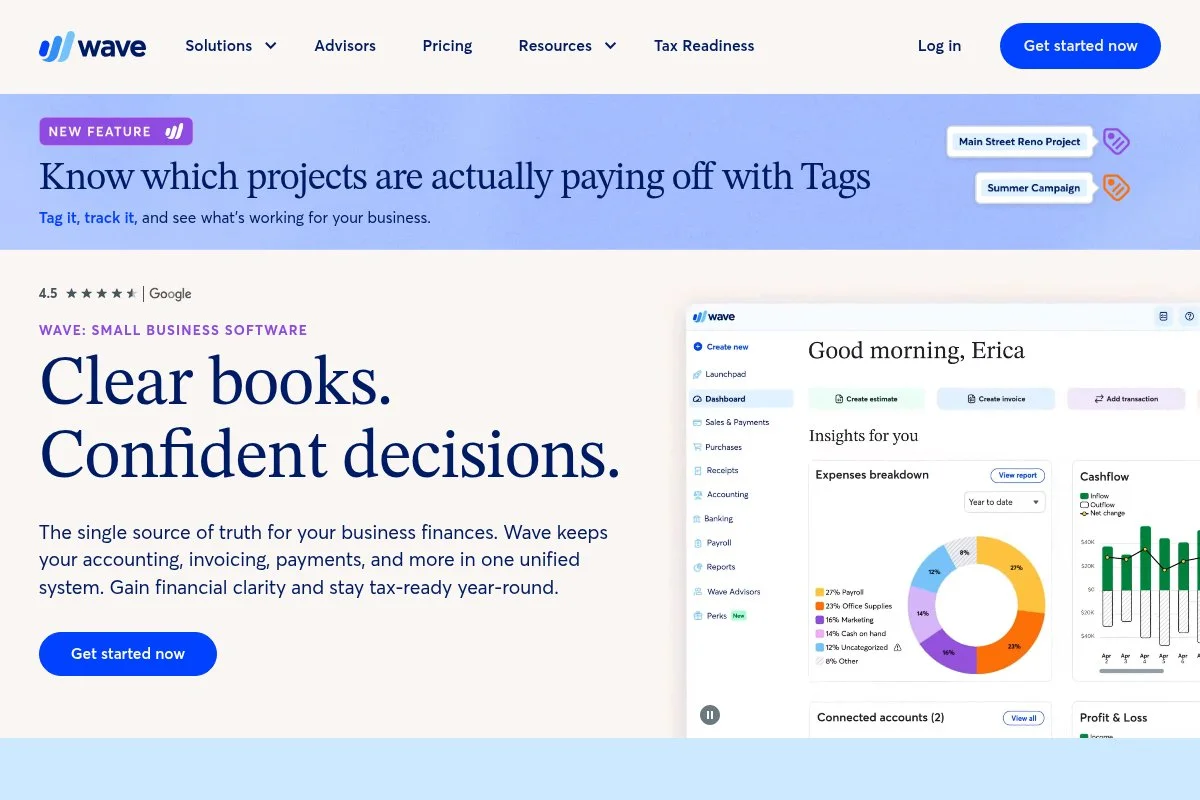
Wave Invoicing is a free solution aimed at freelancers and small businesses. It includes estimates, invoices, and basic accounting, which is handy if you want everything simple in one place.
Getting started is quick, and the estimate editor supports items, taxes, discounts, and attachments — you can set up paint materials as items with default prices, then tweak quantities per job. Wave has focused on streamlining its core workflow and payments, and the interface is light and approachable, which helps new users create their first estimate fast. On the premium side, Wave offers add-ons like online payments and payroll in select regions, and those are optional, so you can stay free if you only need estimates and invoices.
We like Wave for early-stage painters and side gigs — the free plan keeps overhead at zero while you dial in your process. The built-in basic accounting is a bonus too: when jobs close, moving from estimate to invoice to simple books takes less effort.
How Wave Invoicing works and key features
Wave’s interface is minimal and easy to learn: you can build estimates with item lines for paint, prep, and labor, add sales tax, and attach photos or notes. Templates are clean with basic branding, and advanced customization is limited compared to larger suites but enough for most small teams.
Analytics cover estimate status and invoice payments, and you can accept online payments if you enable that feature, with fees applied per transaction. Wave also includes basic accounting, receipts, and customer tracking, with support primarily via help articles and community resources and paid support options in some regions. Overall, it is beginner-friendly and keeps costs low while you build a steady pipeline.
Who Wave Invoicing is for
Best for solo painters, handypeople, and small crews who want free estimates and simple books. Great for part-time work, early-stage businesses, and low-volume months. If you need advanced templates, deep automations, or takeoff tools, another app may suit you better. No technical skill is required.
Wave Invoicing pricing
Wave’s core invoicing and estimating features are free. Optional paid services are available depending on your location.
- Free plan: $0/month, estimates, invoices, basic accounting, and customer tracking
- Optional add-ons: pay-as-you-go online payments, payroll and other services in supported regions
As a value play, Wave is strong. You can stay free until you need payments or payroll. Pricing for add-ons varies by region and service, so check current rates before enabling them.
Wave Invoicing pros and cons
- Pros:
- Free estimates and invoices with no subscription
- Simple interface that is easy to learn
- Basic accounting included for small shops
- Cons:
- Limited advanced customization and automations
- Payments and payroll incur extra costs
Choose Wave if you want a free, simple setup that covers estimates and light accounting without a monthly bill.
Wave Invoicing reviews
Wave has broad coverage on G2 and Capterra with generally positive scores for value and ease of use. Reviews often mention that the free plan is enough for early-stage businesses.
4. magicplan
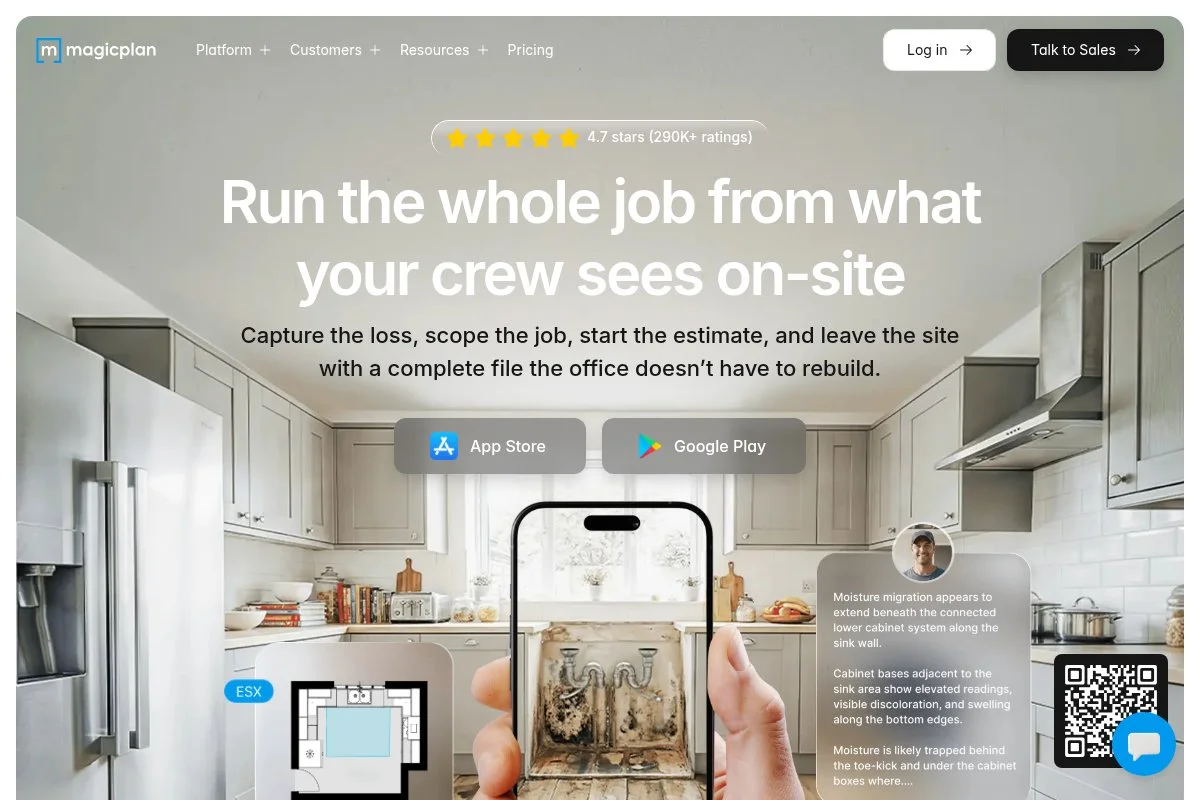
magicplan is a mobile app focused on fast floor plans and on-site documentation. It turns photos and room scans into accurate measurements, which is perfect for paint surface area takeoffs.
You can try it free with limited projects, and the capture experience is strong — scan a room, adjust walls, and you have dimensions to export into an estimating template. The app has improved room scanning, annotations, and report exports, which makes it more useful for painters who need photos, notes, and measurements in one place. On higher tiers, magicplan adds advanced reporting, estimate exports, and team collaboration, which helps if you want standardized templates and shared libraries across a crew.
magicplan is useful for fast measurements in odd-shaped rooms — it saves time on tape and math. We also like the way it organizes site photos by room, which reduces back-and-forth when a client asks about prep details later.
How magicplan works and key features
magicplan’s interface is mobile-first: you scan or draw rooms, then refine dimensions with a simple editor, and it auto-calculates areas and supports annotations and photos. You can customize templates for reports and exports, and advanced users can integrate with other tools and export structured data for estimating systems.
Analytics are light, but the reporting is strong for site documentation, and automations focus on repeatable templates and standardized outputs for teams. Beyond scanning, magicplan creates floor plans, site reports, and basic cost breakdowns on paid tiers, with support resources including tutorials and help docs aimed at trades. The overall experience pairs well with a separate estimating tool — use magicplan for takeoffs, then build and send estimates elsewhere.
Who magicplan is for
Best for painters, remodelers, restoration teams, and property inspectors who need quick, accurate room measurements. It shines for complex rooms, photo documentation, and standardized reports. If you want an all-in-one with invoicing and payments, use it alongside another app. It is beginner-friendly on mobile.
magicplan pricing
magicplan offers a free tier with limited projects and paid plans that unlock reporting, exports, and collaboration. Pricing varies by features and team size.
- Free tier: $0/month, limited projects and basic exports
- Paid plans: monthly per user, advanced reports, estimate exports, and team features
As a measurement tool, the free tier is enough to test workflows. If you want full reporting and team libraries, upgrading makes sense. Check current in-app pricing for your region and team size.
magicplan pros and cons
- Pros:
- Fast room scans for accurate wall areas
- Great site documentation with photos and notes
- Works offline on mobile devices
- Cons:
- Free tier limits projects and exports
- No built-in invoicing or deep analytics
Pick magicplan if measurements slow you down. Pair it with a free estimating tool for a complete workflow.
magicplan reviews
magicplan has strong mobile app ratings and professional reviews that praise room scanning. Feedback highlights time saved on takeoffs and site reports.
5. Homewyse
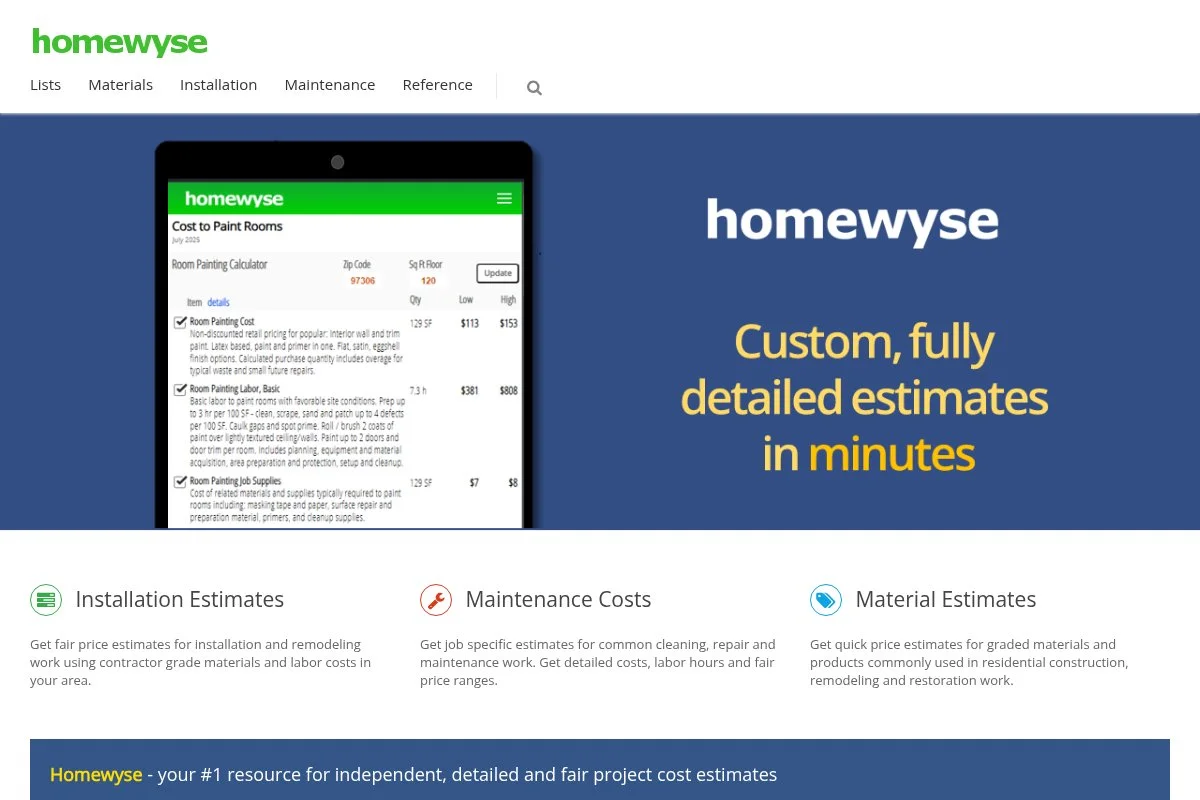
Homewyse provides free online cost calculators for trades, including painting. It is a handy reference for building line items and sanity-checking labor and material rates.
There is no install — you enter project details in your browser and get a breakdown with quantities and costs, which is useful for benchmarking your own item catalog before sending estimates. The site has grown its coverage of finishes, prep, and material options, which helps when a client wants a specific paint grade or extra surface prep. Homewyse Pro adds contractor features like proposal exports and custom labor rates, and if you build a lot of detailed estimates, that can speed up your process.
Homewyse should not be your only source, but it is a reliable second opinion for keeping numbers realistic across different zip codes. We also like that it nudges you to include prep and protection time — those hours make or break margins on repaint work.
How Homewyse works and key features
Homewyse is web-based: you select a task, enter sizes and options, and it produces quantity and cost ranges, with a simple and fast interface. Templates come from the site’s task library, and you can customize inputs like quality level, finish type, and regional labor adjustments.
Reports can be printed or copied into your estimate tool, and there are no deep analytics or automations, but the calculators are detailed for paint scopes. Homewyse is best as a reference to build your own item catalog, with support limited to documentation and site guidance. Overall, it is a strong companion for pricing discipline, not a full estimating and invoicing platform.
Who Homewyse is for
Best for painters, handypeople, and remodelers who need reliable reference costs. It shines when building item catalogs, training new estimators, and reality-checking quotes. If you need branded PDFs, approvals, and payments, pair it with an estimating or invoicing app. No technical skill is needed.
Homewyse pricing
Homewyse’s calculators are free to use online. A paid Pro option adds contractor-focused features for building and exporting estimates.
- Free access: $0/month, online calculators and task references
- Pro option: subscription for proposal exports and contractor tools
For most painters, the free tools are enough to benchmark and build item catalogs. If you want faster proposal workflows, the Pro subscription can be worth it. Check current pricing on the site.
Homewyse pros and cons
- Pros:
- Free cost calculators with detailed paint tasks
- Good for building and tuning line items
- Helpful for regional adjustments
- Cons:
- No branded estimates or client approvals
- Limited automation and reporting
Use Homewyse as your pricing compass. Then send the estimate through another tool for a polished client experience.
Homewyse reviews
Homewyse is widely referenced by contractors, though formal directory reviews are limited. It is best judged by how well it grounds your own numbers.
What is the best paint estimating software right now?
The short version: Zoho Invoice, Square Invoices, and magicplan together cover clean proposals, fast approvals, and accurate measurements without heavy costs.
Zoho Invoice is our top pick. On value it is hard to beat: the free plan covers unlimited estimates and invoices, whereas paid competitors often charge monthly for the same basics, and if you grow into the Zoho suite, you can add tools as needed without switching your estimating base.
Our second choice is Square Invoices. If deposits and fast approvals drive your schedule, Square makes life easier, and recent improvements to multi-package estimates help sell good, better, best paint systems, which can raise average job value. Its unique strength is payments — clients recognize it and trust the checkout flow — and for quick-turn jobs or property managers it may be the better primary tool.
For a third option, we like magicplan as a measurement companion: the free tier is enough to test room scans, and if you do a lot of odd-shaped rooms or historic homes, it saves time and errors on wall area math. Tools pair well: scan in magicplan, build the estimate in Zoho Invoice, and use Square when you need a quick deposit link. Choosing between the top two is not easy: Zoho Invoice wins on clear, branded proposals and unlimited estimates, while Square wins on built-in payments.
Frequently Asked Questions
Q: What should I include in a paint estimate?
Include scope details by room, prep steps, materials, coats, labor hours, exclusions, and a clear timeline. Also add taxes, payment terms, and optional upgrades like premium finishes.
Q: How do I measure wall area quickly without plans?
Measure room perimeter and height, subtract doors and windows, and multiply for total square footage. Apps like magicplan speed this up with scans and built-in area math.
Q: Are free estimating tools enough for a growing crew?
For many teams, yes. As volume grows, add paid features for multi-packages, advanced reporting, or team libraries.
Q: How can I improve my estimate approval rate?
Send estimates same-day, use photos, offer good, better, best options, and include a clear deposit link. Follow up after a view notification within 24 hours. Speed and clarity win jobs.