
Projection mapping software has to do two things well: warp content onto real surfaces and play it back reliably on show day. This guide compares six options — TouchDesigner, QLab, VPT 8, MapMap, vvvv gamma, and ofxPiMapper — covering what each does well, who it suits, what the free version includes, and where it falls short.
How we put this list together: we went through each tool’s official website, pricing page, and documentation, and checked what the free plan actually includes and where the paid tiers begin. Prices and plan limits change often, so confirm the details on the vendor’s site before you commit.
My take
The research made it clear that projection mapping software splits into two camps: tools for building something interactive and tools for running a reliable show. TouchDesigner and vvvv are creative environments. QLab is a playback and cueing tool. Many people struggle because they pick one when they need the other.
My opinion is that reliability matters more than features for most real-world shows. A simple, well-rehearsed setup in QLab or VPT 8 is less likely to fail in front of an audience than an ambitious interactive patch. If you are new, start with the simplest tool that does the job.
I also think ofxPiMapper deserves more attention than it gets. For permanent installations like a shop window or museum loop, a small Raspberry Pi is cheaper and less likely to be tampered with than a laptop left on site. It is limited, but for fixed installs that limitation is actually a strength.
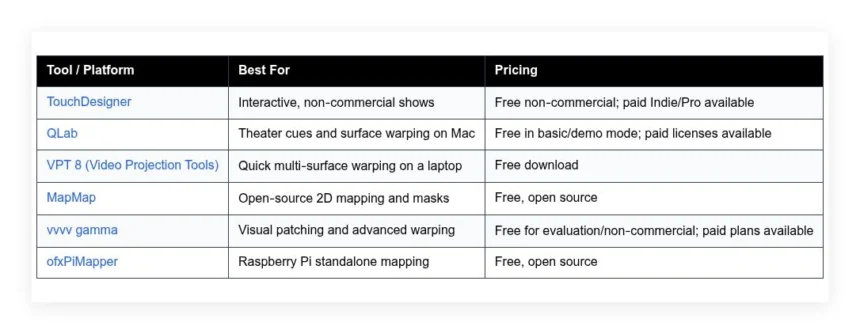
Comparison of 6 best projection mapping software in 2026 with pricing and recommended use cases
Below is a closer look at each tool, followed by our overall recommendations.
What is projection mapping software?
Projection mapping software is a visual tool that lets you warp and align video or graphics onto real-world surfaces, matching pixels to physical shapes so content looks correct from the audience view. It handles geometry and keystoning precisely, which means fewer hardware fixes and more control from the laptop.
The leverage is real: a basic projector on a flat wall gives you one rectangle, but with mapping that same projector can hit ten panels, a staircase, and a logo cutout — one rig feeling like three. At their core, mapping apps let creators, designers, and show techs import media, create quads or meshes, correct perspective, mask shapes, and cue playback to deliver visuals that lock to objects on site.
Teams often pair mapping software with content tools like After Effects, Blender, or Notch, plus show control like MIDI, OSC, or timecode, and some add media servers when they outgrow a laptop. Not every option has the same features or stability, so it pays to pick wisely for your stage and skill level.
How to choose the best projection mapping software
With so many apps and acronyms, it is easy to feel stuck juggling codecs, drivers, and venue Wi-Fi while trying to pick a tool that will not quit mid-show. We wrote this to help you match your budget, hardware, and timeline to software that fits.
A few questions worth asking:
- How generous is the free tier, and are watermarks acceptable for your gig?
- Can you warp, mask, and cue media quickly without a steep learning curve?
- If your show grows, can the tool handle more surfaces and projectors?
- What will the total cost look like if you add paid features or licenses later?
- Does it include features you need, like mesh warping, soft-edge, or NDI?
- Are logs and performance metrics clear so you can debug drops or stutters?
- How hard would it be to migrate projects to another app if needed?
- Is it stable on your OS and GPU, and does it support your codecs?
- Does it support show control like MIDI, OSC, DMX, or timecode if you need it?
We highlight these points in each pick so you can choose with fewer unknowns.
6 best projection mapping software in 2026
Here are our top picks for the best projection mapping software:
- TouchDesigner
- QLab
- VPT 8 (Video Projection Tools)
- MapMap
- vvvv gamma
- ofxPiMapper
1. TouchDesigner
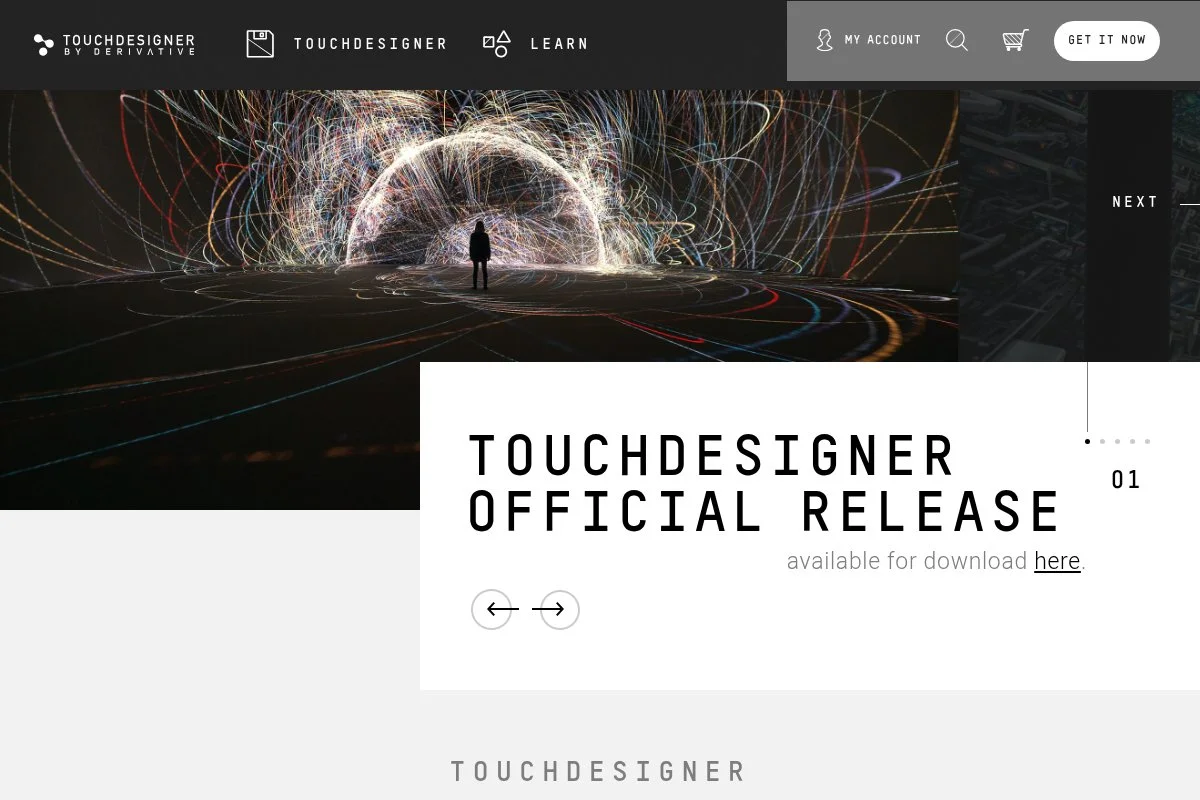
TouchDesigner is an all-in-one node-based environment from Derivative. It is used by interactive artists, touring acts, and museums; the team has deep roots in real-time graphics, and the community is large and active.
You can start on the free Non-Commercial license. Setup is simple on Windows or macOS, and the network editor is visual and fast once you learn the logic — daily tasks include warping with Kantan Mapper, driving cues, and ingesting live inputs like cameras or sensors. Recent builds brought better GPU performance, UI quality-of-life, and more stable video I/O, and the built-in mapping tools and SOPs for geometry make it capable for irregular surfaces and interactive scenes. On paid tiers you get higher output resolutions, advanced features like camera tracking integrations, and commercial use, plus features that help with multi-projector rigs and the control protocols used on larger shows.
TouchDesigner combines mapping, generative content, and show control in one file, which suits R&D and small installations. We also like the learning path: Derivative posts clear docs, the unofficial YouTube tutorials are top notch, and the forum usually has an answer when you get stuck.
How TouchDesigner works and key features
The node editor lets you drag operators for video, audio, geometry, and logic, then wire them into a pipeline. For mapping, Kantan Mapper handles quads and bezier shapes with point-by-point control, and you can build templates and reuse them across shows. Customization is wide open — Python scripting, GLSL shaders, and DAT tables allow advanced logic or custom UIs, and integrations include NDI, Spout/Syphon, MIDI, OSC, and common capture cards, which makes it play nicely in mixed rigs.
Analytics are practical: performance monitors, timing CHOPs, and TOP viewers help track frame times and GPU use, and for automation, timeline CHOPs and simple scripts can fire cues on timecode or MIDI notes. TouchDesigner also covers extras like simple web panels, cameras, and physics sims, with support from active forums, wiki docs, and workshops. Overall, it is friendly once you grasp nodes, and it stays powerful for advanced users.
Who TouchDesigner is for
Best for creators who want mapping plus interactivity: media artists, AV technicians, theater designers, educators, and students. It shines for irregular surfaces, reactive visuals, and sensor-driven pieces. Non-coders can work visually, while coders can go deep with Python and GLSL. If you only need quick two-surface warping with no extras, a lighter tool might be faster.
TouchDesigner pricing
TouchDesigner uses a license model with a generous free Non-Commercial tier and paid options for higher output and commercial work. You can install and learn without time limits.
- Non-Commercial: $0/month, non-commercial use, lower output resolution, and includes mapping tools like Kantan Mapper
- Indie: Paid annual license, for small studios and freelancers, higher resolution, and commercial use
- Commercial: Paid perpetual or annual license, full resolution output and advanced features
- Pro: Paid license, adds features for high-end workflows and studio support
Value is strong because the free tier is practical for student shows and prototypes. Indie and Commercial licenses scale with needs, and many teams start free then upgrade when a client budget covers it. Annual options usually offer savings over one-off upgrades.
Pros and cons of TouchDesigner
- Pros:
- Free Non-Commercial is usable for real tests and small installs
- Deep mapping plus interactivity in one app
- Thriving community and learning resources
- Plays well with NDI, OSC, MIDI, and capture cards
- Cons:
- Learning curve if you are new to node-based tools
- High-end output and some features require paid licenses
- Complex projects need careful GPU planning
If you want flexibility and plan to grow, pick this. If you only need simple warps for a weekend pop-up, a lighter app could be faster.
TouchDesigner reviews
Public review sites for TouchDesigner are limited compared to mainstream apps. Most validation comes from case studies, forums, and industry talks, where user sentiment is very positive for stability and flexibility.
2. QLab
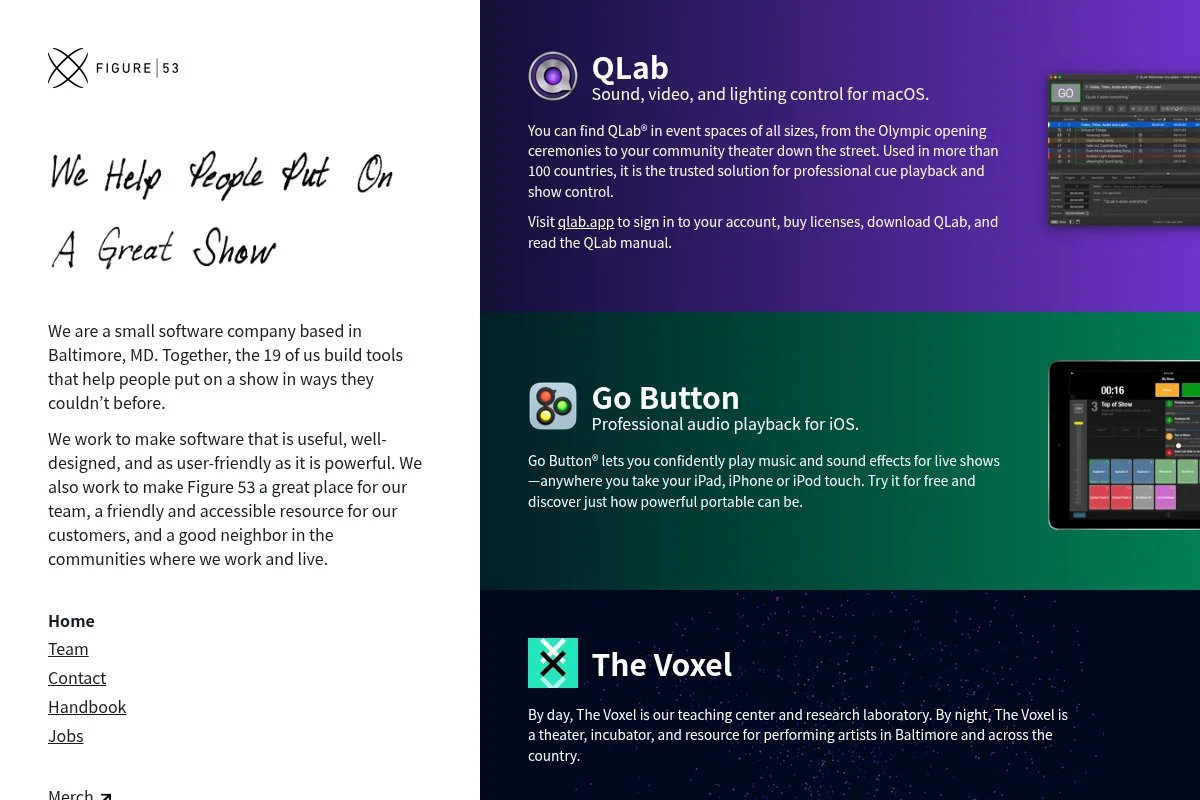
QLab, from Figure 53, is a show control staple on macOS. It is trusted in theater and live events for rock-solid cue playback, and it adds video surfaces and geometry controls that handle basic mapping needs inside a cue-based workflow.
You can start free in basic or demo mode on a Mac. Setup is quick, the cue list interface is clean, and the video surface editor makes it simple to line up rectangles and tweak corners — you can build stacks of cues with fades, pauses, and timecode triggers. Recent versions improved surface tools and performance, and QLab keeps polishing network control, OSC, and audio routing, which matters when one operator is running sound, video, and lights from the same desk. Paid licenses add more video outputs, advanced warping, and reliability features for longer runs, and they remove demo watermarks.
QLab is the pick when a director wants precise scene timing and clear paperwork — it shines for theaters, dance, and schools, where one Mac runs the show with a simple projector rig. Support is excellent: the QLab Cookbook, forums, and Figure 53 docs save hours, and the app feels designed by people who have actually called shows.
How QLab works and key features
QLab centers on a cue stack. You add Video cues, group them, and assign them to video surfaces, and the surface editor supports corner pinning, basic bezier warping, and soft-edge, with templates to recall setups. It plays well with common codecs on macOS, you can sync cues with audio, MIDI, or OSC, and automation is strong through cue links, timecode, and network triggers, with simple dashboards to monitor status and outputs during a run.
Beyond mapping, it handles sound design, mic routing, and lighting control via MSC or Art-Net in some setups. Support is responsive, with deep documentation and an active user base. For mapping alone it is basic compared to dedicated tools, but for cue-driven productions it is hard to beat.
Who QLab is for
Best for theater production managers, stage managers, school tech crews, touring acts on Mac, and churches. It excels at cue-based playback, simple surface warping, and soft-edge blends. If you need complex meshes, 3D geometry, or heavy interactivity, consider TouchDesigner or vvvv instead. It is beginner-friendly for cueing and steady for long runs.
QLab pricing
QLab offers a free mode for learning and basic use, with demo watermarks in video. You can rent or buy licenses that unlock features based on show needs.
- Free/Demo: $0/month, core cueing features, basic video surfaces with watermarks
- Video License: Paid rental or perpetual, removes watermarks and expands video features
- Audio/Lighting Licenses: Paid, add advanced audio routing and show control tools
- Bundles: Paid, combine features for full productions
Compared to pro media servers, QLab is great value for theaters. The rental model helps short runs and festivals. If you only need one projector and clear cues, the free mode is a fine way to start.
Pros and cons of QLab
- Pros:
- Free mode for learning and small tests on Mac
- Best-in-class cue workflow for theater
- Solid surface editor with corner pinning and blends
- Excellent docs and community
- Cons:
- macOS only
- Advanced mapping needs paid licenses or other tools
- Less flexible for generative or sensor-driven pieces
Pick QLab if reliability and cues come first. Skip it if you want deep 3D or heavy interactivity.
QLab reviews
QLab has strong word-of-mouth in theater circles. Formal ratings on sites like G2 are limited, but professional forums consistently praise its stability and cueing workflow.
3. VPT 8 (Video Projection Tools)
VPT 8 is a free projection tool by artist HC Gilje, built for quick mapping with multiple layers. Many art schools still teach with it because it runs on modest hardware and keeps the interface simple.
Getting started is fast: download, pick your sources, create quads, and warp them to fit your surface. We like the straightforward controls for masks, blends, and basic effects — it does not try to be everything, which helps when time is short. Recent updates focused on stability and compatibility on newer macOS and Windows versions, and it remains a go-to for pop-up shows, window displays, and classrooms. You will not find deep 3D or complex control protocols here; the tradeoff is speed, and for two or three projectors and a handful of surfaces it is hard to beat for a zero-cost tool.
Documentation is modest but clear, and while the community is smaller, you can find answers from university guides and artist blogs.
How VPT 8 works and key features
VPT 8 presents a panel-based interface with layers and sources. You load videos or images, route them to quads, and adjust geometry by dragging points, and masks and blends help hide seams on uneven surfaces. Templates are basic but easy to copy between projects, it supports simple effects and live inputs, and it can respond to basic MIDI or keyboard control for cues; analytics are minimal, so plan on visual checks and test clips.
There is no deep automation engine, yet you can chain layers and time clips if needed. It does not try to replace full media servers, but it gets many small jobs done, with community support through forums and user tutorials. Overall, it is beginner-friendly and perfect for quick layouts with limited gear.
Who VPT 8 is for
Best for students, small galleries, pop-ups, window displays, and teachers. It excels at basic 2D warping, masking, and blends with a few layers. If you need 3D mapping, sensors, or heavy show control, look to TouchDesigner or vvvv. No deep tech skills needed to start.
VPT 8 pricing
VPT 8 is free to download and use. There are no paid tiers or licenses to manage.
- Free: $0/month, full access to features included in the app
In terms of value, it is as good as it gets for basic mapping. If you later outgrow it, you can shift your content and layout notes to a more advanced tool without losing much time.
Pros and cons of VPT 8
- Pros:
- Totally free with no license hassle
- Fast to learn and set up
- Runs on older hardware
- Cons:
- Limited automation and analytics
- No deep 3D or advanced protocol support
- Smaller community and fewer templates
Pick VPT 8 for quick, low-budget mapping. If your show needs sensors or complex cues, move up the list.
VPT 8 reviews
There are few formal ratings for VPT 8 on sites like G2 or Capterra. University programs and artist blogs often recommend it for entry-level mapping and teaching.
4. MapMap
MapMap is an open-source projection mapping app focused on 2D surfaces. It came out of a community of artists and educators who wanted a free, cross-platform tool with clear controls and friendly docs.
You install it on Windows, macOS, or Linux. The UI centers on quads and beziers for warping, plus masks for shaping content, and the layer list is clean, which helps new users stay organized. Recent development builds modernized dependencies and improved stability on newer OS versions, and it keeps pace with common codecs and remains easy to compile if you want to tweak it. Advanced features are modest, but the source code is there if you need to extend it — for community arts, schools, and workshops, it hits a sweet spot of simple, free, and good enough.
MapMap suits hallway installs and maker events, and it encourages good habits like labeling layers, saving versions, and testing alignment with a grid before adding content. Documentation on the wiki is clear, GitHub issues are active enough for help, and it is a solid teaching tool.
How MapMap works and key features
MapMap uses a timeline and layer stack. You import media, assign it to polygons, then drag points to fit real-world edges, and masks help carve shapes while opacity controls blend overlapping areas. Templates can be saved and projects are portable across OSes; advanced users can build from source or add integrations through OSC for simple control, and analytics are basic, so use test grids to confirm alignment and performance.
Automation covers simple playlists and timed playback. It does not include heavy extras like 3D meshes or sensors, but that keeps the app fast, with support from docs, GitHub, and user forums. Overall, it is beginner-friendly with enough depth for many 2D installations.
Who MapMap is for
Best for educators, makerspaces, student clubs, small galleries, and community events. It is ideal for flat or slightly irregular surfaces, signage, and window displays. If you want 3D mapping or live data input, consider TouchDesigner or vvvv. No coding skills required.
MapMap pricing
MapMap is free and open source. There are no paid tiers.
- Free: $0/month, full access to all current features
For schools and non-profits, the value is excellent. You can install it on lab machines and teach the basics without license tracking.
Pros and cons of MapMap
- Pros:
- Free, cross-platform, open source
- Clean interface for 2D warping and masks
- Good for teaching and workshops
- Cons:
- No advanced 3D or heavy show control
- Smaller community than commercial tools
- Limited analytics and templates
Choose MapMap if you want a simple, no-cost tool for 2D mapping. If you outgrow it, your habits and assets will transfer well.
MapMap reviews
Formal ratings are scarce. Educators and open-source communities often recommend MapMap for entry-level mapping and workshops.
5. vvvv gamma
vvvv gamma is a visual programming environment known in media art and installation circles. It uses patching nodes like TouchDesigner but with its own approach to UI, 3D, shaders, and interaction.
You can explore it free for evaluation and often for non-commercial learning. The editor is fast, and the Stride 3D engine integration gives strong geometry and rendering — for mapping, you patch warps, camera views, and outputs in a clear graph. Recent releases improved performance, editor quality, and library integrations, and the team continues to polish workflows for real-time visuals and complex installations. Paid licenses unlock commercial use and some export features, and if you want to build interactive mapping with sensors, 3D scenes, or custom shaders, this is a great playground.
We like vvvv for experiments and for shows that need procedural content — it rewards tinkering and has an engaged community that shares patches and examples. Docs, the forum, and example patches are very helpful, and once you get the patching mindset, building mapping rigs feels natural.
How vvvv gamma works and key features
The patching interface lets you drop nodes and wire them into a flow. Mapping comes from nodes for transforms, textures, and projections, and with Stride 3D you can load models, set cameras, and project onto UVs or surface quads. Templates and help patches speed up learning, advanced users can write shaders and integrate external inputs, and analytics are developer-style: frame timings and debug info to watch performance.
Automation is easy with timelines and logic patches, and it supports OSC, MIDI, and network control. Extra tools include UI frameworks and data handling for interactive pieces, with support through the vvvv forum and manuals. Overall, it balances power and learning — it takes some effort but pays off for advanced mapping and interactivity.
Who vvvv gamma is for
Great for media artists, creative coders, installation designers, R&D teams, and universities. It excels at procedural visuals, 3D mapping, and sensor-driven projects. If you only need quick 2D warps with no coding mindset, VPT or MapMap will be faster. Some technical skill helps.
vvvv gamma pricing
vvvv offers a free path for evaluation and learning, plus paid licenses for commercial use and extra features.
- Evaluation/Learning: $0/month, non-commercial use and full editor access for learning
- Commercial licenses: Paid, per-seat, unlock commercial use and exports
- Enterprise/Support: Paid, options for teams and support
Value is good if you plan to build custom mapping or interactive shows. Start free, then budget for a paid seat when a project requires commercial terms.
Pros and cons of vvvv gamma
- Pros:
- Free path for learning and testing
- Strong 3D via Stride engine
- Great for sensors, data, and custom shaders
- Cons:
- Learning curve for patching and shaders
- Paid license needed for commercial projects
- Fewer turnkey templates than simpler tools
Choose vvvv if you enjoy building systems. If you want quick mapping with minimal setup, other picks are easier.
vvvv gamma reviews
Public review platforms have limited data for vvvv gamma. Community forums and conference talks reflect strong support among creative coders.
6. ofxPiMapper
ofxPiMapper is an open-source mapping tool for Raspberry Pi. It runs locally on a Pi so you can leave a tiny, cheap box at your installation instead of a full laptop.
Setup takes some tinkering: you install on Raspberry Pi OS, load your media, and define quads directly on the Pi. Once aligned, it can auto-start on boot, which is perfect for permanent or semi-permanent installs. Recent community updates improved playback stability and support for newer Pi models, with small fixes that make unattended installs easier. It lacks deep features, and you will want to pre-render content and keep file sizes in check — the payoff is a low-cost, low-power player that just works once dialed in.
ofxPiMapper suits retail windows and lobby loops, saving budget and removing the risk of someone bumping a laptop mid-day. Docs and GitHub issues help, makerspaces often have guides, and if you are handy with Pis it is very satisfying to deploy.
How ofxPiMapper works and key features
It provides an on-device interface to map media onto quads and triangles. You connect a keyboard and mouse to the Pi, align surfaces, and save the project, and it handles simple playlists and loops well. There are no fancy templates, but projects are portable between Pis; advanced users can compile from source and tweak features, and analytics are minimal, so test playback lengths and loops carefully.
Automation is its strength: set it to run on boot and recover after power loss. Support is through GitHub and community writeups; content is usually prepared in After Effects or Blender, then copied to the Pi over the network. Overall, it is a practical choice for fixed installs where cost and size matter.
Who ofxPiMapper is for
Best for makers, small agencies, retail displays, museums, and schools with Raspberry Pi skills. It excels at fixed installations, window loops, and simple multi-surface warps. If you need heavy 3D, live inputs, or rich cueing, use a desktop app. Some technical comfort with Linux helps.
ofxPiMapper pricing
ofxPiMapper is free and open source. Your only costs are hardware and storage.
- Free: $0/month, full source code on GitHub
For permanent installs, the value is excellent. A Pi plus a microSD card is far cheaper and safer than leaving a show laptop onsite.
Pros and cons of ofxPiMapper
- Pros:
- Free and open source
- Runs on low-cost Raspberry Pi hardware
- Auto-start on boot for unattended installs
- Cons:
- Setup requires Raspberry Pi knowledge
- Limited features and analytics
- Not ideal for complex, interactive shows
Use ofxPiMapper for budget-friendly fixed mapping. Choose another tool for live, complex productions.
ofxPiMapper reviews
No major review platform coverage. Maker forums and GitHub discussions are the best source of real-world feedback, which is generally positive for fixed installs.
What is the best projection mapping software right now?
The short version: TouchDesigner for flexibility, QLab for cueing on Mac, and VPT 8 as the easiest free on-ramp for quick, basic mapping with zero setup drama.
TouchDesigner is our top pick. Value scales well: you learn and prototype on the free Non-Commercial tier, then upgrade when a paid show lands to unlock higher output and features without changing software. Alternatives with similar scope often push you into media servers or multiple apps, which can cost more and slow you down.
QLab is a close second, especially if your world is theater, dance, or church productions on macOS. Its cue stack is so clear that new operators can run a show after a short rehearsal, and recent polish to surfaces and control keeps it current for simple mapping on a single Mac. If your main need is clean cues and reliable playback with light mapping, QLab is the pick — it handles timing better than most, and the show paperwork practically writes itself from the cue list.
For beginners or students, VPT 8 is our third choice: free, fast to learn, and great for two or three surfaces, so you can nail the basics before jumping to something deeper. On mixed projects, tools combine well: design and map in TouchDesigner, lock playback in QLab for a run, and hand off a retail loop to ofxPiMapper on a Pi. Choosing between TouchDesigner and QLab is a real decision: TouchDesigner wins when you need interactivity and custom logic, while QLab is the better first pick for cue-heavy plays and recitals.
Frequently Asked Questions
Q: What hardware do I need for projection mapping?
Start with a laptop that has a decent GPU, an HDMI or DisplayPort output, and an HD projector. Add a second screen if possible. For fixed installs, a Raspberry Pi with ofxPiMapper is a low-cost player.
Q: Can I do multi-projector blends with free tools?
Yes, at a basic level. VPT 8 and QLab support soft-edge blends. TouchDesigner and vvvv can handle more complex setups, though you may need paid tiers for higher output resolutions.
Q: How do I prevent my mapping from slipping during a show?
Use a stable projector mount, lock your keystone points, and mark projector positions. Run a test grid before doors. If possible, avoid moving set pieces after alignment.
Q: Which format should I render my content in?
Use lightweight, intraframe codecs that your tool and OS handle well. On macOS, ProRes is a safe bet. On Windows, high-bitrate H.264 or image sequences work, but test on your actual machine.